

Table of Contents
◉ Introduction ◉ The Short Answer ◉ Reader Roadmap ◉ First, Define the Job Your Video Editor Has to Do ◉ Adobe Premiere Pro vs CapCut vs DaVinci Resolve at a Glance ◉ CapCut: The Fastest Choice for Social-First Creators ◉ Adobe Premiere Pro: The Strongest Middle Ground for YouTube, Courses, and Teams ◉ DaVinci Resolve: The Best Value for Quality-Focused Editors ◉ Choosing by Use Case ◉ A Practical Decision Framework ◉ Recommended Workflows ◉ Pricing, ROI, and Upgrade Timing ◉ Privacy, Security, and Rights Considerations ◉ Common Mistakes and Troubleshooting ◉ Who Should Choose Each Editor? ◉ FAQ ◉ Conclusion ◉ Sources
Choosing between Adobe Premiere Pro, CapCut, and DaVinci Resolve is not really about finding the “best” video editor. It is about choosing the editor that matches the kind of videos you actually publish, the people involved in your workflow, and how much control you need after the first rough cut.
For a social media creator posting vertical videos every day, CapCut can feel faster than a traditional desktop editor. For a YouTuber, educator, agency, or business team that needs repeatable editing, review, captions, brand assets, and long-form exports, Premiere Pro is often the safer production hub. For creators who care deeply about color, audio, long-form quality, and avoiding a subscription, DaVinci Resolve deserves serious consideration.
This comparison is for U.S.-based creators, marketers, educators, course builders, freelancers, and small teams deciding where to invest their time. You do not need advanced editing experience to follow it, but you should know what you plan to publish: short-form social clips, YouTube videos, paid course lessons, client work, or a mix of all four.
The Short Answer
Choose CapCut if your main job is making fast, vertical, social-first content for TikTok, Instagram Reels, YouTube Shorts, and creator-style ads. It is the easiest of the three for quick captions, effects, templates, mobile editing, and trend-driven formats. CapCut lists desktop, mobile, and online creative suite options, along with tools such as auto captions, background removal, text-to-speech, AI voice features, and long-video-to-shorts workflows (CapCut, 2026). (capcut.com)
Choose Adobe Premiere Pro if you need a serious editing system for YouTube, business video, client approvals, online courses, podcasts, and repeatable branded workflows. Premiere includes professional editing, audio, effects, title animation, Adobe Express Premium, Frame.io for Creative Cloud, cloud storage, and generative credits in its individual Premiere plan as listed by Adobe (Adobe, 2026). (adobe.com)
Choose DaVinci Resolve if you want a professional post-production application with strong color correction, audio post, visual effects, and a generous free version. Blackmagic Design positions Resolve as an all-in-one editor for editing, color, visual effects, motion graphics, audio post, and photo editing, while listing DaVinci Resolve Studio at US$295 (Blackmagic Design, 2026). (blackmagicdesign.com)
For most solo social creators, start with CapCut. For most YouTubers and business teams, choose Premiere Pro. For online course creators, filmmakers, color-focused editors, and subscription-averse power users, choose DaVinci Resolve.
Reader Roadmap
• How the three editors differ in real workflows, so you can avoid choosing software based only on feature lists.
• Where each editor fits for social media, YouTube, and online courses, so your editing setup matches your publishing goals.
• What pricing and hardware tradeoffs matter, so you do not underestimate the cost of subscriptions, storage, or computer performance.
• How to build a practical editing workflow, so your projects stay organized from import to export.
• Which mistakes cause slow edits, bad captions, poor exports, or messy collaboration, so you can avoid rebuilding your workflow later.
First, Define the Job Your Video Editor Has to Do
A video editor is not just a timeline. It is where your footage becomes a finished asset for a platform, a client, a course library, or a brand campaign.
That distinction matters because social videos, YouTube videos, and online courses reward different editing choices.
A TikTok or Reel often needs speed: vertical framing, captions, hooks, fast trimming, music, templates, and safe-zone awareness. A YouTube video needs stronger structure: intro pacing, multicam or screen recording support, clean audio, chapter-friendly organization, thumbnails, and reliable long-form exports. An online course needs consistency: lesson naming, audio normalization, reusable title cards, screen captures, revision control, and an export format that works inside a learning platform.
You can force any of these editors to do all three jobs. The better question is: which one makes your most common work feel natural?
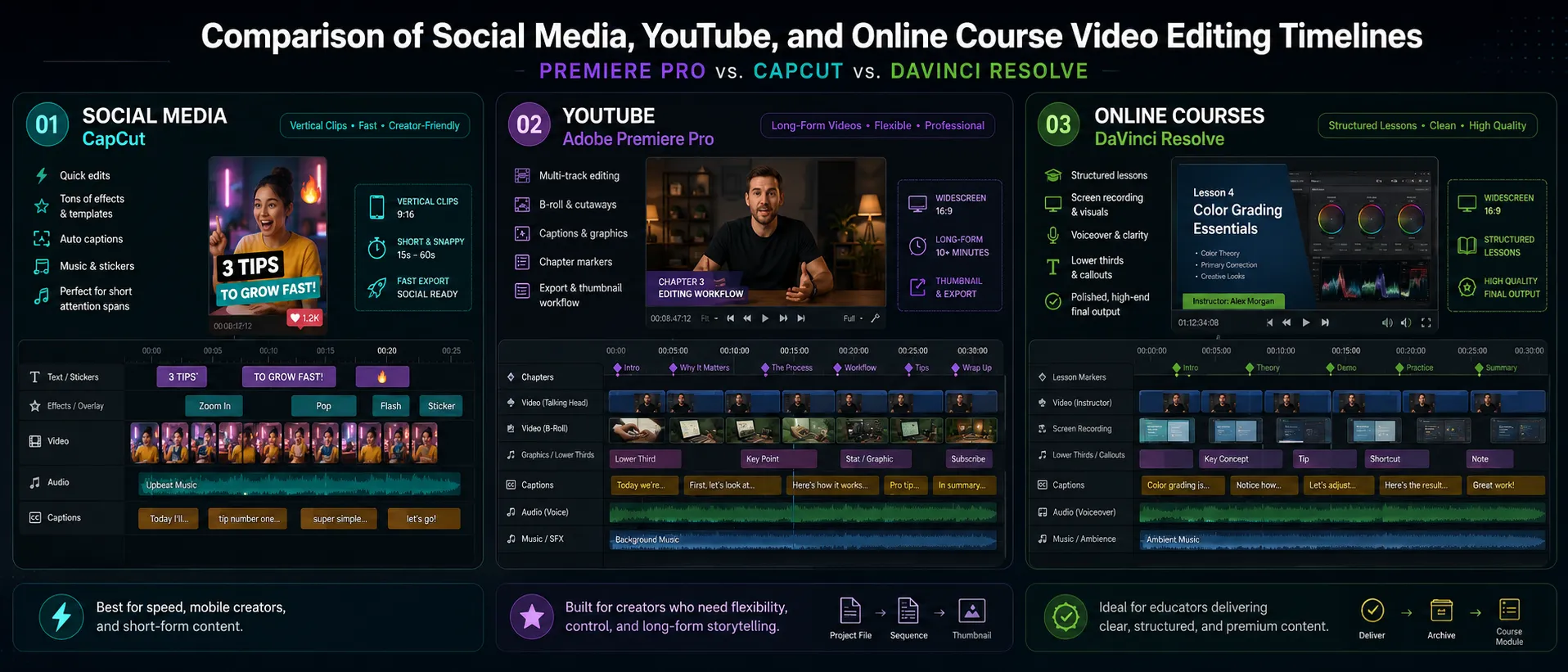
Adobe Premiere Pro vs CapCut vs DaVinci Resolve at a Glance
| Editing need | CapCut | Adobe Premiere Pro | DaVinci Resolve |
|---|---|---|---|
| Best fit | Fast social clips, vertical videos, creator ads, captions, templates | YouTube, business video, client work, online courses, Adobe workflows | Long-form editing, color grading, audio post, subscription-free professional editing |
| Learning curve | Lowest | Medium | Medium to high |
| Strongest advantage | Speed from idea to social-ready export | Flexible professional workflow and ecosystem | Color, audio, finishing quality, free version depth |
| Main limitation | Less ideal for complex long-form, legal-sensitive brand assets, and advanced finishing | Subscription cost and heavier system requirements | Steeper interface and fewer social-template shortcuts |
| Pricing model | Free tools plus Pro subscriptions; CapCut says Pro typically offers monthly and yearly plans (CapCut, 2026). (capcut.com) | Adobe lists Premiere at US$22.99/month for an annual, billed-monthly individual plan in the U.S. (Adobe, 2026). (adobe.com) | Free version plus Studio listed at US$295 (Blackmagic Design, 2026). (blackmagicdesign.com) |
| Collaboration | Useful for creator workflows and cloud/project sharing, depending on plan | Frame.io review and approval is a major advantage for teams | Blackmagic Cloud supports collaboration and flexible storage choices (Blackmagic Design, 2026). (blackmagicdesign.com) |
| Hardware pressure | Usually easiest on beginners, though AI/cloud features vary | Adobe recommends more RAM and GPU resources for HD and 4K workflows (Adobe, 2026). (helpx.adobe.com) | Powerful, but Fusion, noise reduction, and high-resolution projects benefit from strong GPU/RAM |
CapCut: The Fastest Choice for Social-First Creators
CapCut is built for the creator who needs to publish quickly. Its advantage is not that it replaces every advanced editing tool. Its advantage is that it removes friction from common social video tasks.
CapCut’s desktop page highlights AI tools, effects, filters, object/dialogue/person search, keyframes, color tools, auto captions, background removal, text-to-speech, AI voice tools, and long-video-to-shorts options (CapCut, 2026). (capcut.com) That combination makes sense for creators who shoot talking-head clips, repurpose webinars, cut podcast highlights, add captions, and publish in vertical formats.
Where CapCut Works Best
CapCut is strongest when the final video is short, vertical, and platform-native.
Use it for:
• TikTok videos, Instagram Reels, and YouTube Shorts.
• Creator-style ads where speed matters more than advanced finishing.
• Talking-head clips with auto captions.
• Quick edits from phone footage.
• Repurposing long videos into shorter clips.
• Simple brand content for a small business.
The reason is simple: CapCut keeps the creator close to the output format. It is easy to think in vertical video, captions, hooks, overlays, and platform-style pacing.
Where CapCut Becomes Less Comfortable
CapCut is less ideal when the project depends on advanced media management, long timelines, complex audio mixing, detailed color work, or formal review cycles.
That does not mean CapCut cannot handle longer videos. It means the workflow can become less controlled as the project grows. A 35-minute course lesson with screen recordings, multiple audio sources, slides, branded lower thirds, and revision notes from a client is a different problem from a 38-second Reel.
CapCut also deserves extra attention for business use. Its Materials License Agreement says permitted use can vary, and that some platform materials may be for personal/non-commercial use while “Dual Use Materials” are marked for limited commercial use (CapCut, 2026). (capcut.com) If you are editing brand campaigns, paid ads, client content, or course material, do not assume every music track, template, sticker, or stock asset is cleared for your use case.
Pricing and Storage Considerations
CapCut has free tools, but paid features, premium assets, cloud storage, and AI capabilities can vary by plan. CapCut’s own help page says CapCut Pro usually offers monthly and yearly subscription plans, and plan selection depends on editing frequency and budget (CapCut, 2026). (capcut.com)
One practical warning: CapCut announced that newly created cloud storage spaces no longer automatically receive complimentary free storage, with the free quota updated to 0GB for new cloud spaces (CapCut, 2026). (capcut.com) If you rely on cloud storage for collaboration, moving between devices, or keeping active projects synced, verify current plan limits before building your workflow around it.
Adobe Premiere Pro: The Strongest Middle Ground for YouTube, Courses, and Teams
Premiere Pro is the most balanced choice when video is part of a larger content operation. It is not the fastest app for a simple vertical clip, and it is not as famous as Resolve for color. Its strength is flexibility.
Adobe’s Premiere page describes the individual Premiere plan as including Premiere for editing, title animation, effects, sound mixing, Adobe Express Premium, tutorials, fonts, templates, Frame.io for Creative Cloud, 100GB cloud storage, and monthly generative credits (Adobe, 2026). (adobe.com) For many creators and teams, that ecosystem matters more than any single editing feature.
Where Premiere Pro Works Best
Premiere is a strong fit for:
• YouTube channels with repeatable formats.
• Online courses with multiple modules and revisions.
• Business videos, webinars, podcasts, and interviews.
• Client work that needs comments, approvals, and version control.
• Teams already using Adobe apps such as Photoshop, After Effects, Audition, Illustrator, or Adobe Express.
• Editors who need a standard professional timeline but do not want to rebuild their asset workflow from scratch.
Premiere’s text-based editing is especially useful for interview, podcast, and course content. Adobe says Text-Based Editing lets editors create and edit sequences using a transcript, with selected and rearranged text automatically trimming and adjusting related clips on the timeline (Adobe, 2026). (helpx.adobe.com) For a YouTuber cutting a 45-minute interview into a 12-minute episode, that can be more useful than another transition pack.
Why Premiere Makes Sense for Online Courses
Course videos reward consistency. You need clean intros, clear audio, readable screen captures, predictable exports, and the ability to revise lessons later.
Premiere handles that well because it supports organized project structures, reusable sequences, captions, audio mixing, and integration with review tools. Frame.io for Creative Cloud gives Creative Cloud customers an enhanced free plan with 100GB of dedicated Frame.io cloud storage, up to five projects, another user, and Camera to Cloud, according to Adobe’s Frame.io FAQ (Adobe, 2026). (helpx.adobe.com)
That matters when an instructor, editor, curriculum manager, and client all need to comment on the same lesson. Emailing exported MP4 files back and forth is not a workflow. It is a delay machine.
AI Features: Useful, but Not a Reason to Ignore Fundamentals
Adobe has added AI-assisted video editing features, including Generative Extend, which Adobe describes as a Firefly-powered tool for extending video and audio clips to cover transitions, hold reactions, or generate missing ambient sound (Adobe, 2026). (helpx.adobe.com) Adobe also promotes AI masking and Generative Extend on its AI video editing page (Adobe, 2026). (adobe.com)
These tools can help, but they do not replace story structure, audio quality, good pacing, or platform-aware exports. Treat AI as a repair and acceleration layer, not the foundation of your editing strategy.
Hardware and Cost Reality
Premiere Pro is subscription software. Adobe lists the standalone Premiere plan at US$22.99/month for an annual, billed-monthly individual plan in the U.S., while Creative Cloud Pro is listed separately with broader app access and different pricing (Adobe, 2026). (adobe.com) Pricing changes, promotions, student plans, and regional differences are common, so Adobe’s official pricing page should be considered the source of truth.
Hardware matters too. Adobe’s system requirements list 16GB RAM for HD media and 32GB or more for 4K and higher, plus GPU requirements that vary by platform (Adobe, 2026). (helpx.adobe.com) If you plan to edit 4K multicam video on an older laptop, software choice alone will not solve timeline lag.
DaVinci Resolve: The Best Value for Quality-Focused Editors
DaVinci Resolve is the serious alternative for creators who want professional editing depth without committing immediately to a monthly subscription.
Blackmagic Design says Resolve combines editing, color correction, visual effects, motion graphics, audio post-production, and photo editing in one software tool (Blackmagic Design, 2026). (blackmagicdesign.com) Resolve is organized into pages for media, cut, edit, Fusion, color, Fairlight, and delivery, which gives the application a studio-like structure (Blackmagic Design, 2026). (blackmagicdesign.com)
Where Resolve Works Best
Resolve is a strong fit for:
• YouTubers who want better color and audio control.
• Course creators producing polished evergreen lessons.
• Editors working with camera footage rather than only phone clips.
• Documentary, interview, and educational video workflows.
• Creators who want to learn professional post-production.
• Users who prefer a free version or one-time Studio purchase over subscriptions.
The free version is not a toy. Blackmagic’s regional product page states that the free version supports most 8-bit formats up to UHD 3840 x 2160 at 60 fps and includes multi-user collaboration and HDR grading, while Studio adds advanced features such as AI noise reduction, text-based editing, Magic Mask, additional Resolve FX, DaVinci Neural Engine features, 10-bit support up to 120 fps, and resolutions above 4K (Blackmagic Design, 2026). (blackmagicdesign.com)
Why Resolve Appeals to Course Creators
Online courses age differently from social posts. A Reel may be relevant for 48 hours. A course lesson may represent your brand for years.
That changes the editing priority. You want clear voice, consistent color, clean screen recordings, good compression, and a repeatable export preset. Resolve’s Fairlight audio tools and color page make it attractive for course creators who want their lessons to look and sound more polished without stacking multiple subscriptions.
Where Resolve May Frustrate Beginners
Resolve’s interface is logical, but it is not as instantly social-friendly as CapCut. The page-based workflow can feel like more software than you need if your entire output is captioned vertical clips.
It can also be demanding on hardware, especially when using Fusion effects, AI tools, noise reduction, or high-resolution footage. Resolve is a better long-term learning investment than a quick social content shortcut.
Choosing by Use Case
The simplest way to choose is to start with your primary publishing channel.
For TikTok, Reels, and Shorts
Pick CapCut if you mostly publish vertical clips and need speed. It is especially useful for solo creators who record on a phone, edit quickly, add captions, and publish often.
Pick Premiere Pro if those short clips are part of a larger content engine. For example, a podcast team may edit the full episode in Premiere, then create shorts from that timeline.
Pick Resolve if the short clip is cut from a higher-quality long-form project and you care about color, sound, and archive quality more than templates.
For vertical platforms, keep the editor’s export workflow aligned with the platform. Instagram says Reels can use aspect ratios between 1.91:1 and 9:16, with minimum 30 FPS and minimum resolution requirements (Instagram Help, 2026). (help.instagram.com) TikTok’s business help documentation recommends vertical 9:16 for in-feed ads and lists supported formats and size limits for ad creative (TikTok Business Help Center, 2026). (ads.tiktok.com)
For YouTube
Pick Premiere Pro if you want the most flexible YouTube production workflow: talking-head videos, interviews, screen recordings, thumbnails in Adobe Express or Photoshop, review in Frame.io, and later repurposing.
Pick Resolve if your YouTube channel depends on image quality, color grading, documentary-style edits, or high-quality audio post.
Pick CapCut if your YouTube work is mostly Shorts, simple talking-head videos, or lightweight creator content.
YouTube says the standard aspect ratio on computer is 16:9 and that the player adjusts to other aspect ratios such as vertical or square depending on the video and device (YouTube Help, 2026). (support.google.com) That means YouTube editors should usually think in two deliverables: a 16:9 long-form export and a 9:16 short-form cutdown.
For Online Courses
Pick Premiere Pro if you need a reliable, team-friendly workflow with review, templates, captions, and integration with other Adobe tools.
Pick Resolve if you want strong audio, color, and long-term value, especially as a solo course creator who does not want subscription costs to grow.
Use CapCut only if the course is informal, short, and social-native. It can work for lightweight lessons, but it is not the most controlled environment for a structured course library.
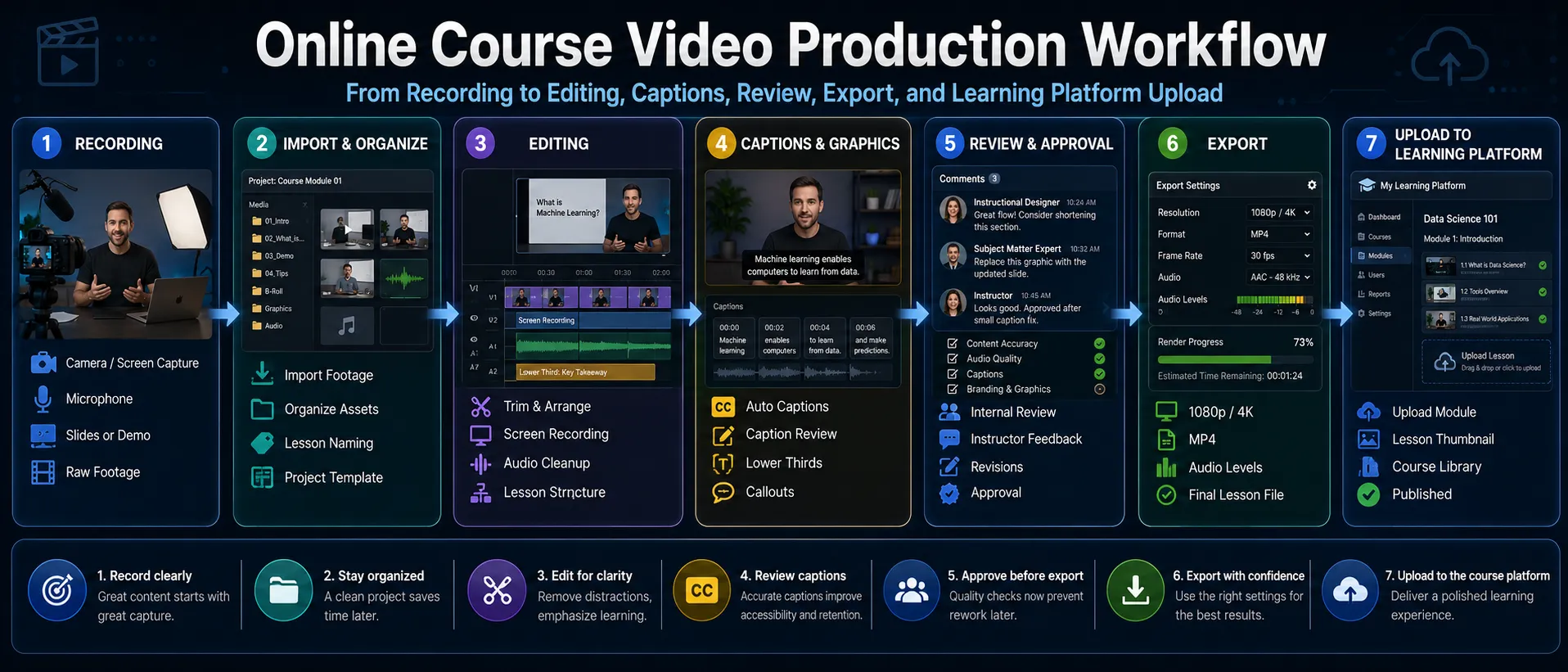
A Practical Decision Framework
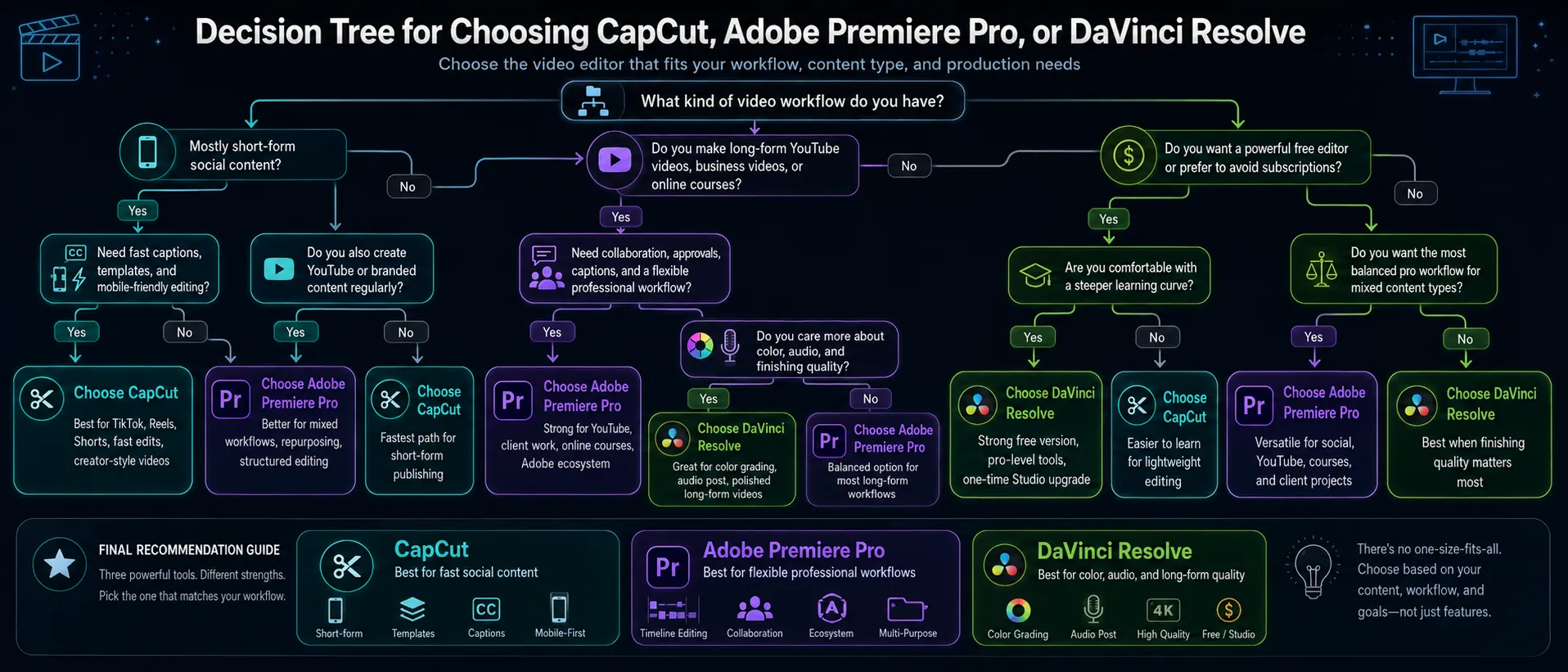
Use this framework before downloading anything or paying for a plan.
1. Choose the format you publish most often.
Decide whether your main output is vertical short-form, 16:9 YouTube, or structured course lessons. This matters because the fastest editor is the one designed around your most common export. A creator publishing daily Reels should not build a workflow around a complex finishing system unless there is a clear reason.
2. Count how many people touch the video.
Solo creators can tolerate simpler project management. Teams need review links, comments, file naming, permissions, shared assets, and version control. Premiere plus Frame.io or Resolve plus Blackmagic Cloud can be more practical than CapCut for multi-person review workflows.
3. Audit your footage sources.
Phone footage, talking-head clips, and social assets are easy to handle in CapCut. Camera originals, multicam interviews, screen recordings, podcasts, and course modules push you toward Premiere or Resolve.
4. Decide how much finishing quality matters.
If color correction, audio cleanup, and long-term archive quality matter, Resolve becomes more attractive. If branded motion graphics and Adobe ecosystem handoffs matter, Premiere gains ground.
5. Estimate the real cost.
Do not compare “free” against “paid” too casually. Include subscriptions, cloud storage, plugins, templates, stock assets, hardware upgrades, and time spent learning. A free editor that slows every project may be more expensive than a paid editor that saves hours.
6. Test one real project before committing.
Use the same footage, same caption needs, and same export target in two editors. Do not judge from a sample project. A five-minute tutorial clip with your own messy audio, your own brand fonts, and your own export needs will reveal more than a feature checklist.
Recommended Workflows
Social Creator Workflow: CapCut First
Start in CapCut. Import phone footage, trim aggressively, add captions, adjust vertical framing, check safe zones, and export for the platform. Keep a simple folder structure outside the app: raw footage, project files, exports, thumbnails, and reusable brand assets.
Practical tip: do not let templates replace editing judgment. A template can help pacing, but your first three seconds, caption readability, and audio clarity still matter more.
YouTube Creator Workflow: Premiere or Resolve
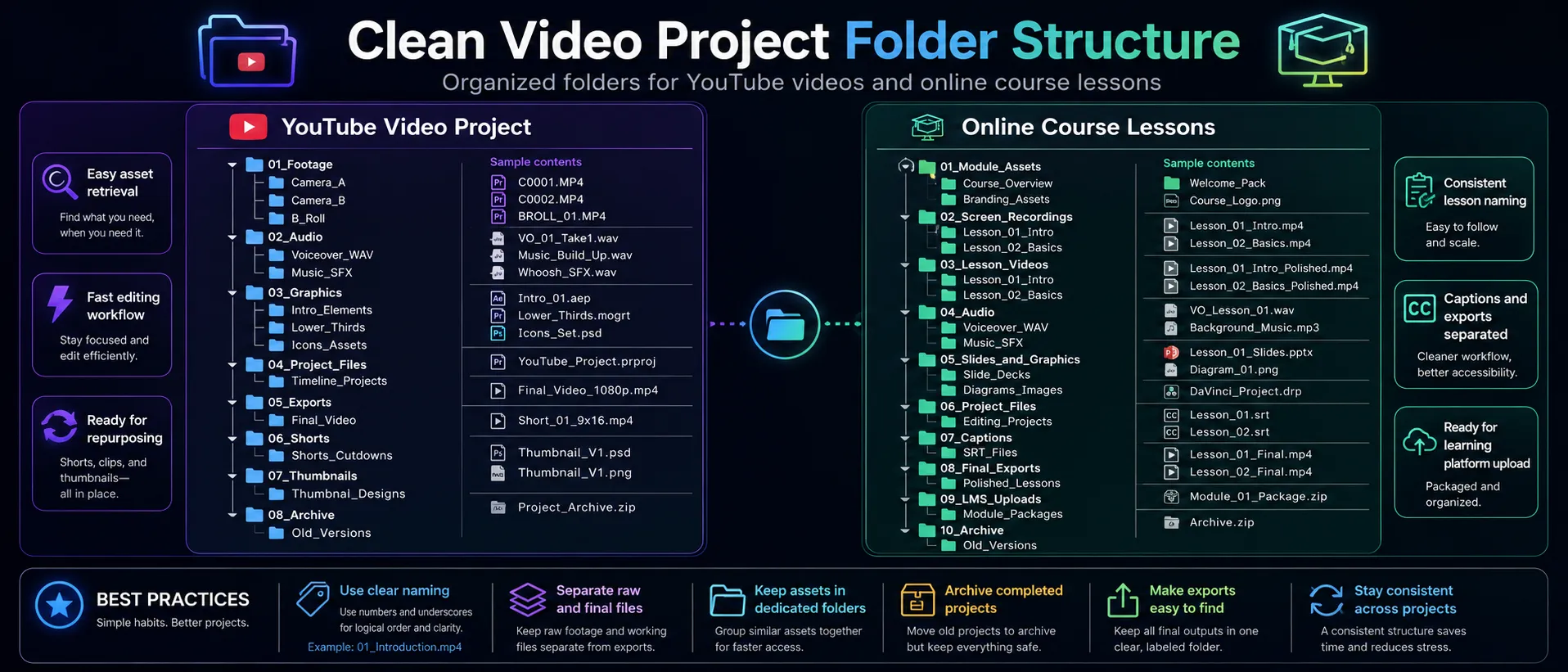
For a YouTube channel, build a repeatable folder structure before editing:
• 01_Footage
• 02_Audio
• 03_Graphics
• 04_Project
• 05_Exports
• 06_Shorts
Use Premiere if collaboration, Adobe tools, and text-based editing are central. Use Resolve if color, audio, and one-time Studio value matter more.
Online Course Workflow: Consistency First
For online courses, create a reusable project template. Include intro title, lower third, audio settings, caption style, export preset, and lesson naming convention.
The software choice matters less than consistency. Students notice uneven audio levels, unreadable slides, jumpy cuts, and confusing lesson names. Fix those before worrying about cinematic transitions.
Pricing, ROI, and Upgrade Timing
Do not upgrade because a feature sounds impressive. Upgrade when a limitation costs you time, quality, or revenue.
For CapCut, upgrade when premium features, cloud workflow, or assets are clearly part of your repeatable publishing process. Before using assets commercially, verify the license and whether the material is marked for commercial use (CapCut, 2026). (capcut.com)
For Premiere Pro, pay for it when your work benefits from the Adobe ecosystem, client review, long-form editing, captions, and structured content production. Adobe’s listed individual Premiere plan includes Premiere, Adobe Express Premium, Frame.io for Creative Cloud, storage, and generative credits, but current pricing and plan contents should be checked on Adobe’s official page before subscribing (Adobe, 2026). (adobe.com)
For Resolve Studio, upgrade from the free version when you need Studio-only features such as advanced AI tools, higher-resolution or higher-frame-rate workflows, additional Resolve FX, advanced noise reduction, or other professional finishing features listed by Blackmagic (Blackmagic Design, 2026). (blackmagicdesign.com)
Privacy, Security, and Rights Considerations
Video editing now often involves cloud uploads, AI processing, stock assets, templates, voice tools, and collaborative review links. That means privacy is not a side issue.
CapCut’s U.S. Privacy Policy says it covers the CapCut mobile app, desktop apps, official website, CapCut Web, CapCut Commerce Pro, Pippit, and other linked services, and explains how personal information is collected, used, shared, and processed for U.S. users (CapCut, 2026). (capcut.com) Adobe’s Privacy Policy describes privacy practices for Adobe services and software, including websites, services referencing the policy, and marketing, sales, and advertising practices (Adobe, 2025). (adobe.com) Blackmagic Design’s Privacy Policy explains how and why it collects, uses, shares, transfers, and stores personal information in relation to website and service use (Blackmagic Design, 2026). (blackmagicdesign.com)
Practical risk-reduction steps:
• Do not upload confidential client footage to cloud tools unless your agreement allows it.
• Check asset licenses before using templates, music, stickers, or stock video in paid ads or commercial courses.
• Use separate project folders for client work, personal content, and experimental AI edits.
• Limit team access to only the people who need it.
• Keep local backups of important projects and exported masters.
• For regulated industries, legal, medical, financial, or internal corporate training, ask the client or compliance lead before using AI tools or cloud review platforms.
Common Mistakes and Troubleshooting
Mistake: Choosing CapCut because it is fast, then using it for complex course production
This happens when a creator starts with short clips and later tries to build a full education product in the same workflow. CapCut can handle many edits, but structured courses need project consistency, review, file organization, and clean revision management.
Fix it by separating social clips from course masters. Use CapCut for promotional cutdowns, and use Premiere or Resolve for the course source files.
Mistake: Choosing Premiere Pro without checking hardware
Premiere can feel unstable or slow when the computer is underpowered for the footage. Adobe recommends 16GB RAM for HD media and 32GB or more for 4K and higher, along with GPU requirements that vary by system (Adobe, 2026). (helpx.adobe.com)
Fix it by using proxies, editing from a fast SSD, closing background apps, and matching the project settings to the footage. If you plan to edit 4K regularly, budget for hardware, not just software.
Mistake: Assuming DaVinci Resolve is only for colorists
Resolve is known for color, but it is also a full editor with audio, effects, motion graphics, media organization, and delivery pages (Blackmagic Design, 2026). (blackmagicdesign.com) The mistake is ignoring it because it looks “too professional.”
Fix it by learning only the pages you need first: Media, Cut or Edit, Fairlight basics, Color basics, and Deliver. You do not need to master Fusion on day one.
Mistake: Exporting one version for every platform
A 16:9 YouTube video is not automatically a good Reel. A vertical short may not work as a course lesson. YouTube’s standard desktop aspect ratio is 16:9, while vertical platforms often reward 9:16 framing (YouTube Help, 2026; TikTok Business Help Center, 2026). (support.google.com)
Fix it by planning exports before editing. Keep titles and captions inside safe zones, leave room for platform UI, and create separate sequences for 16:9 and 9:16.
Mistake: Trusting auto captions without review
Auto captions save time, but they still need human review. Names, product terms, accents, and technical language can be wrong.
Fix it by reviewing captions before export, especially for course content, legal-sensitive content, medical topics, financial education, and brand campaigns.
Mistake: Using templates or music commercially without checking rights
This is especially risky for ads, client work, and paid courses. CapCut’s Materials License Agreement says permitted use varies and that some materials are marked for commercial use (CapCut, 2026). (capcut.com)
Fix it by using commercially cleared assets, keeping license records, and avoiding unclear music or template sources for client deliverables.
Who Should Choose Each Editor?
Choose CapCut if:
• You publish mostly TikTok, Reels, and Shorts.
• You need quick captions, templates, effects, and social-ready exports.
• You edit mostly on mobile or move between mobile, desktop, and web.
• You value speed more than advanced finishing.
• You are a solo creator or small business with simple approval needs.
Choose Premiere Pro if:
• You produce YouTube videos, podcasts, courses, or business content.
• You collaborate with clients, editors, or stakeholders.
• You use Photoshop, After Effects, Adobe Express, Audition, or Frame.io.
• You need transcript-based editing and structured project management.
• You are comfortable paying for a subscription if it supports your workflow.
Choose DaVinci Resolve if:
• You want professional editing depth with a powerful free version.
• You care about color grading, audio post, and finishing quality.
• You dislike subscription-only software.
• You make long-form YouTube videos, documentaries, courses, or polished brand videos.
• You are willing to accept a steeper learning curve.
FAQ
Conclusion: Match the Editor to the Work, Not the Hype
The right choice depends on your publishing reality.
If you are making daily short-form content, start with CapCut and keep your workflow simple. If you are building a YouTube channel, client video operation, or online course business, Premiere Pro gives you a flexible production system with strong collaboration and ecosystem advantages. If you want professional finishing power, strong color and audio tools, and a serious free version, DaVinci Resolve is hard to ignore.
Before choosing, run one real project through your top candidate. Use your actual footage, your real caption needs, your real export format, and your real deadline.
Quick checklist:
• Choose CapCut for fast vertical social content.
• Choose Premiere Pro for YouTube, business video, courses, and team review.
• Choose DaVinci Resolve for color, audio, long-form quality, and subscription-free depth.
• Check pricing and plan limits on official pages before paying.
• Check asset licenses before using templates, music, or stock materials commercially.
• Build separate exports for 16:9 YouTube, 9:16 shorts, and course platforms.
• Back up your project files and exported masters before publishing.
Sources
• Adobe Premiere Pro — https://www.adobe.com/products/premiere.html
• Adobe Premiere Pro System Requirements — https://helpx.adobe.com/premiere/desktop/get-started/technical-requirements/adobe-premiere-pro-technical-requirements.html
• Adobe Premiere Pro Text-Based Editing Overview — https://helpx.adobe.com/premiere/desktop/edit-projects/edit-video-using-text-based-editing/overview-of-text-based-editing.html
• Adobe Premiere Pro Generative Extend Overview — https://helpx.adobe.com/premiere/desktop/edit-projects/edit-with-generative-ai/generative-extend-overview.html
• Adobe Premiere AI Video Editing — https://www.adobe.com/products/premiere/ai-video-editing.html
• Frame.io for Adobe Creative Cloud FAQ — https://helpx.adobe.com/x-productkb/multi/frameio-creative-cloud-faq.html
• Adobe Privacy Policy — https://www.adobe.com/privacy/policy.html
• CapCut Desktop Video Editor — https://www.capcut.com/tools/desktop-video-editor
• CapCut Pro Cost Help Page — https://www.capcut.com/help/how-much-does-capcut-pro-cost
• CapCut Privacy Policy — https://www.capcut.com/clause/privacy-policy
• CapCut Materials License Agreement — https://www.capcut.com/clause/material-license-agreement
• CapCut Cloud Storage Quota Notice — https://www.capcut.com/help/free-quota-for-cloud-storage
• DaVinci Resolve 21 — https://www.blackmagicdesign.com/products/davinciresolve
• DaVinci Resolve Studio — https://www.blackmagicdesign.com/products/davinciresolve/studio
• DaVinci Resolve Collaboration — https://www.blackmagicdesign.com/products/davinciresolve/collaboration
• Blackmagic Design Privacy Policy — https://www.blackmagicdesign.com/privacy
• YouTube Video Resolution and Aspect Ratios — https://support.google.com/youtube/answer/6375112
• Instagram Reel Size and Aspect Ratios — https://help.instagram.com/1038071743007909
• TikTok Auction In-Feed Ads Specifications — https://ads.tiktok.com/help/article/tiktok-auction-in-feed-ads