



Table of Contents
◉ Introduction ◉ The Short Answer ◉ Reader Roadmap ◉ Why Adobe Still Matters for Digital Creators ◉ The Five-App Creator Stack ◉ Adobe Express: The Fastest Place to Start ◉ Photoshop: Precision Image Editing and Creative Control ◉ Lightroom: Photo Organization, Culling, and Consistent Style ◉ Premiere Pro: The Video Production Layer ◉ Acrobat: The Overlooked Creator Tool ◉ A Complete Adobe Workflow for Digital Creators ◉ Practical Scenario: Launching a Digital Product ◉ Pricing and Plan Considerations ◉ Privacy, AI, and Data Handling ◉ Common Mistakes and Troubleshooting ◉ When Not to Use This Adobe Workflow ◉ Editorial Decision Guide: Which App Should You Open First? ◉ FAQ ◉ Conclusion ◉ Sources
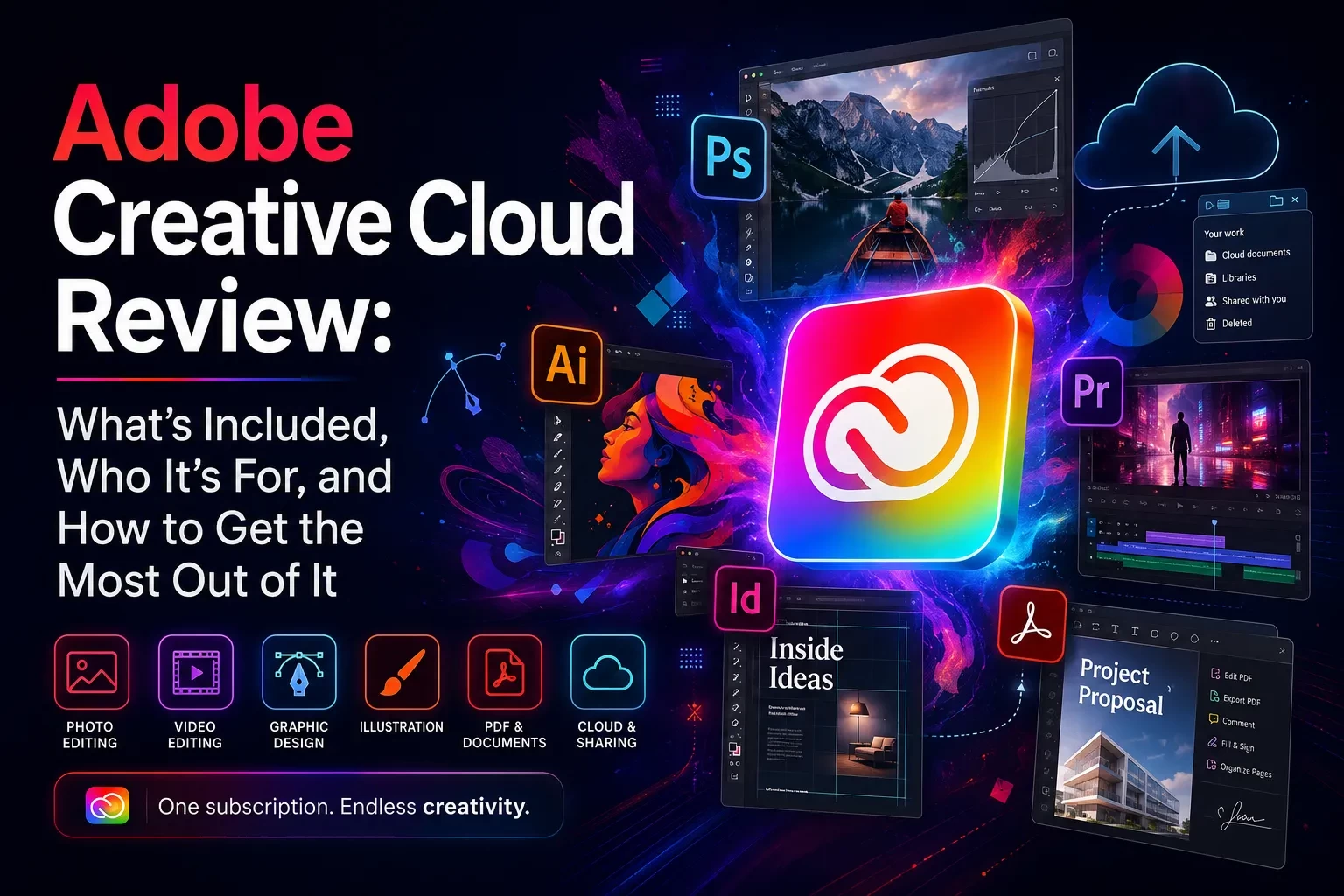
Digital creators rarely work in one format anymore. A single campaign might need a polished Instagram Reel, edited product photos, a YouTube thumbnail, a downloadable PDF guide, a client approval document, and short-form social assets resized for several platforms. That is why Adobe’s ecosystem matters: Express, Photoshop, Lightroom, Premiere Pro, and Acrobat are not just separate apps. Used well, they can form a production pipeline.
This guide is for creators, freelancers, marketing teams, coaches, educators, and small business owners who need a realistic Adobe workflow without wasting time bouncing between tools randomly. You do not need to be a full-time designer or video editor, but you should understand the difference between quick content assembly and professional finishing work.
The goal is simple: know which Adobe app to use at each stage, avoid doing advanced work in the wrong tool, and build a repeatable process for planning, editing, publishing, and delivering creative assets. Adobe’s current Creative Cloud ecosystem includes 20+ creative apps in certain plans, including Photoshop, Premiere, Acrobat, and related mobile or web versions depending on the plan (Adobe, 2026). (helpx.adobe.com)
The Short Answer
Adobe’s best workflow for digital creators is not “use every app for everything.” It is: plan and assemble fast assets in Adobe Express, edit and composite images in Photoshop, organize and color-correct photos in Lightroom, edit video in Premiere Pro, and package documents, proposals, contracts, worksheets, or lead magnets in Acrobat.
Adobe Express is the best starting point for social graphics, simple video edits, branded templates, flyers, thumbnails, and quick campaign assets. Adobe describes Express as an all-in-one design, photo, video, and PDF app for making social posts, images, videos, flyers, and more (Adobe, 2026). (adobe.com)
Photoshop is where you move when an image needs precision: detailed retouching, compositing, object removal, generative edits, textural adjustments, or layered creative work. Lightroom is better for photo libraries, batch edits, color grading, culling, and consistent photo treatment across shoots.
Premiere Pro is the serious video editing layer: timelines, audio, effects, captions, color, pacing, and exports for multiple platforms. Acrobat completes the workflow when your content becomes a PDF, proposal, worksheet, media kit, contract, briefing document, or client-facing deliverable.
The practical rule: use Express for speed, Photoshop for pixel-level control, Lightroom for photo consistency, Premiere Pro for video storytelling, and Acrobat for professional documents.
Reader Roadmap
• How each Adobe app fits into a creator workflow, so you can stop opening five tools for one simple task.
• Where Express ends and Photoshop, Lightroom, Premiere Pro, or Acrobat should take over, so you avoid slow or messy production habits.
• How to build a repeatable content pipeline from idea to published asset, so campaigns feel organized instead of improvised.
• What pricing and plan details to check before subscribing, so you choose based on actual workload rather than brand familiarity.
• Which mistakes commonly break Adobe workflows, so you can troubleshoot file, export, version, and collaboration problems early.
Why Adobe Still Matters for Digital Creators
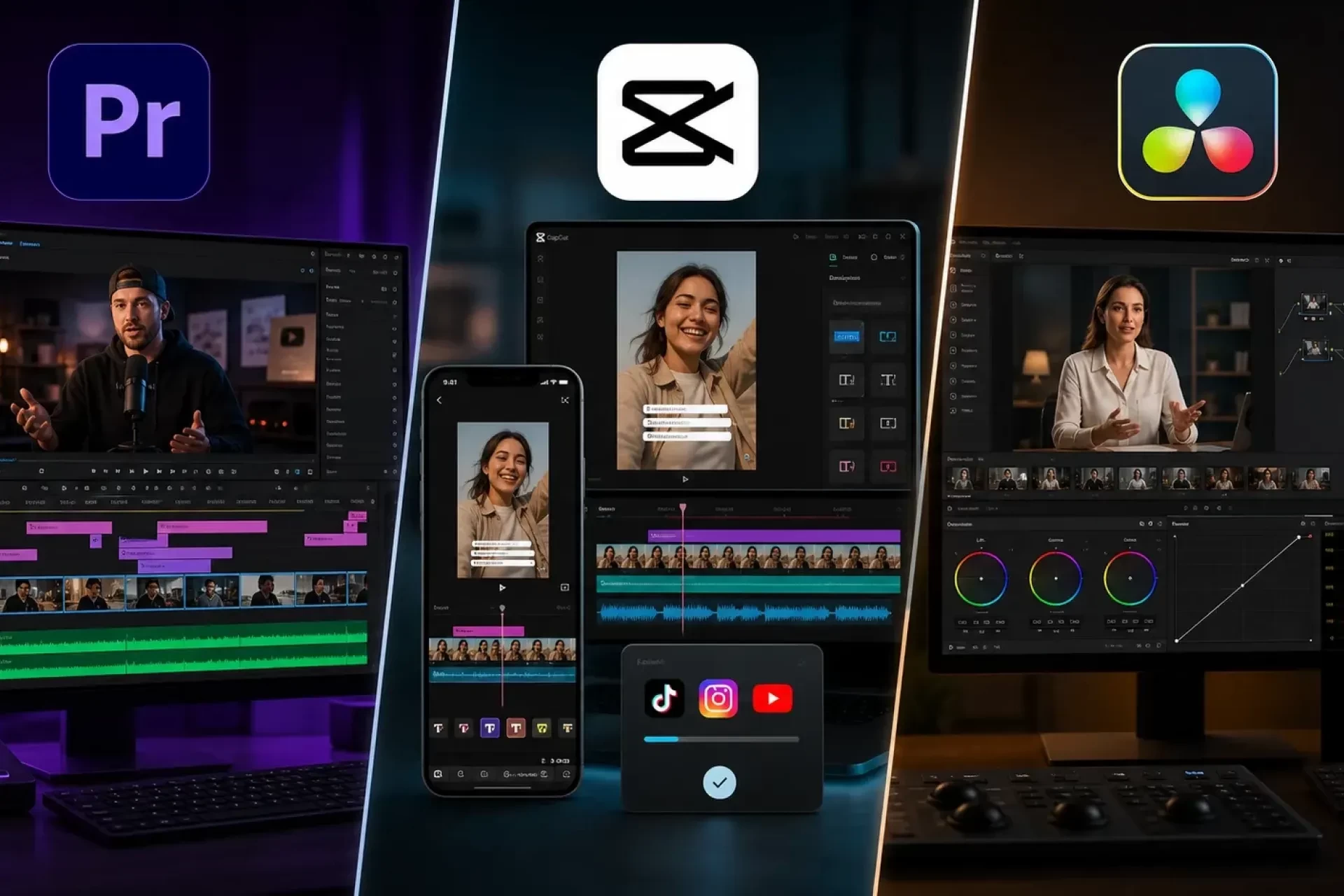
Adobe’s advantage is not that every app is the simplest option. In many cases, it is not. Canva, CapCut, Final Cut Pro, DaVinci Resolve, Figma, Google Docs, Notion, and other tools may be easier or cheaper for specific tasks.
Adobe’s advantage is range.
A creator who shoots photos, edits video, builds social graphics, sells digital products, and sends PDF materials can stay inside one connected creative environment. Creative Cloud Libraries, templates, fonts, cloud files, and cross-app workflows can reduce the friction between “I have an idea” and “I have a finished asset.”
That does not mean every creator needs the full suite. A TikTok-first creator may only need Premiere Pro or Express. A photographer may live mostly in Lightroom and Photoshop. A coach selling digital worksheets may get more value from Express and Acrobat than from Premiere. The right Adobe setup depends on the type of content you produce most often.
A good workflow starts with role clarity.
The Five-App Creator Stack
Think of these tools as a production team. Each app has a job.
| Adobe app | Best role in the workflow | Use it when | Avoid relying on it when |
|---|---|---|---|
| Adobe Express | Fast design, branded social content, lightweight video, templates | You need speed, resizing, simple graphics, thumbnails, flyers, or campaign variations | You need advanced retouching, complex compositing, long-form editing, or deep file control |
| Photoshop | Image editing, compositing, retouching, generative image work | You need layers, masks, object removal, image repair, mockups, or detailed creative control | You are editing hundreds of photos from a shoot |
| Lightroom | Photo organization and color workflow | You need batch edits, presets, culling, RAW photo work, or consistent image style | You need advanced composites, graphic design, or multi-layer artwork |
| Premiere Pro | Video editing and post-production | You need timelines, audio, effects, captions, color, motion, or professional exports | You only need a quick social template or one-slide animated post |
| Acrobat | PDF creation, editing, signing, review, AI document summaries | You need client deliverables, proposals, forms, contracts, lead magnets, or document review | You are designing visual-first social content from scratch |
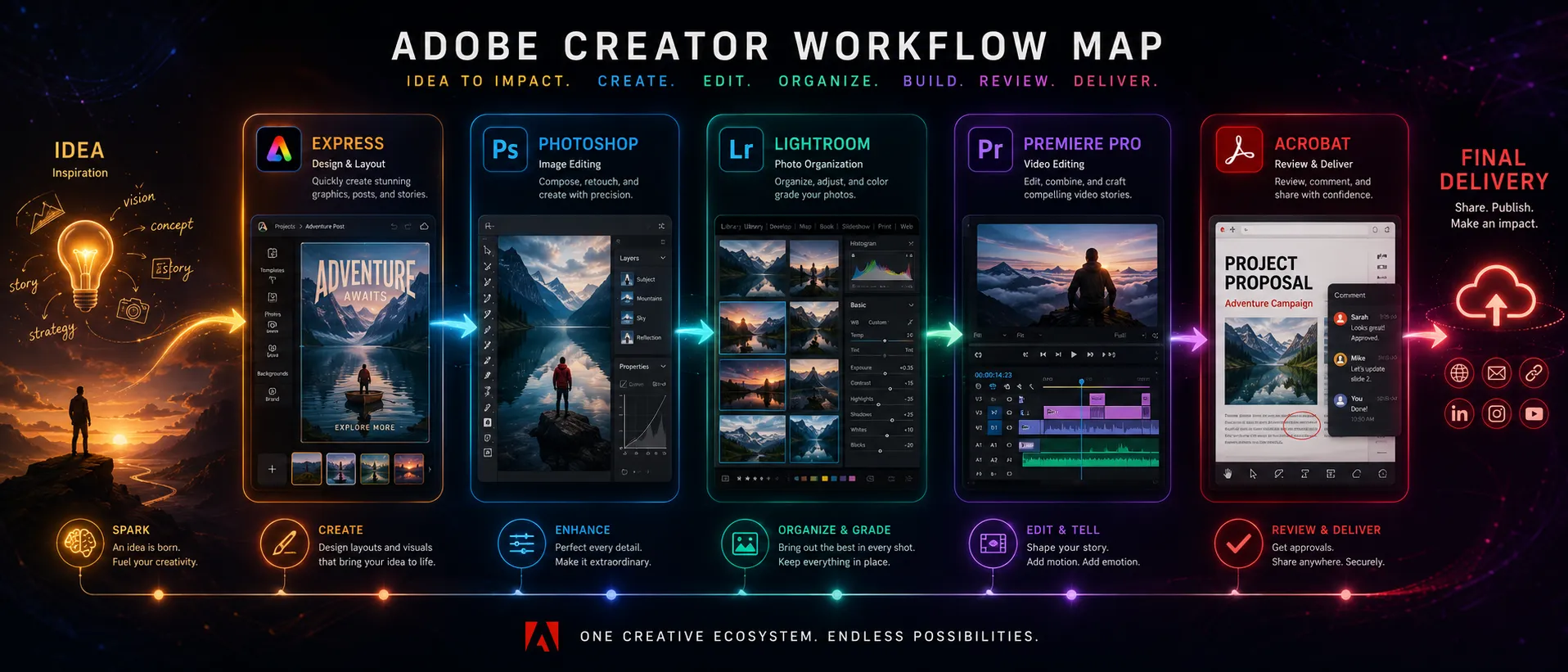
The workflow map above would help readers see the handoff points: Express for assembly, Photoshop and Lightroom for image work, Premiere Pro for video production, and Acrobat for document delivery.
Adobe Express: The Fastest Place to Start
Adobe Express is the front door for many digital creators because it reduces the blank-page problem. Instead of starting every post, thumbnail, flyer, or short video from scratch, you can use templates, brand assets, simple editing tools, and resizing features.
Adobe’s current Express page positions the app as a quick create-anything tool for social posts, images, videos, flyers, and similar assets (Adobe, 2026). It also highlights AI-assisted creation, Photoshop and Firefly connectivity, video editing features, and one-click resizing for social campaigns (Adobe, 2026). (adobe.com)
Best Uses for Express
Use Express when the asset is public-facing but not technically complex:
• Instagram posts, Reels covers, TikTok thumbnails, YouTube thumbnails, Pinterest pins, and LinkedIn graphics.
• Simple short-form videos with text overlays, brand colors, and quick exports.
• Flyers, posters, event graphics, lead magnet covers, and announcement visuals.
• Branded campaign variations where the main task is resizing and adapting.
• Simple PDF or presentation-adjacent materials when design speed matters more than advanced layout control.
Express is especially useful when consistency matters. If your brand uses the same colors, typography, logo placement, and call-to-action style, Express can help you produce more assets without redesigning from zero each time.
Where Express Is Not Enough
Express becomes limiting when the creative problem requires deep control. If you need to remove a distracting object from a product photo, blend several images into one composite, cut around hair, correct skin texture, or prepare a high-quality hero image, Photoshop is the better choice.
If you are editing an entire photo shoot, Lightroom is more efficient. If you are editing a video with several audio tracks, advanced timing, color correction, and detailed cuts, Premiere Pro is the better tool.
The mistake is treating Express like a replacement for the whole Adobe suite. It is better understood as the fast campaign assembly layer.
Photoshop: Precision Image Editing and Creative Control
Photoshop is the Adobe tool to use when an image has to be manipulated, repaired, composited, or finished with precision. It is not just for photographers. Digital creators use Photoshop for thumbnails, product mockups, ad visuals, website graphics, course images, and campaign hero assets.
Adobe’s Photoshop documentation describes Generative Fill as a tool for altering an image non-destructively with text prompts, and its official Photoshop page says Generative Fill can add and remove content using simple text prompts (Adobe, 2026). (adobe.com)
Adobe’s Photoshop release notes also reference improvements such as non-destructive clarity and dehaze adjustment layers, grain adjustment layers, model selection for Generative Fill and Generative Expand, and an updated Remove tool for removing unwanted objects or people with more consistent results (Adobe, 2026). (helpx.adobe.com)
Best Uses for Photoshop
Use Photoshop when you need:
• Precise background removal or replacement.
• Thumbnail composites with people, products, text, and effects.
• Product image cleanup.
• Image expansion for vertical, square, or wide formats.
• Layered mockups for digital products, apps, ebooks, or packaging.
• Retouching that should not affect the original image destructively.
• Visual concepts that combine photography, graphics, and AI-assisted edits.
For example, a creator launching an online course could use Photoshop to create a hero image that combines a portrait, a laptop mockup, brand textures, and a generated background extension. That finished visual could then move into Express for campaign variations.
A Practical Photoshop Rule
Do not use Photoshop for every photo. Use it for the images that matter most.
Lightroom is better for editing 300 photos from a brand shoot. Photoshop is better for the five images that become ads, landing page visuals, thumbnails, or sales page graphics.
Lightroom: Photo Organization, Culling, and Consistent Style
Lightroom is less flashy than Photoshop but often more important for creators who work with original photography. It helps you import, organize, select, edit, and export photo sets without treating every image like a separate design project.
Adobe’s Lightroom features page highlights tools for improving image quality, selecting better photos faster with AI-powered Assisted Culling, portrait touch-ups through Quick Actions, and distraction removal such as Dust Removal (Adobe, 2026). (adobe.com)
Best Uses for Lightroom
Use Lightroom when you need:
• A consistent look across a photo shoot.
• Fast adjustments to exposure, contrast, color, crop, and tone.
• Presets for repeatable brand style.
• Culling to narrow hundreds of images into a usable set.
• RAW photo editing.
• Batch exports for web, social, and client review.
A photographer, creator, or small brand might shoot 400 images during one content day. Lightroom is where you select the best 40, apply a consistent look, correct exposure, and export a polished set. Photoshop may only touch the final five.
Lightroom vs. Photoshop for Creators
Lightroom is for the collection. Photoshop is for the hero asset.
That distinction saves time. If you try to process an entire shoot in Photoshop, you will overwork the project. If you try to do advanced compositing in Lightroom, you will hit the limits of the tool.
Premiere Pro: The Video Production Layer
Premiere Pro is where the Adobe workflow becomes a real content engine. Express can handle simple video assets, but Premiere Pro is built for editing timelines, audio, effects, titles, captions, and more polished video stories.
Adobe’s Premiere product page describes the app as professional video editing and post-production software for editing and trimming video, adding effects, mixing audio, extending video, and more (Adobe, 2026). (adobe.com)
Adobe’s 2026 Premiere documentation highlights updates such as new effects and transitions, while its official blog described AI-powered Object Mask as a way to create, refine, and track masks of moving subjects with hover-and-click selection in Premiere (Adobe, 2026). (helpx.adobe.com)
Best Uses for Premiere Pro
Use Premiere Pro when your video needs:
• Multi-clip editing.
• Better pacing and story structure.
• Voiceover, music, sound design, or audio cleanup.
• Captions and text timing.
• Color correction.
• B-roll organization.
• Multiple export versions.
• More control than a mobile-first editing app gives you.
Premiere Pro is especially valuable when you repurpose content. A 20-minute interview can become a YouTube video, five short clips, an audiogram, a vertical Reel, and quote graphics. Premiere handles the main edit; Express can help package the short-form versions.
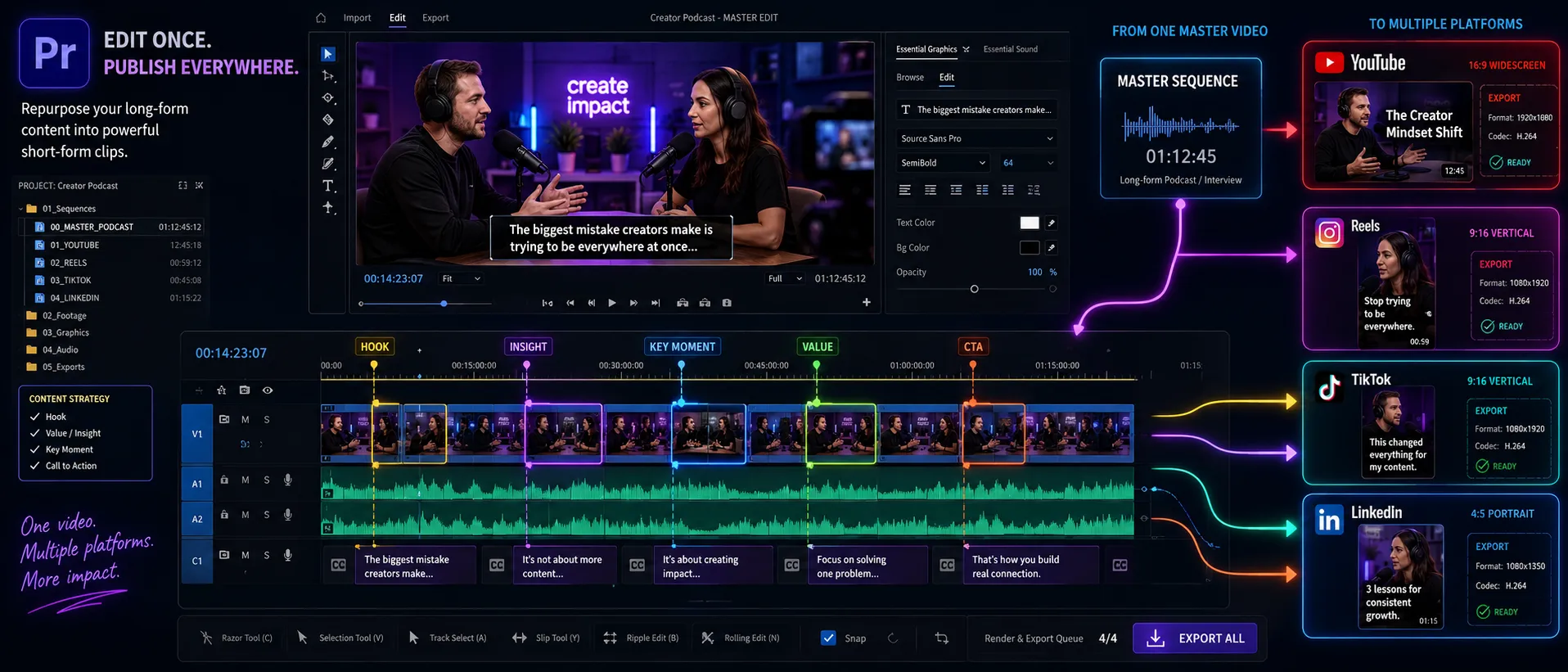
A visual timeline here would clarify how one source recording can become multiple platform-specific exports without rebuilding the project each time.
When Express Is Better Than Premiere Pro
Do not open Premiere Pro for a five-second animated quote card unless you need timeline-level control. Express is faster for simple social motion, branded templates, and quick resizing.
Premiere Pro becomes worth it when timing, audio, story, or polish matters.
Acrobat: The Overlooked Creator Tool
Creators often think of Acrobat as an office tool, but it can be a major part of a digital business workflow. If you sell services, courses, workshops, templates, consulting, photography, design, coaching, or training, you probably send PDFs.
Acrobat supports PDF editing, organizing, sharing, signing, and AI-assisted document workflows. Adobe says Acrobat AI Assistant can answer questions about PDFs, generate cited answers, summarize documents, and work across desktop, mobile, and web (Adobe, 2026). (adobe.com)
Adobe’s Acrobat AI Assistant page also says the tool can summarize long documents, answer questions about PDF content, generate outlines, extract key points, and provide cited responses, while recommending that users review AI-generated summaries against source material (Adobe, 2026). (adobe.com)
Best Uses for Acrobat
Use Acrobat for:
• Client proposals.
• Contracts and agreements.
• Course workbooks.
• Lead magnets.
• PDF checklists.
• Media kits.
• Invoices and quote documents.
• Signed approvals.
• Internal briefs.
• Research summaries.
The workflow is not only about making content. It is also about delivering content professionally. A great campaign can lose credibility if the final PDF is messy, hard to review, or not easy to sign.
A Complete Adobe Workflow for Digital Creators
The strongest Adobe workflow is sequential. Start broad, refine, produce, package, and publish.
1. Plan the Campaign Before Opening the Apps
Decide what you are creating before you choose the tool.
What to do: Write down the core message, target audience, offer, platforms, deliverables, and deadline. For example: “Launch a new productivity template with one landing page graphic, three Instagram posts, two Reels, one PDF guide, and one client-style proposal.”
Why it matters: Without a deliverables list, you will over-edit assets that do not matter and underprepare the pieces that drive results.
Practical tip: Define the “master asset.” It might be a product photo, a video interview, a PDF guide, or a campaign concept. Your workflow should revolve around that asset.
2. Organize Photos in Lightroom
What to do: Import your photos into Lightroom, remove weak shots, apply basic corrections, create a consistent look, and export only the best images.
Why it matters: Lightroom keeps photo selection and color consistency from becoming a manual mess.
Practical tip: Build a small preset library for your brand, but do not apply presets blindly. Adjust exposure and white balance per shoot.
3. Finish Key Images in Photoshop
What to do: Move only your most important images into Photoshop for detailed retouching, background cleanup, compositing, object removal, or generative expansion.
Why it matters: Photoshop is powerful but slower. Use it where the extra control will be visible.
Practical tip: Keep layered working files separate from final exports. Name them clearly, such as course-launch-hero-v1.psd and course-launch-hero-final-web.jpg.
4. Build Social and Campaign Assets in Express
What to do: Bring finished images into Express to create thumbnails, carousels, flyers, Reels covers, short videos, and resized campaign versions.
Why it matters: Express is faster for layout, brand consistency, templates, and platform adaptation.
Practical tip: Create one strong master design first, then resize and adapt. Do not design each platform version from scratch.
5. Edit Core Video in Premiere Pro
What to do: Use Premiere Pro for the main timeline: cut the story, fix pacing, balance audio, add captions or titles, color-correct footage, and export platform-specific versions.
Why it matters: Video quality is often decided by timing and audio, not just visuals. Premiere Pro gives you deeper control over both.
Practical tip: Export a clean master version before creating social cutdowns. That gives you a stable source if you need to make more versions later.
6. Package Documents in Acrobat
What to do: Use Acrobat to prepare proposals, contracts, PDFs, worksheets, checklists, or client review documents.
Why it matters: Creators who sell services or products need more than content output. They need clear delivery, approval, and documentation.
Practical tip: Use Acrobat for final PDF review, page organization, compression, sharing, and signing workflows when appropriate.
7. Review, Archive, and Reuse
What to do: Store final files, working files, exports, captions, and source media in a clear folder structure.
Why it matters: A reusable workflow becomes more valuable over time. Next month’s campaign should be faster because this month’s work is organized.
Practical tip: Keep folders simple: 01-source, 02-lightroom-exports, 03-photoshop, 04-premiere, 05-express, 06-acrobat-pdfs, 07-final-exports.
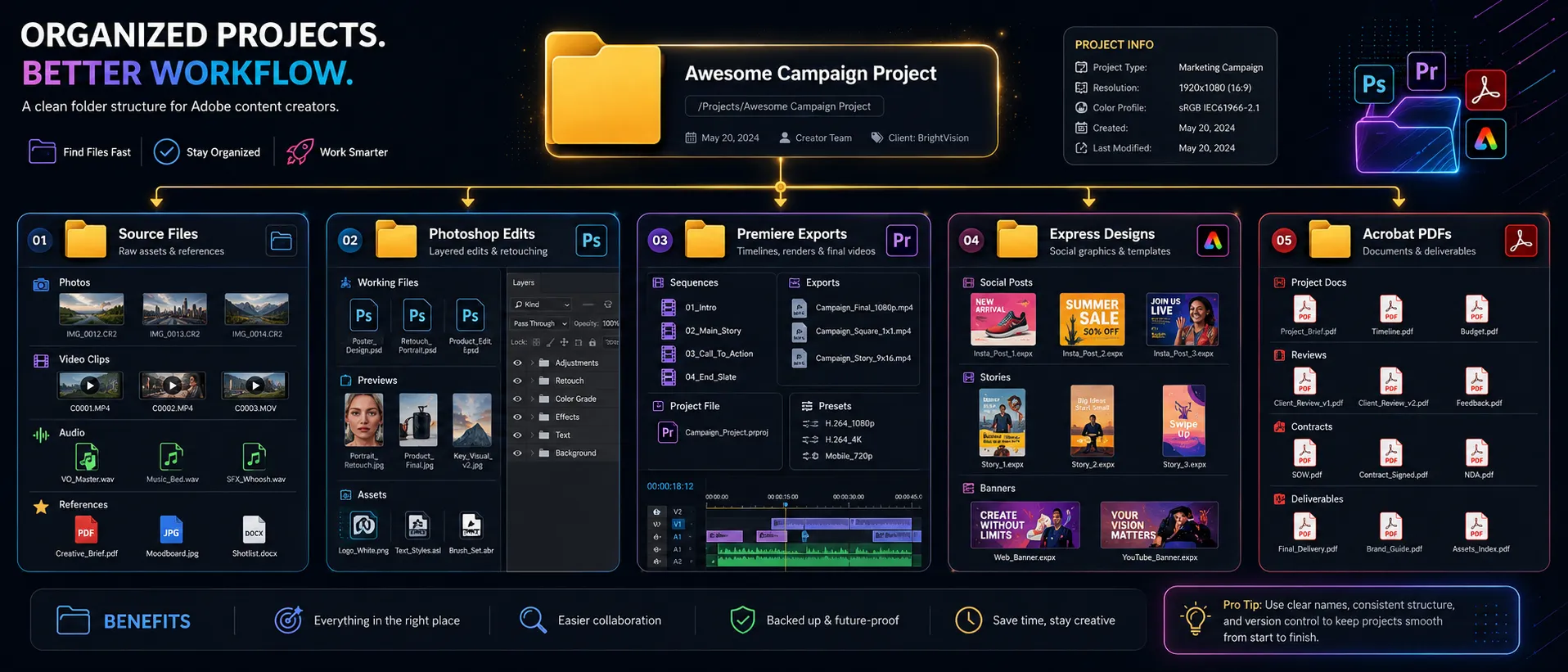
A folder-structure screenshot here would make the workflow easier to copy and adapt for a creator, freelancer, or small marketing team.
Practical Scenario: Launching a Digital Product
Imagine you are launching a downloadable Notion template, photography preset pack, or mini-course.
You could structure the Adobe workflow like this:
• Lightroom: Edit the creator photos, workspace shots, product images, or lifestyle images from your shoot.
• Photoshop: Create a polished product mockup, clean up screenshots, and design the main hero image.
• Express: Turn the hero image into Instagram posts, Pinterest pins, Reels covers, YouTube thumbnails, and a simple promo video.
• Premiere Pro: Edit a launch video, tutorial preview, testimonial clip, or short-form educational video.
• Acrobat: Create the PDF guide, checklist, invoice, client proposal, or buyer instructions.
The benefit is not that Adobe magically does the strategy for you. It does not. The benefit is that each production step has a clear home.
Pricing and Plan Considerations
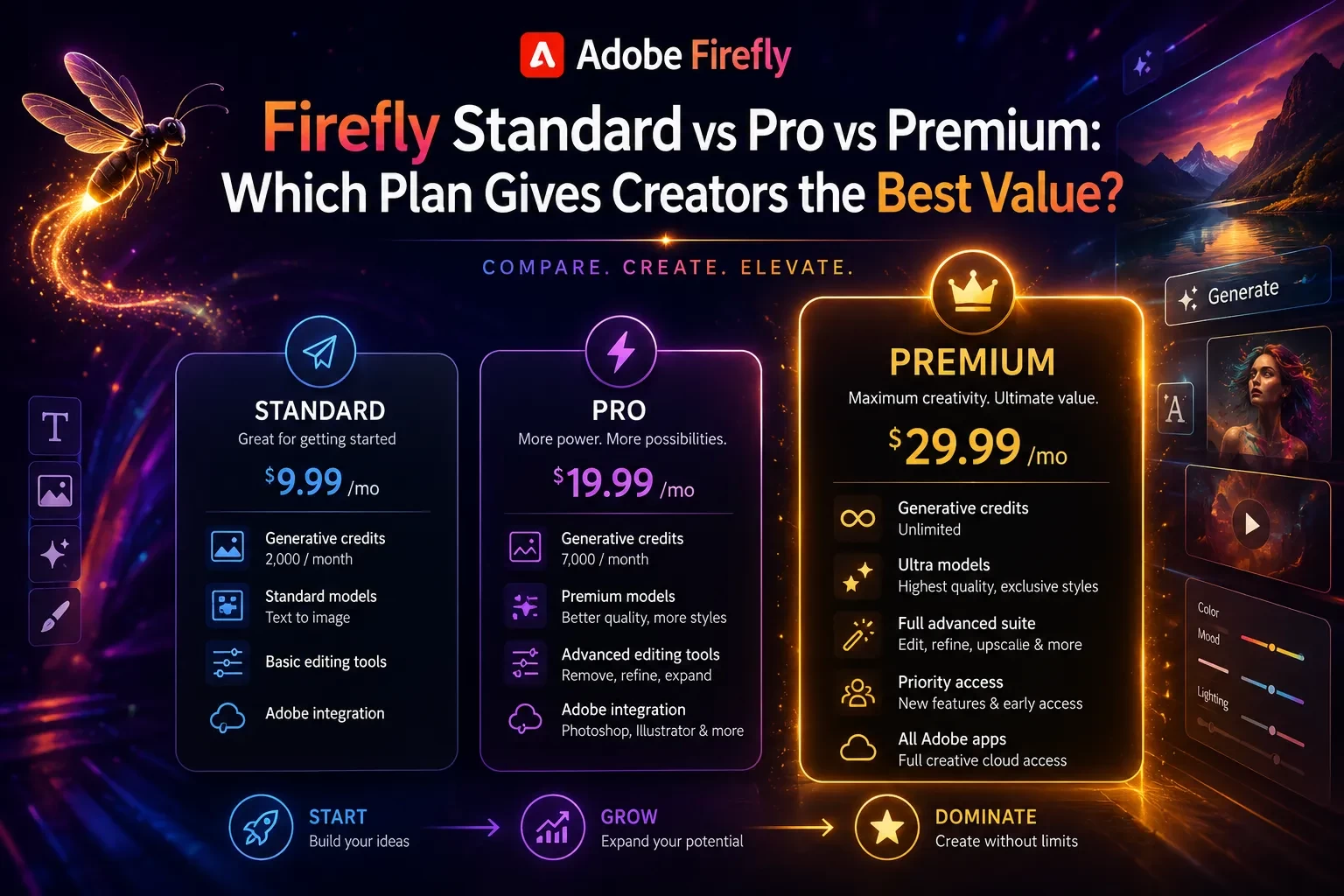
Adobe pricing changes over time, and available plans can vary by country, user type, renewal date, and promotion. For U.S. individual users, Adobe’s 2026 plan information lists Creative Cloud Standard and Creative Cloud Pro pricing, with Creative Cloud Pro formerly named Creative Cloud All Apps in many regions (Adobe, 2026). Adobe also notes that prices vary by country and exclude taxes such as VAT, GST, or similar charges where applicable (Adobe, 2026). (helpx.adobe.com)
Adobe’s plan comparison says Creative Cloud Standard and Creative Cloud Pro include 20+ desktop apps such as Photoshop, Illustrator, InDesign, Premiere, Acrobat, and more, while web and mobile app access differs by plan (Adobe, 2026). (helpx.adobe.com)
For creators, the subscription question is not “Is Adobe worth it?” The better question is: “Which part of my business will use Adobe every week?”
Choose a Smaller Setup If
• You mostly create social graphics and simple videos.
• You do not edit many photos or long videos.
• You rarely send professional PDFs.
• You are still validating your content business.
In that case, Express plus one specialized app may be enough.
Consider a Broader Creative Cloud Plan If
• You regularly produce video, photos, social graphics, and PDFs.
• You work with clients who expect editable files or polished deliverables.
• You need Photoshop and Premiere Pro in the same month.
• You collaborate with designers, editors, assistants, or contractors.
• You want a consistent workflow across content formats.
Do not buy the largest plan because it sounds professional. Buy based on the files you actually produce.
Privacy, AI, and Data Handling
Adobe’s apps increasingly include AI-assisted features. That can speed up editing, summarizing, masking, image generation, and document review, but creators should be careful with sensitive data.
Adobe states that it does not and has never trained Adobe Firefly on customer content, and says Firefly models are trained on licensed content such as Adobe Stock and public domain content where copyright has expired (Adobe, 2026). (adobe.com)
For Acrobat AI Assistant, Adobe says document content is processed using Adobe’s secure infrastructure and is not used to train AI models; Adobe also notes that enterprise customers may have additional data governance controls depending on plan (Adobe, 2026). (adobe.com)
Adobe’s Generative AI User Guidelines were updated on May 15, 2026, and state that users must not use Adobe’s generative AI features in ways that violate laws or harm others (Adobe, 2026). (adobe.com)
Practical Risk-Reduction Steps
• Do not upload confidential client documents into AI tools unless your contract, plan, and internal policy allow it.
• Review AI-generated summaries, edits, captions, or document answers against the original source.
• Keep client brand assets in organized, access-controlled folders.
• Separate personal, client, and public-facing files.
• Check Adobe’s official privacy, security, and plan documentation for your specific account type.
• Avoid using generative tools for assets where ownership, likeness, or licensing is unclear.
Adobe also supports Content Credentials, which it describes as durable metadata that can show details about how content was made, including whether it was generated by AI or edited with tools such as Photoshop (Adobe, 2026). (helpx.adobe.com)
Common Mistakes and Troubleshooting
Mistake: Using Express for Advanced Image Repair
Why it happens: Express is fast, so creators try to use it for everything.
How to fix it: Use Express for layout and campaign versions. Move complex retouching, masking, compositing, and object cleanup into Photoshop.
Mistake: Editing Every Photo Manually in Photoshop
Why it happens: Photoshop feels like the “professional” choice, so creators overuse it.
How to fix it: Use Lightroom for photo selection, batch edits, presets, and color consistency. Reserve Photoshop for the final images that need detailed work.
Mistake: Starting Video Edits Without a Story Cut
Why it happens: Creators begin adding effects, transitions, captions, and music before the message is clear.
How to fix it: In Premiere Pro, build a rough cut first. Fix the story and pacing before polishing.
Mistake: Exporting Only One Version
Why it happens: A creator finishes the main asset and forgets that platforms need different formats.
How to fix it: Plan exports at the beginning: vertical, square, horizontal, thumbnail, PDF, and compressed versions. Express can help with resized social variations; Premiere Pro should handle video exports that need timeline control.
Mistake: Mixing Source Files and Final Files
Why it happens: Projects move quickly, and files get saved wherever the app suggests.
How to fix it: Use a consistent folder structure. Keep original media, working files, exports, and final deliverables separate.
Mistake: Treating AI Output as Final
Why it happens: AI summaries, image edits, and content suggestions can look polished.
How to fix it: Review everything. Adobe itself recommends reviewing Acrobat AI-generated summaries against source material (Adobe, 2026). (adobe.com)
Mistake: Choosing a Plan Based on Aspirational Use
Why it happens: Creators imagine future workflows instead of measuring current production.
How to fix it: Audit your last 30 days of content. If you did not create video, PDFs, or advanced image edits, you may not need every app yet.
When Not to Use This Adobe Workflow
Adobe is powerful, but it is not always the fastest or most cost-effective option.
You may not need this workflow if:
• You only make basic social graphics and never need advanced editing.
• You edit short mobile videos entirely on your phone.
• You do not use original photos, client documents, or PDF deliverables.
• Your team already works in another design system.
• You cannot justify the subscription cost based on paid work or consistent output.
• You need collaborative web design, product design, or interface prototyping more than content production.
For a casual creator, one simple tool may be better. For a business-minded creator producing multi-format campaigns, Adobe becomes more compelling.
Editorial Decision Guide: Which App Should You Open First?
Open Adobe Express first if the project is a social post, lightweight video, thumbnail, flyer, announcement, or quick branded asset.
Open Lightroom first if the project starts with a photo shoot or large image set.
Open Photoshop first if the project depends on one polished image, composite, mockup, or detailed visual edit.
Open Premiere Pro first if the project is story-driven video with timing, audio, captions, and multiple clips.
Open Acrobat first if the project is a PDF, proposal, workbook, contract, report, or document review workflow.
This decision saves more time than any single feature. Most Adobe frustration comes from starting in the wrong app.
FAQ
Conclusion
Adobe is most useful for digital creators when each app has a clear role. Express gives you speed. Photoshop gives you visual control. Lightroom gives you photo consistency. Premiere Pro gives you video structure. Acrobat gives you professional document delivery.
The right workflow is not about using the most advanced tool. It is about moving the project through the right tool at the right time.
Before you build your next campaign, use this checklist:
• Define the final deliverables before opening any Adobe app.
• Use Lightroom for photo sets and Photoshop for final image refinement.
• Use Express for branded social layouts, resizing, and fast campaign assets.
• Use Premiere Pro when video timing, audio, captions, and story matter.
• Use Acrobat for PDFs, proposals, workbooks, contracts, and client-ready files.
• Review AI-assisted outputs before publishing or sending them.
• Choose your Adobe plan based on real monthly usage, not imagined future needs.
If your content business depends on multiple formats, Adobe can become a practical production system. The key is to treat it like a workflow, not a pile of apps.
Sources
• Adobe Express — https://www.adobe.com/express/
• Adobe Photoshop Generative Fill — https://www.adobe.com/products/photoshop/generative-fill.html
• Adobe Photoshop Help: Edit images with Generative Fill — https://helpx.adobe.com/photoshop/desktop/create-open-import-images/create-images/edit-images-with-generative-fill.html
• Adobe Photoshop Desktop Release Notes — https://helpx.adobe.com/ee/photoshop/desktop/whats-new/photoshop-on-desktop-release-notes.html
• Adobe Lightroom Features — https://www.adobe.com/products/photoshop-lightroom/features.html
• Adobe Premiere — https://www.adobe.com/products/premiere.html
• Adobe Premiere Desktop Updates — https://helpx.adobe.com/premiere/desktop/whats-new/whats-new.html
• Adobe Blog: New AI-powered video editing tools in Premiere — https://blog.adobe.com/en/publish/2026/01/20/new-ai-powered-video-editing-tools-premiere-major-motion-design-upgrades-after-effects
• Adobe Acrobat — https://www.adobe.com/acrobat.html
• Adobe Acrobat AI Assistant — https://www.adobe.com/acrobat/generative-ai-pdf.html
• Adobe Creative Cloud Plan Changes — https://helpx.adobe.com/account/individual/subscriptions-and-plans/plan-types-and-eligibility/changes-to-individual-plan.html
• Adobe Creative Cloud — https://www.adobe.com/creativecloud.html
• Adobe Firefly Generative AI Approach — https://www.adobe.com/ai/overview/firefly/gen-ai-approach.html
• Adobe Generative AI User Guidelines — https://www.adobe.com/legal/licenses-terms/adobe-gen-ai-user-guidelines.html
• Adobe Content Credentials Overview — https://helpx.adobe.com/creative-cloud/apps/adobe-content-authenticity/content-credentials/overview.html
• Adobe Privacy Policy — https://www.adobe.com/privacy/policy.html