







Table of Contents
◉ Introduction ◉ The Short Answer ◉ Reader Roadmap ◉ What Adobe Creative Cloud Does ◉ What’s Included in Adobe Creative Cloud? ◉ Who Adobe Creative Cloud Is Best For ◉ Who May Not Need Creative Cloud ◉ Adobe Creative Cloud Plans: How to Think About Pricing ◉ How to Get the Most Out of Adobe Creative Cloud ◉ Practical Workflow Example ◉ Privacy, Security, and Data Handling Considerations ◉ Common Mistakes and Troubleshooting ◉ Adobe Creative Cloud Alternatives and Complements ◉ Editorial Review ◉ FAQ ◉ Conclusion
Adobe Creative Cloud is no longer just “the Adobe apps subscription.” For many creators, marketers, photographers, video editors, designers, students, and small businesses, it is the central workspace for producing visual content across formats: images, graphics, video, PDFs, social posts, brand assets, web visuals, and increasingly AI-assisted creative work.
That makes the buying decision more complicated than it used to be. You are not only asking, “Do I need Photoshop?” You are asking whether a connected suite of 20+ creative apps, cloud services, mobile/web tools, fonts, templates, collaboration features, and Adobe Firefly generative AI credits is worth the subscription cost for the work you actually do.
This review is written for U.S. readers who are considering Adobe Creative Cloud for professional, educational, or business use. It explains what is included, who gets the most value from it, where it may be excessive, how to choose between plans, and how to avoid paying for more software than your workflow requires.
Disruptiv-e may earn a commission if readers choose a paid plan through certain links, but recommendations should be based on usefulness, fit, and verifiable product information.
The Short Answer
Adobe Creative Cloud is best for people who regularly create across multiple media types: photo editing, graphic design, video editing, motion graphics, page layout, PDFs, social content, and brand assets. The strongest reason to choose it is not one app alone, but the way apps such as Photoshop, Illustrator, Premiere Pro, InDesign, Lightroom, Acrobat, After Effects, Adobe Express, Adobe Fonts, and Firefly can support a full creative workflow.
As of Adobe’s official 2026 information, Creative Cloud Pro includes 20+ apps for photo, design, and video, plus Adobe Firefly creative AI. Adobe lists Creative Cloud Pro for individuals at a regular U.S. price of $69.99 per month on an annual, billed-monthly plan, with promotional pricing sometimes offered to new subscribers; student and teacher pricing is discounted and subject to eligibility (Adobe, 2026). (adobe.com)
Adobe has also changed the naming and structure of its individual plans. The former Creative Cloud All Apps plan is being renamed Creative Cloud Pro, while Creative Cloud Standard is positioned as a lower-cost option that still includes 20+ desktop apps but comes with more limited access to generative AI features and reduced web/mobile access compared with Pro (Adobe, 2026). (helpx.adobe.com)
Creative Cloud is not the right purchase for everyone. If you only need occasional social graphics, simple video edits, basic PDF work, or one specialized task, a single Adobe app, Adobe Express, Canva, Affinity, DaVinci Resolve, Figma, or another focused tool may be more cost-effective. The suite makes the most sense when your work repeatedly crosses formats and you need professional-grade output, compatibility, collaboration, or Adobe’s creative ecosystem.
Reader Roadmap
• What Adobe Creative Cloud actually includes, so you can separate core apps from extras that may or may not matter to your workflow.
• Who gets the most value from Creative Cloud, so freelancers, students, marketers, and teams can evaluate it differently.
• How Creative Cloud Pro, Creative Cloud Standard, single-app plans, and team plans differ, so you do not choose based on price alone.
• Where Adobe Firefly and generative credits fit, so you understand the AI benefits without overestimating what they replace.
• How to build a practical workflow, so you use the subscription as a production system instead of a folder full of unused apps.
• What mistakes to avoid before subscribing, renewing, or rolling Creative Cloud out to a team.
What Adobe Creative Cloud Does
Adobe Creative Cloud is a subscription-based collection of creative software and services. Its main purpose is to help users create, edit, manage, and publish professional visual and multimedia content.
The suite covers several major creative categories:
• Photo editing and image compositing with Photoshop and Lightroom.
• Vector graphics and illustration with Illustrator.
• Video editing with Premiere Pro.
• Motion graphics and visual effects with After Effects.
• Page layout and publishing with InDesign.
• PDF creation, editing, and document workflows with Acrobat.
• Audio editing with Audition.
• Social graphics, quick marketing assets, and lightweight design work with Adobe Express.
• Fonts, libraries, cloud documents, templates, stock integrations, portfolio tools, collaboration features, and AI-assisted creation through Adobe services.
Adobe’s official plan materials describe Creative Cloud Pro as including 20+ apps for photo, design, and video, along with Adobe Firefly creative AI (Adobe, 2026). (adobe.com) The exact mix of apps, web features, mobile access, storage, and AI credits can vary by plan, region, eligibility, and whether you choose an individual, student, team, or enterprise plan.
A helpful way to think about Creative Cloud is this: it is not simply software. It is an operating system for creative production.
That is valuable if your work moves between formats. A designer may build a logo in Illustrator, edit product photos in Photoshop, create a brochure in InDesign, export brand assets to a shared library, and hand social versions to a marketing team in Adobe Express. A video creator may cut footage in Premiere Pro, make motion graphics in After Effects, clean audio in Audition, design thumbnails in Photoshop, and use Firefly for concepting.
The more your work crosses those boundaries, the more sense Creative Cloud makes.
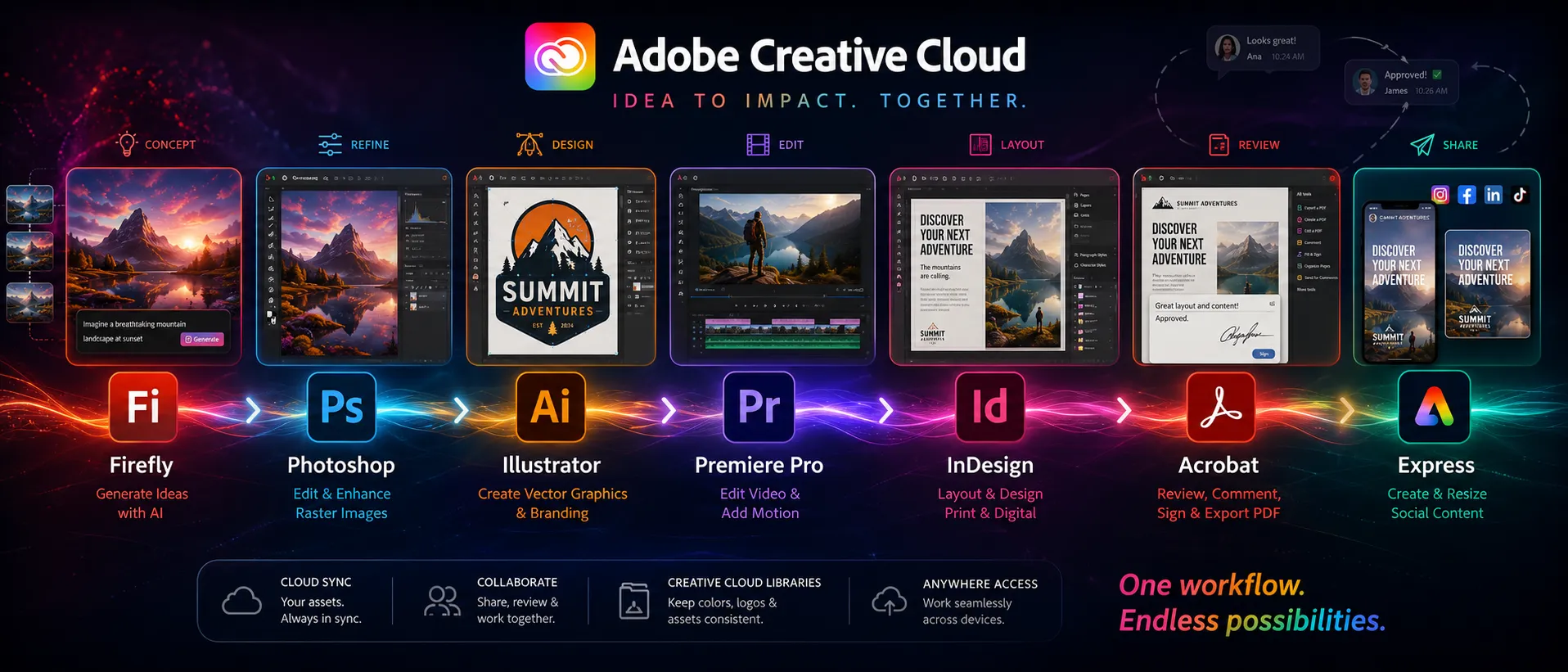
The workflow diagram above would help readers visualize Creative Cloud as a connected production system rather than a simple list of apps.
What’s Included in Adobe Creative Cloud?
Adobe Creative Cloud includes different benefits depending on the plan. For most readers evaluating the full suite, the core question is whether to choose a broad multi-app plan or pay for one app at a time.
Core Creative Apps
The best-known Creative Cloud apps are the professional desktop tools. Adobe’s plan comparison materials list 20+ desktop apps in Creative Cloud plans, including Photoshop, Illustrator, InDesign, Premiere, Acrobat, and more (Adobe, 2026). (helpx.adobe.com)
The most important apps for many users are:
• Photoshop: image editing, compositing, retouching, thumbnails, mockups, digital artwork, and AI-assisted image edits.
• Illustrator: vector logos, icons, brand graphics, illustrations, packaging elements, and scalable artwork.
• Premiere Pro: video editing for YouTube, social video, ads, courses, interviews, and brand content.
• After Effects: motion graphics, animation, visual effects, title sequences, and advanced video compositing.
• Lightroom: photo organization, color correction, batch editing, and photography workflows.
• InDesign: print and digital layout for books, magazines, reports, brochures, menus, and polished PDF publications.
• Acrobat: PDF editing, conversion, signing, review, and document workflows.
• Audition: audio cleanup, podcast editing, voiceover work, and sound post-production.
• Adobe Express: faster design for social graphics, short-form content, marketing visuals, and template-driven production.
The value is not that every user needs every app. Most do not. The value is that Creative Cloud gives you room to grow without rebuilding your software stack every time a client, class, campaign, or project requires a different format.
Web and Mobile Apps
Creative Cloud is increasingly a mix of desktop, web, and mobile tools. Adobe’s plan comparison notes that mobile and web creative apps can include tools such as Photoshop, Lightroom, Illustrator, Acrobat, Adobe Express, and Adobe Fresco, but access differs between Creative Cloud Standard and Creative Cloud Pro (Adobe, 2026). (helpx.adobe.com)
That matters because many workflows are no longer desktop-only. A creator may start a design on a laptop, adjust assets on a tablet, share review files through the cloud, and finish social variants in a browser. Pro users who rely on web and mobile access should check the exact plan comparison before buying because Adobe explicitly distinguishes Standard and Pro access levels.
Adobe Firefly and Generative AI Features
Adobe Firefly is Adobe’s generative AI technology for creative work. It appears across Adobe apps and on the web, supporting features such as image generation, generative fill, text effects, vector-related generation, video/audio-related AI features, and concepting tools, depending on plan and availability.
Adobe explains that Creative Cloud plans include a monthly allocation of generative credits, which can be used to create generative AI content across Creative Cloud, Adobe Express, and Adobe Substance 3D applications. Adobe also states that the number of credits varies by plan and that credit consumption depends on the feature used and subscription type (Adobe, 2026). (helpx.adobe.com)
This is important: generative credits are not a vague marketing perk. They are part of how Adobe meters certain AI features, especially premium generation features. Adobe’s generative credits FAQ says there is one type of generative credit and that users with Creative Cloud Pro, Firefly, or credits plans have unlimited access to standard generations, while credits are spent on premium generative features (Adobe, 2026). (helpx.adobe.com)
For practical users, Firefly is most useful when it speeds up early-stage work:
• Creating visual concepts before a shoot or design session.
• Expanding or cleaning up image backgrounds.
• Testing campaign directions.
• Generating rough creative assets that can be refined in Photoshop, Illustrator, Premiere Pro, or Express.
• Building mood boards or creative references.
It should not be treated as a full replacement for art direction, brand judgment, editing skill, rights review, or client approval.
Fonts, Libraries, Storage, and Collaboration
Creative Cloud also includes services that are easy to overlook but valuable in real work.
Adobe Fonts can simplify typography because users can activate fonts without separately purchasing every typeface for every project. Creative Cloud Libraries help teams reuse logos, colors, graphics, character styles, and brand elements across apps. Cloud documents and storage support access, sharing, and collaboration, though storage limits and admin controls vary by plan.
For teams, Adobe’s business materials describe the Admin Console as a place to assign licenses, manage team storage, deploy apps, and support collaboration (Adobe, 2026). (adobe.com) Adobe also says Creative Cloud for teams includes 1TB of cloud storage per user and uses the Admin Console for license assignment and deployment (Adobe, 2026). (adobe.com)
For a solo creator, those services may feel secondary. For a business, they can be the difference between a clean brand system and a mess of “final-final-v3-new-logo” files scattered across drives.
Who Adobe Creative Cloud Is Best For
Adobe Creative Cloud is strongest when the user has recurring creative production needs across more than one medium.
Freelancers and Independent Creators
Creative Cloud is a strong fit for freelancers who handle varied client work. A freelancer may need to edit a product photo, design a logo, prepare a social campaign, create a short video, export a print-ready PDF, and revise a client’s existing Adobe file.
The suite is especially useful when clients already use Adobe formats. If a client sends a PSD, AI, INDD, PRPROJ, or editable PDF workflow, having the native app can reduce friction.
The tradeoff is cost. If you only sell one type of service, a single-app plan or narrower tool may be enough.
Marketers and Small Businesses
Creative Cloud works well for marketers who need repeatable brand output: landing page visuals, social posts, ads, pitch decks, product photos, PDF guides, short videos, and campaign assets.
Adobe Express can handle faster template-based production, while Photoshop, Illustrator, Premiere Pro, and InDesign provide deeper control when a project requires professional finishing. Creative Cloud Libraries are particularly useful for keeping logos, colors, and assets consistent.
A small business should not buy the full suite just because it sounds professional. It should buy it when the team has enough content volume, brand complexity, or external creative collaboration to justify it.
Students and Educators
Students and teachers can get significant discounts through eligible plans. Adobe’s 2026 Creative Cloud page lists Creative Cloud Pro for students and teachers at $19.99 per month for the first year and $39.99 per month after that on an annual, billed-monthly basis, subject to eligibility and terms (Adobe, 2026). (adobe.com)
For students in design, film, photography, media, communications, marketing, architecture, or publishing, Creative Cloud can be valuable because many academic and professional environments use Adobe tools.
The risk is overbuying. A student taking one introductory course may not need the full suite after the class ends. Calendar your renewal date before subscribing.
Creative Teams and Agencies
Creative Cloud for teams makes sense when several people need shared assets, centralized billing, admin controls, license assignment, and storage management. Adobe’s Admin Console documentation says administrators can view storage usage, generate reports, manage user folders, and reclaim or delete content when needed (Adobe, 2026). (helpx.adobe.com)
For agencies, the value is less about any single app and more about standardizing production. A shared Adobe environment can reduce compatibility issues, simplify onboarding, and keep brand systems more consistent.
Photographers, Video Editors, and Designers
Creative Cloud is often most compelling for professionals whose work depends on Adobe-native tools.
Photographers may prefer Lightroom plus Photoshop. Video editors may rely on Premiere Pro, After Effects, Audition, and Media Encoder. Designers may need Illustrator, Photoshop, InDesign, Acrobat, and Fonts.
The key question is whether you need the whole ecosystem or a focused bundle. Photographers, for example, should compare the full Creative Cloud plan against Adobe’s photography-oriented plans before paying for apps they may rarely open.
Who May Not Need Creative Cloud
Creative Cloud is powerful, but it is not automatically the smartest choice.
You may not need the full suite if:
• You only create simple social posts and do not need professional image editing, print production, or video workflows.
• You edit video occasionally and can use a dedicated editor such as DaVinci Resolve, Final Cut Pro, CapCut, or another tool that fits your skill level and budget.
• You only need PDF viewing, basic signing, or simple document conversion.
• You want a one-time purchase model rather than a subscription.
• You use Linux as your primary operating system and do not want unsupported workarounds. Adobe’s official technical requirements focus on supported Windows and macOS versions for Creative Cloud desktop apps (Adobe, 2026). (helpx.adobe.com)
• You are not prepared to manage large files, cloud storage, fonts, versions, and team permissions.
Creative Cloud can be overkill for casual use. The full suite is best treated as a professional toolset, not a badge of seriousness.
Adobe Creative Cloud Plans: How to Think About Pricing
Adobe pricing changes, promotional offers, taxes, eligibility rules, and regional availability can vary. The official pricing page should always be treated as the source of truth before buying.
As of Adobe’s 2026 U.S. plan information, Creative Cloud Pro is listed at a regular price of $69.99 per month on an annual, billed-monthly plan, with promotional pricing sometimes shown for new subscribers (Adobe, 2026). (adobe.com) Adobe’s plan-change documentation also lists Creative Cloud Standard and Creative Cloud Pro prices for individual customers, including annual billed-monthly, month-to-month, and prepaid options, while noting that prices vary by country and do not include tax/VAT/GST (Adobe, 2026). (helpx.adobe.com)
Here is the practical decision frame:
| Plan type | Best fit | What to check before buying |
|---|---|---|
| Single app | You mostly need one Adobe tool, such as Photoshop, Illustrator, Premiere Pro, or Acrobat | Whether the app includes the cloud services, mobile/web access, storage, and AI features you expect |
| Creative Cloud Standard | You want 20+ desktop apps but can accept more limited generative AI and web/mobile access | Whether the missing Pro features affect your real workflow |
| Creative Cloud Pro | You need the broad app suite, stronger Firefly access, and fuller web/mobile benefits | Whether you will use enough apps and AI features to justify the higher recurring cost |
| Student/teacher plan | Eligible students and educators who need broad Adobe access | Eligibility, renewal price, school requirements, and whether the plan still makes sense after graduation |
| Teams/business plan | Organizations that need license control, admin tools, shared storage, and collaboration | Number of users, storage needs, offboarding process, compliance requirements, and budget ownership |
The mistake is comparing plans only by monthly price. Compare them by workflow fit.
If one app saves you hours every week, a single-app subscription can be rational. If three or more Adobe tools are central to your work, the full suite becomes easier to justify. If you only open the apps once a month, even a discounted plan may be wasteful.
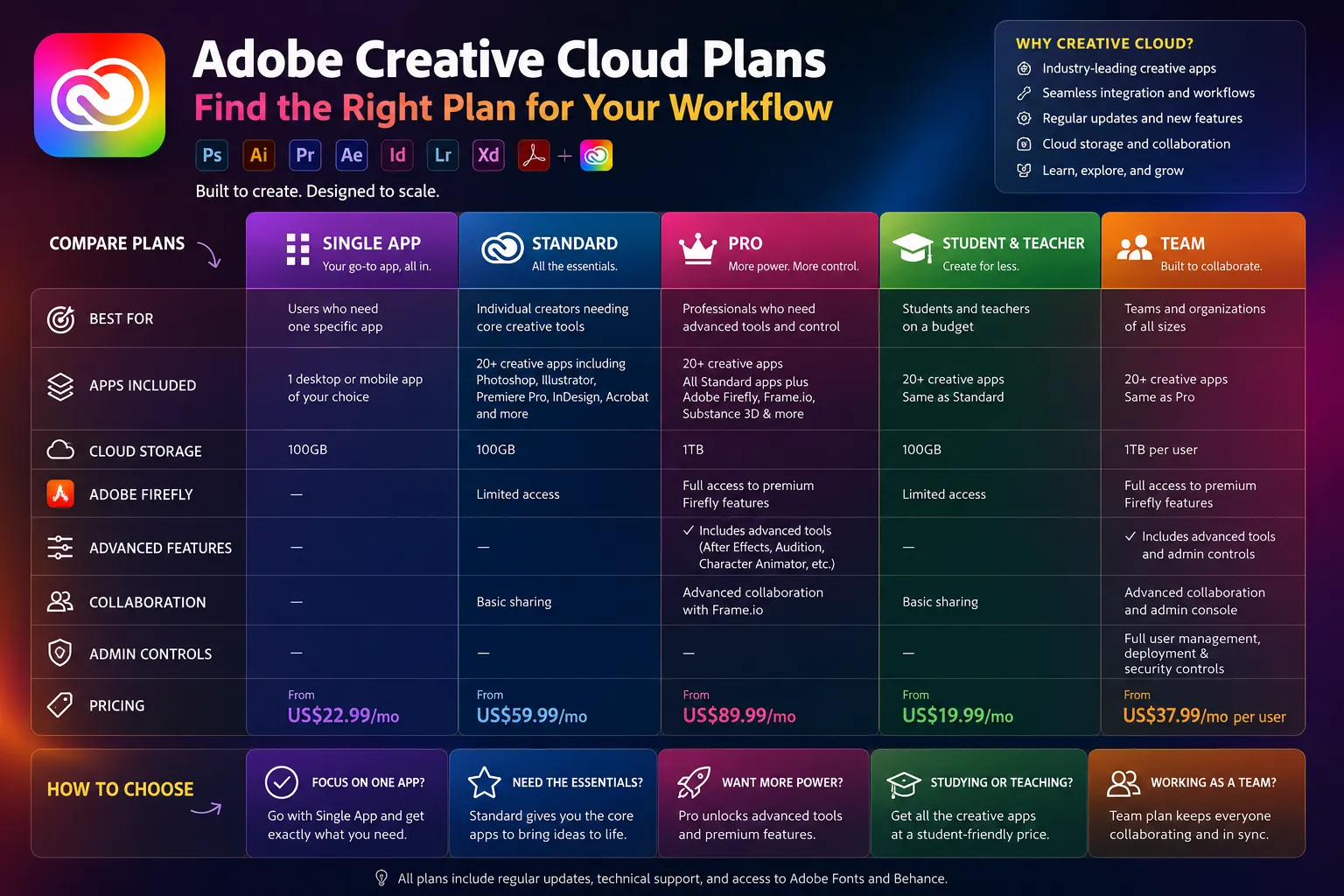
A visual decision matrix here would help readers compare plans by use case instead of scanning pricing pages line by line.
How to Get the Most Out of Adobe Creative Cloud
Many subscribers underuse Creative Cloud because they treat it like a software buffet. The better approach is to build a repeatable workflow.
1. Identify Your Primary Creative Output
Start with the thing you publish most often.
Do you mainly create YouTube videos, client brand identities, product photos, paid social ads, PDF lead magnets, online course materials, event graphics, or portfolio work?
Why it matters: Creative Cloud becomes valuable when you connect apps around a real output. Without a defined output, you may install too many tools and learn none of them deeply.
Practical tip: Choose one “anchor app.” For photographers, that may be Lightroom. For video editors, Premiere Pro. For designers, Illustrator or Photoshop. For marketers, Adobe Express plus Photoshop may be enough to start.
2. Build a Two-App Workflow Before Expanding
Do not try to master the whole suite at once. Pair your anchor app with one supporting app.
Examples:
• Lightroom + Photoshop for photo selection, color correction, retouching, and final image exports.
• Illustrator + Photoshop for logos, icons, mockups, and campaign graphics.
• Premiere Pro + After Effects for edited videos with motion graphics.
• InDesign + Acrobat for polished reports, ebooks, and review-ready PDFs.
Why it matters: Two-app workflows teach you how Adobe files move across the ecosystem without overwhelming you.
Practical warning: File organization matters. Keep source files, exported files, fonts, linked assets, and client versions in a consistent folder structure.
3. Use Libraries for Brand Assets
Creative Cloud Libraries can store reusable colors, logos, graphics, character styles, and assets across apps.
Why it matters: Brand inconsistency is one of the fastest ways for small businesses and teams to look disorganized. Libraries reduce manual copying and outdated assets.
Practical tip: Create separate libraries for brand identity, campaign assets, client assets, and reusable social templates.
4. Treat Firefly as a Concepting and Production Assistant
Use Adobe Firefly for ideation, image extension, rough concepts, visual direction, and AI-supported edits. Adobe says generative credits are used across Firefly-powered features and that credit consumption varies by feature and plan (Adobe, 2026). (helpx.adobe.com)
Why it matters: Firefly can speed up parts of the creative process, but it does not replace human judgment. You still need to check brand fit, accuracy, rights, context, and quality.
Practical tip: Use AI-generated outputs as drafts, references, or editable starting points. Do not send them directly to clients or publish them without review.
5. Set Up Export Presets
Create export presets for the channels you use most: Instagram, TikTok, YouTube thumbnails, LinkedIn carousels, web images, print PDFs, email headers, or ad placements.
Why it matters: Export mistakes create blurry images, giant file sizes, wrong color formats, cropped captions, and rejected ad assets.
Practical tip: Maintain a simple document with your preferred export sizes, file types, naming rules, and compression settings.
6. Review Your Subscription Every Quarter
Look at which apps you actually opened and which projects generated value.
Why it matters: Creative Cloud can be worth the money, but only if it supports real output. A quarterly review prevents subscription drift.
Practical tip: If you consistently use only one app, compare your current plan against the single-app plan. If you use three or more apps regularly, the broader plan may still make sense.
Practical Workflow Example: A Small Business Content System
Imagine a small online store launching a new product line.
The team could use Creative Cloud this way:
• Lightroom to process product photos from a shoot.
• Photoshop to retouch images, remove distractions, create hero visuals, and design thumbnails.
• Illustrator to prepare icons, packaging marks, or campaign graphics.
• Adobe Express to produce fast social variants for Instagram, TikTok covers, Pinterest pins, and email banners.
• Premiere Pro to edit a short product video.
• After Effects to create a branded animated intro or product feature callouts.
• Acrobat to prepare a wholesale PDF catalog or press kit.
• Creative Cloud Libraries to keep logos, colors, fonts, and reusable assets consistent.
This is where Creative Cloud becomes compelling. The suite supports one campaign from raw assets to final publishing formats. Buying separate tools for each step can work, but it may create friction, file compatibility issues, and inconsistent design systems.
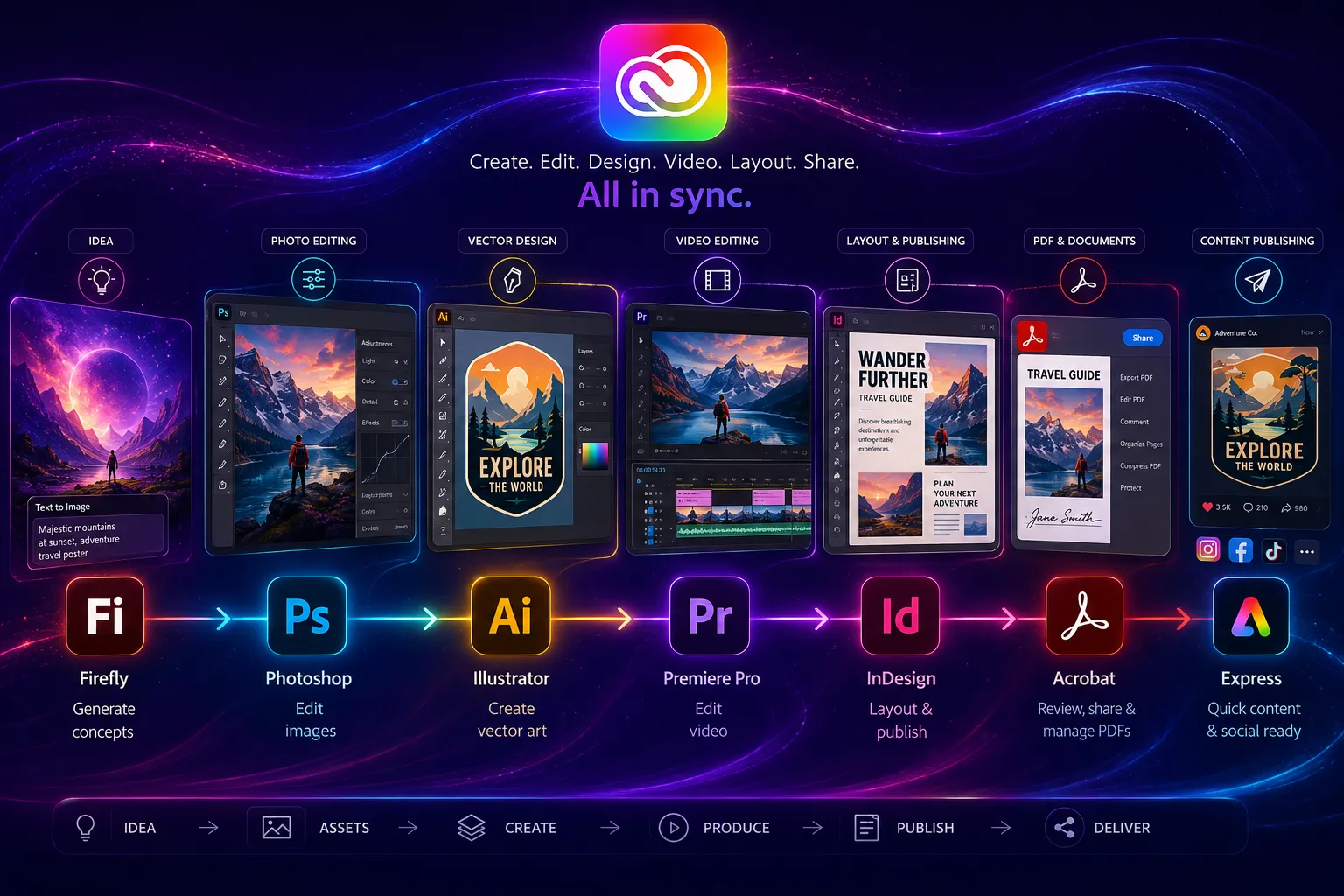
A campaign workflow graphic here would make the practical value of the suite clearer than a simple app list.
Privacy, Security, and Data Handling Considerations
Creative Cloud involves files, accounts, cloud storage, collaboration, AI features, and sometimes client or customer data. That makes privacy and security part of the buying decision, especially for businesses.
Adobe’s Privacy Center points users to privacy topics and choices about how Adobe collects and uses information (Adobe, 2025). (adobe.com) Adobe’s Trust Center centralizes information about security, privacy, availability, compliance, responsible AI, product security, current system status, and security advisories (Adobe, 2026). (adobe.com)
For practical users, the safest approach is to manage Creative Cloud like a business system:
• Do not upload confidential client files to cloud services unless your agreement, organization policy, and Adobe plan allow it.
• Use team or enterprise admin controls when employees, contractors, or agencies need access.
• Remove or transfer access when someone leaves a project.
• Avoid placing sensitive personal information inside AI prompts or shared assets unless you have a clear business reason and permission.
• Review Adobe’s current terms, privacy settings, and data handling documentation before using Creative Cloud for regulated work.
• Use Content Credentials where transparency, attribution, or AI-related disclosure matters.
Adobe describes Content Credentials as durable metadata that can act like a “digital nutrition label” for content, showing information such as creator details and how content was made, including whether it was captured, generated by AI, or edited using tools like Photoshop (Adobe, 2026). (helpx.adobe.com)
This is not legal advice. If you work with health, finance, education, legal, government, children’s data, or confidential enterprise files, consult your organization’s compliance guidance before building cloud or AI workflows.
Common Mistakes and Troubleshooting
Mistake: Buying the Full Suite Before Defining the Workflow
Why it happens: The full suite looks like the safest choice because it includes everything.
How to fix it: List your next 10 real projects. If most require only one app, start smaller. If the projects require design, video, PDFs, brand assets, and image editing, Creative Cloud Pro or Standard may be justified.
Mistake: Choosing a Plan Without Checking Web, Mobile, and AI Differences
Why it happens: Many users assume all “Creative Cloud” plans include the same app access and AI benefits.
How to fix it: Compare Standard, Pro, single-app, student, and team details on Adobe’s official pricing and plan pages. Adobe’s own documentation distinguishes between Standard and Pro access for web/mobile apps and generative AI benefits (Adobe, 2026). (helpx.adobe.com)
Mistake: Ignoring System Requirements
Why it happens: Users focus on app features and forget that professional creative apps need current hardware and operating systems.
How to fix it: Check Adobe’s technical requirements before subscribing. Adobe says most Creative Cloud 2026 desktop apps work with recent Windows 11, Windows 10, and macOS versions, while Adobe’s video apps have more specific OS support requirements (Adobe, 2026). (helpx.adobe.com)
Mistake: Treating Firefly Outputs as Finished Work
Why it happens: AI-generated visuals can look polished quickly.
How to fix it: Use Firefly for drafts, extensions, concepts, and production assistance. Review outputs for brand consistency, factual accuracy, visual artifacts, rights concerns, and client expectations before publishing.
Mistake: Letting Team Storage Become Unmanageable
Why it happens: Creative files are large, and teams often duplicate assets across campaigns.
How to fix it: Use the Admin Console and storage reporting where available. Adobe’s enterprise storage documentation says administrators can view usage, generate storage reports, manage user folders, and reclaim or delete content (Adobe, 2026). (helpx.adobe.com)
Mistake: Forgetting Renewal Dates and Promotional Terms
Why it happens: Introductory pricing can make a plan feel cheaper than it will be later.
How to fix it: Put the renewal date, regular price, and cancellation terms on your calendar the day you subscribe. Adobe’s pricing pages may show promotional offers, but regular pricing and terms should guide your long-term budget.
Mistake: Using Too Many Apps Too Shallowly
Why it happens: Creative Cloud gives access to many tools, which can make users jump between them without building skill.
How to fix it: Pick one primary app, one supporting app, and one publishing workflow. Add more apps only when a real project requires them.
Adobe Creative Cloud Alternatives and Complements
Creative Cloud competes with many tools, but the right alternative depends on the job.
Canva is a strong option for fast social graphics, simple brand kits, presentations, and template-driven marketing assets. It is easier for non-designers, but it does not replace Photoshop, Illustrator, Premiere Pro, or InDesign for advanced professional work.
Affinity apps are popular among designers who prefer a lower-cost, non-subscription creative suite for photo editing, vector design, and layout. The tradeoff is that Adobe remains more common in many professional, agency, and client environments.
DaVinci Resolve is a serious option for video editing, color correction, and post-production. Many video professionals use it either instead of or alongside Premiere Pro, depending on workflow, collaboration, and delivery needs.
Figma is often better for collaborative interface design, product design, and web/app prototyping. Adobe Illustrator and Photoshop are still valuable for illustration, image work, and brand assets, but Figma may be the center of the workflow for product teams.
CapCut, Descript, and other creator-focused tools can be faster for short-form video, captions, repurposing, and lightweight editing. They may be enough for creators who do not need professional post-production depth.
The honest answer is that Creative Cloud is not always the cheapest or simplest choice. Its advantage is breadth, professional depth, file compatibility, and ecosystem integration.
Editorial Review: How to Decide Whether Creative Cloud Is Worth It
Use these criteria before subscribing:
• Frequency: Will you use Adobe apps weekly, or only occasionally?
• Range: Do your projects require more than one creative discipline?
• Compatibility: Do clients, employers, schools, or collaborators expect Adobe file formats?
• Output quality: Do you need professional control over color, typography, exports, motion, layout, or retouching?
• Team needs: Do you need admin controls, license management, storage oversight, and shared assets?
• AI usage: Will Firefly features save time in real workflows, or are they just interesting extras?
• Budget: Can you justify the subscription at the regular renewal price, not only the promotional price?
• Learning curve: Are you willing to learn professional tools instead of relying only on templates?
If you answer yes to most of these, Creative Cloud is likely a strong fit. If you answer no to most of them, start with a narrower tool.
FAQ
Conclusion
Adobe Creative Cloud is worth considering when your creative work is frequent, multi-format, and professional enough to benefit from Adobe’s ecosystem. It is less compelling when you only need one simple task, rarely publish content, or prefer lower-cost tools with a smaller learning curve.
The smartest approach is to buy around your workflow, not around Adobe’s brand recognition.
Before you subscribe, use this checklist:
• Identify the main type of content you create most often.
• List the Adobe apps you would use every week.
• Compare Creative Cloud Standard, Creative Cloud Pro, single-app, student, and team options on Adobe’s official pricing page.
• Check system requirements for your computer before installing.
• Review Firefly and generative credit limits if AI features matter to your workflow.
• Set a reminder before renewal so promotional pricing does not become a surprise.
• Start with one anchor app and one supporting app before trying to learn the whole suite.
For designers, photographers, video editors, marketers, students, and creative teams with real production needs, Creative Cloud can be a serious advantage. For everyone else, the best decision may be smaller: choose the one tool that solves today’s problem, then upgrade only when your workflow proves you need more.
Sources
• Adobe Creative Cloud Plans, Pricing, and Membership — https://www.adobe.com/creativecloud/plans.html
• Adobe Creative Cloud Professional Creative Software — https://www.adobe.com/creativecloud.html
• Adobe Help Center: Changes to Creative Cloud for Individuals Plans — https://helpx.adobe.com/account/individual/subscriptions-and-plans/plan-types-and-eligibility/changes-to-individual-plan.html
• Adobe Help Center: Generative Credits Overview — https://helpx.adobe.com/firefly/web/get-started/learn-the-basics/generative-credits-overview.html
• Adobe Help Center: Generative Credits FAQ — https://helpx.adobe.com/creative-cloud/apps/generative-ai/generative-credits-faq.html
• Adobe Help Center: Technical Requirements for Creative Cloud Apps — https://helpx.adobe.com/download-install/apps/system-requirements/creative-cloud-requirements.html
• Adobe Creative Cloud for Teams Admin Console — https://www.adobe.com/creativecloud/business/teams/for-admins.html
• Adobe Creative Cloud for Teams — https://www.adobe.com/creativecloud/business/teams.html
• Adobe Help Center: Manage Adobe Storage — https://helpx.adobe.com/enterprise/using/manage-adobe-storage.html
• Adobe Privacy Center — https://www.adobe.com/privacy.html
• Adobe Trust Center — https://www.adobe.com/trust.html
• Adobe Help Center: Content Credentials Overview — https://helpx.adobe.com/creative-cloud/apps/adobe-content-authenticity/content-credentials/overview.html