







Table of Contents
◉ Introduction ◉ The Short Answer ◉ Reader Roadmap ◉ What Prompt to Edit Actually Does ◉ The Limitation Hidden in the Feature’s Name ◉ Prompt to Edit Versus Other Illustrator Editing Methods ◉ Who Will Get the Most Value From It? ◉ Who May Not Need It? ◉ Prerequisites Before You Start ◉ How to Use Prompt to Edit in Adobe Illustrator ◉ How to Write Better Editing Prompts ◉ Practical Workflow Example: Updating a Product Illustration ◉ When Prompt to Edit Saves Time—and When It Does Not ◉ Common Mistakes and Troubleshooting ◉ Privacy, Security, and Client-Work Considerations ◉ Cost and Generative-Credit Considerations ◉ A Practical Decision Checklist ◉ FAQ ◉ Conclusion: Use Prompt to Edit as an Iteration Tool, Not an Autopilot ◉ Sources
A generated illustration can be close enough to keep but wrong enough to slow down a project. Perhaps the composition works, yet the main object needs replacing. The colors fit the campaign, but one accessory does not. Previously, you might have regenerated the entire concept, accepted unintended changes elsewhere, or manually rebuilt complicated groups and paths.
Adobe Illustrator’s Prompt to Edit introduces another option: describe a targeted change in plain English, generate revised variations, and continue editing the selected result as vector artwork. Adobe added the feature in Illustrator 30.5 in May 2026 for artwork created with Text to Vector Graphic or Turntable (Adobe, 2026). (helpx.adobe.com)
That eligibility requirement matters. Prompt to Edit is not a universal command for modifying every Illustrator file, imported SVG, traced logo, or hand-drawn path. It currently works only with supported generative objects. Within that boundary, however, it can reduce unnecessary regeneration and help designers explore focused changes while preserving more of an existing concept.
This guide explains what Prompt to Edit does, where it fits, how to use it, how to write better editing prompts, and when traditional Illustrator tools remain the more reliable choice.
The Short Answer
Adobe Illustrator’s Prompt to Edit lets you modify eligible generated artwork by describing a change, such as adding, removing, replacing, recoloring, or refining an element. Illustrator then produces variations that you can review and continue editing (Adobe, 2026). (helpx.adobe.com)
The feature currently works only with artwork created through Text to Vector Graphic or Turntable. Selecting ordinary vector artwork will not necessarily reveal the Prompt to Edit command.
For the best results, make one focused request at a time. Instead of asking Illustrator to “make everything better,” identify the object, the desired change, and anything that should remain consistent.
Prompt to Edit is most useful during concept iteration. It does not eliminate the need for manual path cleanup, typography corrections, production checks, brand review, or final export preparation.
Reader Roadmap
• How Prompt to Edit differs from regeneration, recoloring, and manual vector editing, so you can choose the right method.
• Which artwork is eligible, so you do not waste time searching for a command that cannot appear.
• How to use Prompt to Edit step by step while preserving your original concept.
• How to write specific editing instructions that reduce composition and style drift.
• Which limitations, privacy considerations, and production risks to review before using generated artwork in client work.
What Prompt to Edit Actually Does
Prompt to Edit is a generative editing feature inside Illustrator. After you select supported generated artwork, you can enter a written instruction describing the change you want. Adobe lists adding, removing, recoloring, replacing, and refining elements among the supported editing goals (Adobe, 2026). (helpx.adobe.com)
A practical prompt might request:
• “Remove the stars from the background and keep the character unchanged.”
• “Replace the ceramic mug with a clear glass bottle.”
• “Change the jacket to dark navy while preserving the line weight.”
• “Add two small leaves behind the flower without changing the center.”
Illustrator generates variations rather than applying a guaranteed deterministic edit. That distinction is important. Prompt to Edit interprets your instruction through a generative model, so surrounding shapes, details, colors, or proportions may also change.
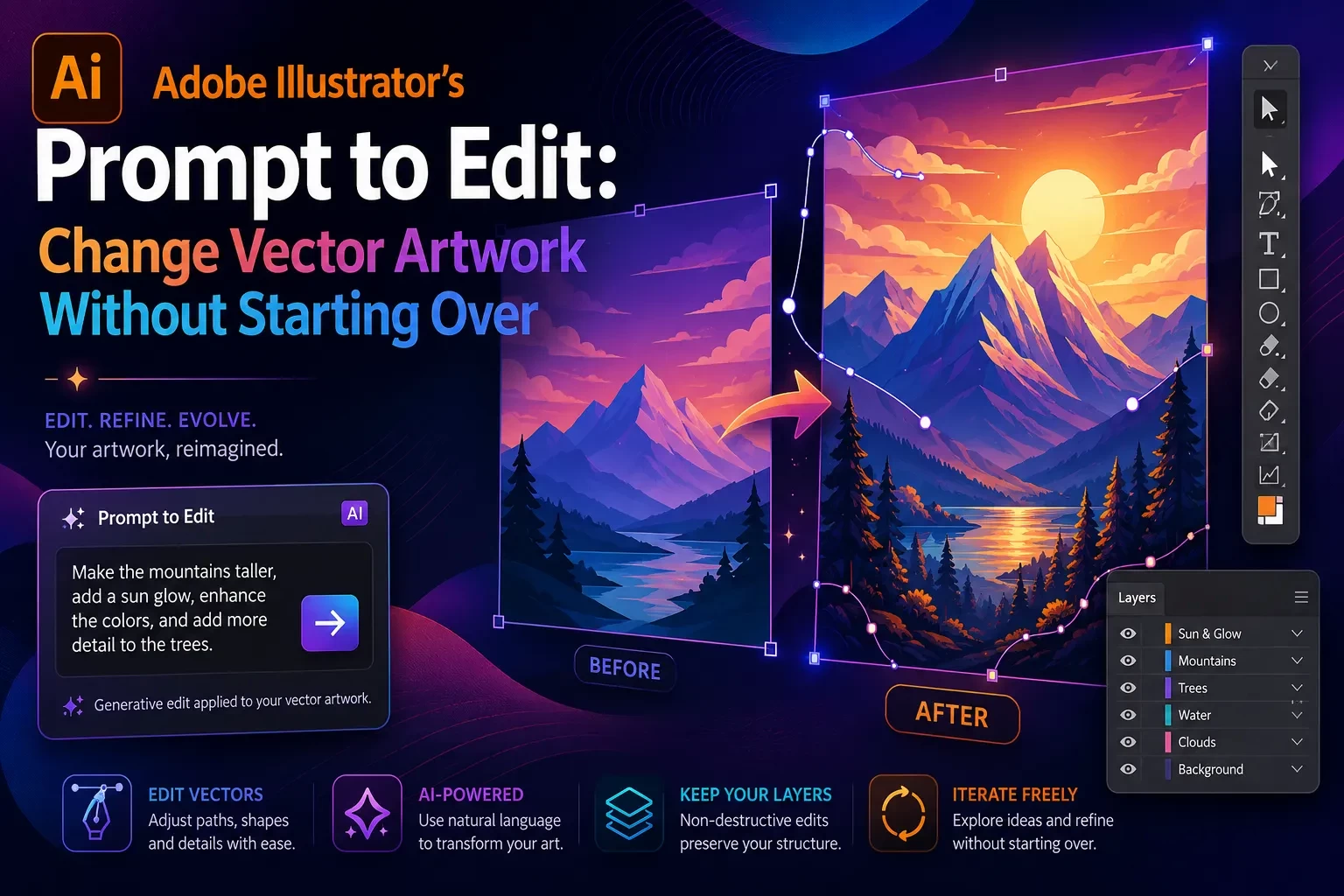
The interface image above should show the complete decision loop: select the eligible object, enter a focused instruction, generate alternatives, and choose the variation that gives you the strongest starting point.
The Limitation Hidden in the Feature’s Name
The phrase “Prompt to Edit” may suggest that Illustrator can interpret and rewrite any selected vector object. Adobe’s documentation establishes a narrower scope: the feature is currently available only for artwork generated with Text to Vector Graphic or Turntable (Adobe, 2026). (helpx.adobe.com)
That means Prompt to Edit is generally not the right tool for:
• A logo drawn manually with the Pen tool.
• An SVG downloaded from a stock library.
• A client illustration created in an older Illustrator workflow.
• A raster image converted with Image Trace.
• A group of ordinary shapes that has no supported generative-object history.
• Generated artwork that has been expanded, separated, or transformed in a way that breaks its eligible state.
For those assets, use direct selection, Pathfinder operations, Shape Builder, Global Edit, Generative Recolor, or conventional regeneration through an appropriate generative feature.
This restriction is not merely technical trivia. It changes how you should structure the workflow. If you expect to explore prompt-based revisions, preserve an untouched copy of the original generated object before expanding, ungrouping, or heavily restructuring it.
Prompt to Edit Versus Other Illustrator Editing Methods
Prompt to Edit overlaps with several existing workflows, but it does not replace them.
| Method | Best for | Main advantage | Main limitation |
|---|---|---|---|
| Prompt to Edit | Changing the content of eligible generated artwork | Lets you describe targeted conceptual changes in natural language | Only works with supported generated objects, and results may vary |
| Text to Vector Graphic | Creating a new scene, subject, or icon | Generates editable vector concepts from a prompt | Regeneration may change the entire composition |
| Generative Recolor | Exploring new color directions | Changes color themes without requesting new subject matter | Not intended for replacing or removing objects |
| Manual vector editing | Precise production corrections | Gives direct control over paths, fills, strokes, masks, and geometry | Can take longer on complex generated artwork |
| Rebuild or redraw | Final logos, icons, and tightly controlled assets | Produces predictable, intentionally constructed geometry | Requires more design time and technical skill |
Text to Vector Graphic can generate scenes, subjects, and icons, with controls for content type, detail, style references, effects, and color direction (Adobe, 2026). (helpx.adobe.com) Prompt to Edit comes later in that workflow, when the concept is already useful and you want to revise a portion of it rather than begin again.
Generative Recolor is the better choice when the structure is correct and only the palette needs exploration. Manual editing is preferable when the requested change can be expressed precisely with existing vector tools.
Who Will Get the Most Value From It?
Prompt to Edit is particularly useful for designers who generate multiple campaign assets, illustrations, icons, packaging concepts, or social graphics and regularly receive small rounds of creative feedback.
Brand and marketing designers
A stakeholder may approve the overall composition but request a different product, seasonal object, background element, or color accent. A focused prompt can create alternatives before the designer commits to detailed path editing.
Illustrators exploring a direction
Prompt to Edit can help test visual possibilities without discarding the composition that prompted the idea. It is useful for concept exploration, especially when the precise final form has not yet been decided.
Small creative teams
Teams without time to rebuild every early concept can use prompt-based edits to prepare more options for internal review. The strongest variation can then move into a conventional Illustrator production workflow.
Content creators working across formats
A creator may need several related assets: one with a product, another without it, and another adapted for a seasonal theme. Prompt to Edit can assist with those exploratory variants when the original artwork remains eligible.
Who May Not Need It?
You may not gain much from Prompt to Edit when your work depends on exact geometry, strict logo standards, technical diagrams, regulated packaging, or repeatable numerical specifications.
It is also unnecessary when a change takes only a few seconds with normal tools. Selecting a fill, deleting one shape, moving an anchor point, or replacing a symbol manually may be faster and more predictable than generating alternatives.
Prompt to Edit should not become an automatic first step. Use it when the edit is visually complex enough to justify generation but focused enough that rebuilding the entire concept would be inefficient.
Prerequisites Before You Start
You need a current desktop version of Illustrator that includes Prompt to Edit. Adobe introduced the feature in Illustrator 30.5, and updating through Creative Cloud is the simplest way to ensure current feature access and fixes (Adobe, 2026). (helpx.adobe.com)
You also need:
• An active Adobe account and an Illustrator plan with access to the relevant generative features.
• An internet connection. Adobe states that Illustrator’s generative AI features require connectivity (Adobe, 2026). (helpx.adobe.com)
• Artwork originally generated through Text to Vector Graphic or Turntable.
• Sufficient access to the chosen generative model under your Creative Cloud plan.
Adobe lists Prompt to Edit as a standard Illustrator generative feature when used through the standard supported workflow. Partner models are categorized as premium features, and their credit use and availability can depend on the selected model and plan (Adobe, 2026). (helpx.adobe.com)
Pricing, premium-model access, and included credits can change. Check your Adobe account and the current Creative Cloud generative-credit documentation rather than assuming every model is included.
How to Use Prompt to Edit in Adobe Illustrator
1. Update Illustrator
Open the Creative Cloud desktop app and check for an Illustrator update.
This matters because an older installation may support Text to Vector Graphic but not Prompt to Edit. Adobe introduced Prompt to Edit in the May 2026 Illustrator 30.5 release (Adobe, 2026). (helpx.adobe.com)
Practical tip: Save a separate copy of an important production file before opening it in a newly updated application version.
2. Select an eligible generated object
Use the Selection tool to select artwork previously created with Text to Vector Graphic or Turntable.
When the selection is eligible, Illustrator can surface Prompt to Edit in the Contextual Task Bar. Adobe also documents access through:
• Edit > Edit Generated Objects
• Quick Actions in the Properties panel
• The Prompt to Edit icon in the Control panel
• The right-click menu (Adobe, 2026) (helpx.adobe.com)
If none of those options appears, first confirm that the selected object is an eligible generative object.
3. Duplicate the original
Create a copy before generating any edits.
This gives you a visual reference, protects the approved direction, and makes comparison easier. It is especially important with Turntable objects: Adobe warns that editing a Turntable object through Prompt to Edit removes its Turntable behavior. Adobe recommends copying the object first or recovering the original through the Layers panel (Adobe, 2026). (helpx.adobe.com)
4. Describe one specific change
Enter a short instruction in the prompt field. Adobe recommends short, specific prompts for more accurate variations and layout-friendly results (Adobe, 2026). (helpx.adobe.com)
A useful structure is:
Action + target + desired result + preservation instruction
For example:
“Replace the red backpack with a brown leather satchel; preserve the character pose, background, and line style.”
This is stronger than:
“Make the bag better and keep everything nice.”
The first prompt identifies the operation, object, replacement, and protected details. The second forces the model to interpret several vague judgments.
5. Review the model and style controls
Depending on current availability and your plan, Illustrator may let you select an Adobe or partner model. Adobe’s current documentation lists supported partner-model options for Prompt to Edit, although availability and premium access may vary (Adobe, 2026). (helpx.adobe.com)
You may also see Style Reference and effect controls. Style Reference can use artwork from the document or an uploaded image to guide the result. Leaving Auto enabled asks Illustrator to match surrounding artwork (Adobe, 2026). (helpx.adobe.com)
Do not add every available effect simply because it is present. Extra style instructions can compete with the actual edit.
6. Generate and compare the variations
Select Generate, then inspect the resulting options in the Properties panel.
Look beyond whether the requested object changed. Check:
• Silhouette and proportions.
• Unintended changes to nearby elements.
• Color consistency.
• Line weight.
• Overlapping paths.
• Small artifacts.
• Whether text, symbols, or repeated details remain correct.
Adobe lets users select a preferred variation, delete unwanted versions, provide feedback, or report an inappropriate result through the variation controls (Adobe, 2026). (helpx.adobe.com)
7. Refine in smaller passes
When the output is close but not final, avoid stacking several new requests into one long prompt.
Use another focused edit:
“Reduce the size of the satchel by 15 percent and keep its position.”
Then address another issue separately:
“Remove the extra buckle without changing the strap.”
The percentage may not be interpreted as an engineering-precise transformation, but it provides useful directional context. For exact dimensions, switch to Illustrator’s Transform controls.
8. Finish with conventional vector tools
Once you select a useful variation, zoom in and inspect the actual vector construction.
A before-and-after visual should isolate the requested change while highlighting any secondary differences that still require manual review.
How to Write Better Editing Prompts
Good prompts behave more like precise creative-direction notes than broad image-generation prompts.
Name the operation
Start with a clear verb:
• Add
• Remove
• Replace
• Recolor
• Simplify
• Enlarge
• Reduce
• Move
• Refine
• Restyle
“Replace the yellow flower with a sunflower” is easier to interpret than “use a better flower.”
Identify the exact target
When the artwork contains repeated elements, describe location, color, size, or relationship.
Weak:
“Remove the circle.”
Stronger:
“Remove the small orange circle above the character’s left shoulder.”
State what should remain unchanged
Preservation language can reduce unwanted variation:
• “Keep the composition unchanged.”
• “Preserve the character pose.”
• “Maintain the existing line weight.”
• “Keep the background and palette.”
• “Do not change the typography.”
These instructions do not guarantee perfect preservation, but they make your intention clearer.
Avoid conflicting directions
A prompt such as “make the icon more minimal but add more realistic details and decorative textures” contains competing objectives.
Decide which outcome matters most. You can explore a minimal version and a detailed version separately.
Use visual language, not emotional shorthand
“Make it more premium” may mean restrained color, refined proportions, less visual clutter, metallic details, or editorial typography. The model must guess.
Translate the judgment into visible properties:
“Use a restrained black, cream, and muted-gold palette; reduce decorative elements; preserve the central bottle.”
Change one category at a time
Content, composition, color, and style are different categories. Combining all four in one prompt increases the chance of broad changes.
A controlled sequence might be:
- Replace the object.
- Correct its scale.
- Match the color palette.
- Refine line weight manually.
Practical Workflow Example: Updating a Product Illustration
Imagine a marketing team has approved a generated café illustration, but the campaign now features bottled cold brew instead of a ceramic cup.
Regenerating the original scene could change the table, character, lighting, plants, and composition. Manually drawing the bottle may be time-consuming if the illustration contains complex shading and stylized paths.
A Prompt to Edit workflow could look like this:
- Duplicate the approved generated object.
- Enter: “Replace the white ceramic coffee cup on the table with a clear cold-brew bottle; keep the table, character, plants, palette, and line style.”
- Generate variations.
- Reject any version that alters the character’s face, hand position, or table perspective.
- Select the closest bottle treatment.
- Correct the bottle silhouette and label manually.
- Verify the brand colors and legal label copy using approved source files.
The feature helps with the difficult visual substitution. The designer still owns the accuracy, brand fidelity, and production quality.
When Prompt to Edit Saves Time—and When It Does Not
Prompt to Edit can save time when the requested revision would otherwise require reconstructing multiple interdependent paths, gradients, masks, and stylized details.
It is less efficient when:
• The edit is a simple deletion or color change.
• Exact dimensions are required.
• The selected artwork is not eligible.
• The output must match an approved master asset precisely.
• The requested object already exists in a reusable library.
• A stakeholder expects every surrounding detail to remain mathematically identical.
A sensible rule is to compare the cost of generation and review against the cost of direct editing. If a manual change takes two minutes and produces a predictable result, use the manual tool. If it takes 30 minutes to rebuild a stylized element and several plausible variations would be useful, Prompt to Edit deserves consideration.
Common Mistakes and Troubleshooting
Prompt to Edit does not appear
Why it happens: The artwork may not have been generated through Text to Vector Graphic or Turntable, or Illustrator may be outdated.
How to fix it: Update Illustrator, select the complete generative object, and check the Contextual Task Bar, Properties panel, Control panel, Edit menu, and right-click menu. If the object is ordinary vector artwork, use a different editing method.
The entire composition changes
Why it happens: The prompt is too broad, requests several categories of change, or does not identify what should remain stable.
How to fix it: Request one operation, identify the exact target, and add preservation language. Compare “create a more exciting version” with “replace the small gray cloud with a yellow sun; keep all other objects unchanged.”
The replacement does not match the style
Why it happens: The model has insufficient stylistic direction or the selected reference does not represent the intended look.
How to fix it: Leave automatic style matching enabled when the surrounding artwork provides a strong reference, or choose a relevant style asset. Describe visible properties such as flat fills, limited colors, thick outlines, or geometric shading.
Small unwanted objects appear
Why it happens: Generative output may introduce decorative or structural details while interpreting the requested change.
How to fix it: Try a narrower prompt, choose another variation, or remove the extra paths manually. Do not keep regenerating when direct deletion is faster.
The edited Turntable object no longer rotates
Why it happens: Adobe states that Prompt to Edit removes the Turntable behavior from the edited object.
How to fix it: Duplicate the Turntable object before editing or recover the original hidden object from the Layers panel (Adobe, 2026). (helpx.adobe.com)
A partner model is unavailable
Why it happens: Partner models are premium generative features, and access can vary by Creative Cloud plan, region, and current model availability (Adobe, 2026). (helpx.adobe.com)
How to fix it: Check the model menu, Adobe account entitlement, remaining generative credits, and current official documentation. Use an available Adobe model when the partner option is not accessible.
The output looks right at normal zoom but fails in production
Why it happens: Small overlaps, stray points, masks, color inconsistencies, or awkward curves can be hard to notice at fit-to-screen size.
How to fix it: Inspect the asset in Outline view and at high zoom. Review paths, strokes, swatches, transparency, clipping, text, and export behavior before approval.
The troubleshooting visual should compare the attractive rendered result with its underlying path structure, showing why generated artwork still needs technical inspection.
Privacy, Security, and Client-Work Considerations
Illustrator’s generative AI features require an internet connection, which means prompts and relevant inputs must be processed through online services rather than entirely on your local computer (Adobe, 2026). (helpx.adobe.com)
Adobe’s current general terms state that Adobe does not train generative AI models on your or your customers’ content unless that content has been submitted to the Adobe Stock marketplace. The terms also explain that cloud content may be processed as needed to operate Adobe services on the user’s behalf (Adobe, 2025). (adobe.com)
That policy does not remove every business risk. Before using confidential work:
• Confirm that generative AI use is allowed under the client contract.
• Follow your organization’s data-classification and approval policies.
• Avoid entering unreleased product names, personal information, trade secrets, credentials, or regulated data unless your organization has explicitly approved the workflow.
• Review Adobe’s current terms and any documentation associated with a selected partner model.
• Restrict document access to the people who need it.
• Keep an approved, non-generated master of critical logos, packaging copy, disclosures, and regulated information.
Adobe also documents Content Credentials as tamper-evident metadata that may be associated with exported generative assets, although behavior depends on Illustrator version, document history, and export circumstances (Adobe, 2026). (helpx.adobe.com) Inspect the final exported file rather than assuming a particular metadata state.
This section is practical risk guidance, not legal advice.
Cost and Generative-Credit Considerations
Adobe Creative Cloud subscriptions include access to generative features and some form of generative-credit allocation, but the amount and permitted feature types depend on the plan (Adobe, 2026). (helpx.adobe.com)
Adobe currently categorizes Prompt to Edit as a standard Illustrator generative feature. Prompt to Edit operations using supported partner models are listed as premium usage, and premium consumption can vary by model and output (Adobe, 2026). (helpx.adobe.com)
For occasional concept editing, the included plan access may be sufficient. Teams generating many variations should monitor usage and decide whether partner-model output produces enough added value to justify premium-credit consumption.
Do not evaluate cost solely by counting generations. Include the time required to:
• Write and refine prompts.
• Review multiple variations.
• Correct unwanted changes.
• Clean paths.
• Obtain stakeholder approval.
• Reproduce the result later.
A generation that looks promising but requires extensive reconstruction may cost more staff time than a direct manual edit.
A Practical Decision Checklist
Use Prompt to Edit when most of the following are true:
• The artwork was created with Text to Vector Graphic or Turntable.
• The overall concept is worth preserving.
• The requested change is visually complex.
• Several plausible variations would help the decision process.
• Exact geometry is not required at the exploration stage.
• You can review and clean the output before delivery.
Choose manual editing or another feature when:
• The asset is not eligible.
• Only the palette needs to change.
• The edit requires exact measurements.
• The change is faster with standard tools.
• The asset must match an approved master exactly.
• Generative processing is not permitted for the project.
Frequently Asked Questions
Conclusion: Use Prompt to Edit as an Iteration Tool, Not an Autopilot
Adobe Illustrator’s Prompt to Edit addresses a familiar design problem: the generated concept is useful, but one part needs to change. For eligible Text to Vector Graphic and Turntable artwork, it provides a faster way to request focused additions, removals, replacements, recoloring, and refinements without automatically discarding the entire direction.
Its value depends on disciplined use. Preserve the original, make one specific request at a time, compare every variation, and move back into conventional vector tools when precision matters.
Before using it on your next project:
• Update Illustrator and confirm feature access.
• Verify that the selected artwork is eligible.
• Duplicate the original generative object.
• Describe one visible change clearly.
• State which elements should remain unchanged.
• Compare the full composition, not only the edited object.
• Inspect and clean the paths before export.
• Review plan, credit, privacy, and client-policy requirements.
Prompt to Edit can shorten the distance between “almost right” and “ready for refinement.” The final judgment—and the final production work—still belongs to the designer.
Sources
• Adobe Help: Edit generated artwork using prompts — https://helpx.adobe.com/illustrator/desktop/use-generative-ai/edit-generated-artwork-using-prompts.html
• Adobe Illustrator Desktop Release Notes — https://helpx.adobe.com/illustrator/desktop/new-features/release-notes.html
• Adobe Help: Generate scenes, subjects, and icons — https://helpx.adobe.com/illustrator/desktop/use-generative-ai/generate-scenes-subjects-and-icons.html
• Adobe Help: Common questions about generative AI features in Illustrator — https://helpx.adobe.com/illustrator/desktop/use-generative-ai/generative-ai-faq-illustrator.html
• Adobe Help: Partner models in Adobe Illustrator — https://helpx.adobe.com/illustrator/desktop/use-generative-ai/partner-models-overview.html
• Adobe Creative Cloud Generative AI Features — https://helpx.adobe.com/creative-cloud/apps/generative-ai/creative-cloud-generative-ai-features.html
• Adobe Generative Credits FAQ — https://helpx.adobe.com/creative-cloud/apps/generative-ai/generative-credits-faq.html
• Adobe General Terms of Use — https://www.adobe.com/legal/terms.html