

Table of Contents
◉ Introduction ◉ The Short Answer ◉ Reader Roadmap ◉ Adobe Podcast and Audition Solve Different Parts of the Job ◉ Adobe Podcast vs. Adobe Audition Feature Comparison ◉ Which Is Better for Voiceovers? ◉ Which Is Better for Podcasts? ◉ Which Is Better for Reels and Short-Form Video? ◉ A Practical Decision Framework ◉ Step by Step: How to Build the Right Workflow ◉ Cost and Subscription Considerations ◉ Hardware, Browser, and Reliability Considerations ◉ Privacy and Data Handling ◉ Common Mistakes and Troubleshooting ◉ When Not to Use Adobe Podcast ◉ When Audition Is More Than You Need ◉ Recommended Workflows by Use Case ◉ Frequently Asked Questions ◉ Final Verdict ◉ Sources
Poor audio can make a well-written voiceover feel amateur, turn a strong interview into a tiring listen, or reduce the impact of an otherwise polished Reel. Adobe offers two very different ways to solve that problem: Adobe Podcast, a browser-based recording and AI-assisted editing platform, and Adobe Audition, a desktop digital audio workstation built for detailed production work.
The choice is not simply “easy tool versus professional tool.” Adobe Podcast can be the more efficient option when you need to clean dialogue, edit recordings through a transcript, capture remote guests, or prepare captioned social content quickly. Audition becomes more valuable when you need precise cuts, manual restoration, layered sound design, controlled loudness, detailed mixing, or repeatable production settings across many projects.
This comparison is for creators, podcasters, marketers, video editors, educators, freelancers, and small production teams deciding where each application fits. It evaluates documented capabilities and realistic workflows rather than claiming hands-on benchmarks that were not performed.
The goal is straightforward: determine which product gives you enough control without adding unnecessary production time.
The Short Answer
• Choose Adobe Podcast when speed is the priority. Its browser-based tools are well suited to transcript editing, AI dialogue enhancement, remote interviews, captions, audiograms, and straightforward voiceover cleanup.
• Choose Adobe Audition when control is the priority. Its waveform, spectral, multitrack, effects, restoration, loudness, and automation tools are better suited to professional post-production and complex audio sessions.
• For voiceovers, Adobe Podcast is usually faster, while Audition is more precise. Podcast can rescue an imperfect recording quickly. Audition gives you greater control over breaths, mouth noise, EQ, compression, timing, room tone, and delivery consistency.
• For podcasts, Adobe Podcast is attractive for recording and rapid editing. Audition is stronger when an episode contains several speakers, music, sound effects, detailed repairs, sponsor segments, or strict delivery requirements.
• For Reels and talking-head videos, Adobe Podcast handles cleanup and captions efficiently. Audition makes more sense when the audio is part of a larger Premiere Pro workflow or requires exact synchronization and mixing.
• Many creators should use both. Record or enhance speech in Adobe Podcast, then finish demanding projects in Audition or Premiere Pro.
Reader Roadmap
• How Adobe Podcast and Audition approach audio differently, so you do not choose based only on feature counts.
• Which application fits voiceovers, full podcast episodes, remote interviews, and short-form video.
• Where AI enhancement helps—and where it can make a voice sound processed or unnatural.
• How pricing, hardware, browser requirements, privacy, and production time affect the decision.
• A practical workflow for choosing one application or combining both without duplicating work.
Adobe Podcast and Audition Solve Different Parts of the Job
Adobe Podcast is primarily a web application for recording, transcribing, enhancing, editing, and sharing spoken-word audio and video. Its central design idea is that creators should be able to work with dialogue without learning a traditional audio timeline. You can edit a recording by changing its transcript, apply Enhance Speech to reduce distracting room sound, record remote participants, and create captioned social assets in a browser (Adobe, 2026). (podcast.adobe.com)
Adobe Audition is a desktop audio workstation. It provides separate waveform and multitrack environments, detailed effects, frequency-based editing, restoration tools, recording controls, loudness analysis, and integration with Premiere Pro. Adobe describes it as a tool for recording, mixing, editing, restoring, and finishing audio rather than a simplified publishing platform (Adobe, 2026). (adobe.com)
That distinction determines most of the comparison:
• Adobe Podcast tries to automate or hide technical audio decisions.
• Adobe Audition exposes those decisions so you can control them.
Adobe Podcast vs. Adobe Audition Feature Comparison
| Decision area | Adobe Podcast | Adobe Audition |
|---|---|---|
| Primary format | Browser-based recording and AI-assisted editing | Desktop digital audio workstation |
| Learning curve | Lower for basic spoken-word projects | Higher, especially for restoration and mixing |
| Editing model | Transcript-based editing with simplified controls | Waveform, spectral, clip, track, bus, and multitrack editing |
| AI speech cleanup | Central Enhance Speech workflow | Traditional and assisted restoration tools with manual control |
| Remote interviews | Built-in remote recording and guest invitations | Requires another recording platform or separate remote setup |
| Multitrack production | Supports separate speakers and multitrack import, but with simplified mixing | Designed for detailed multitrack recording, routing, effects, automation, and mixdowns |
| Video and social content | Upload, transcribe, caption, edit, and export supported video projects | Can work alongside video and integrates closely with Premiere Pro |
| Precise restoration | Limited compared with a full audio editor | Spectral editing, noise-print reduction, DeClipper, DeHummer, diagnostics, and other restoration tools |
| Music and sound design | Suitable for straightforward music beds and social assets | Better for layered music, effects, ambience, automation, and detailed fades |
| Loudness control | Simplified output workflow | Loudness measurement, matching, true-peak controls, and detailed metering |
| Installation | No traditional desktop installation for core browser tools | Requires installation and compatible computer hardware |
| Ideal user | Creator prioritizing speed and simplicity | Editor prioritizing control, consistency, and complex production |
Adobe Podcast added multitrack audio and video importing with automatic synchronization in its March 2026 update. That narrows part of the gap, but it does not turn Studio into a full digital audio workstation with Audition’s routing, spectral repair, track automation, effects racks, and detailed mixing environment (Adobe, 2026). (podcast.adobe.com)
Which Is Better for Voiceovers?
Adobe Podcast is better for fast voiceover cleanup
Adobe Podcast is a practical choice when the recording is primarily one person speaking and the desired result is clean, intelligible dialogue.
A typical workflow is simple:
- Record a voiceover on a phone, USB microphone, camera, or computer.
- Upload the file to Enhance Speech.
- Adjust the enhancement strength when that control is available on your plan.
- Download the cleaned version.
- Place it in a video editor or publishing workflow.
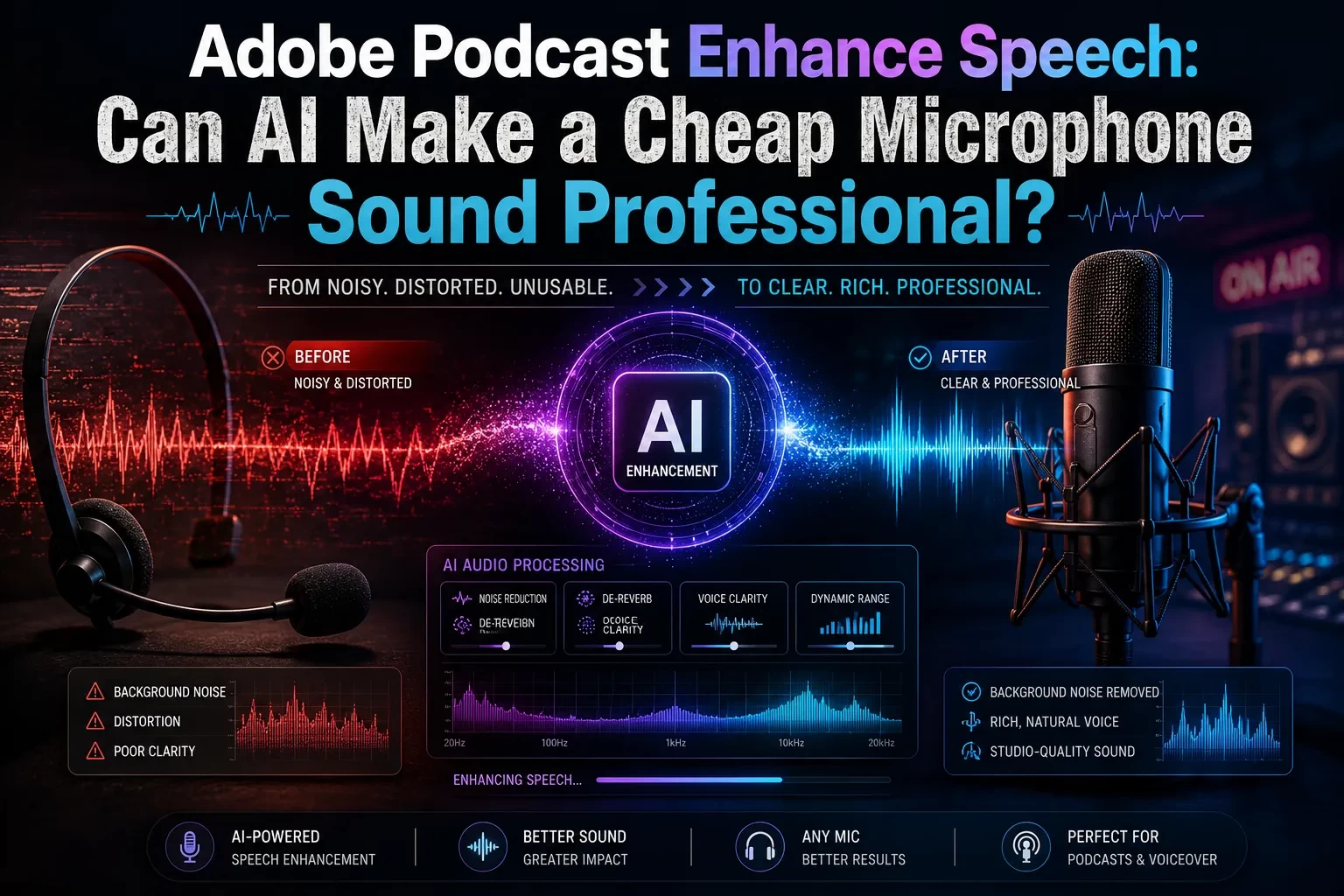
Enhance Speech is designed to reduce problems such as distracting background noise and room echo while making spoken audio clearer. The Premium plan adds video processing, bulk uploads, longer files, and strength controls that can preserve more of the original room and vocal character (Adobe, 2026). (podcast.adobe.com)
This is especially useful for:
• Tutorials recorded in untreated rooms
• Internal training videos
• Social ads with spoken narration
• Course lessons
• Product demonstrations
• Creator voiceovers produced on a deadline
• Interviews recorded with inconsistent equipment
The weakness is that AI enhancement makes interpretive decisions for you. If the recording contains heavy reverb, clipped words, strong background music, overlapping speakers, or unusual vocal characteristics, the processed version may sound overly smooth, metallic, thin, or detached from the room.
The best practice is to treat Enhance Speech as a selectable version—not as an automatic replacement for the original recording.
Audition is better for controlled, repeatable voice production
Audition is the stronger choice when the voice itself is part of a brand or professional deliverable.
A commercial narrator, audiobook editor, agency producer, or recurring YouTube channel may need to control:
• Breath volume
• Mouth clicks
• Sibilance
• Low-frequency rumble
• Plosive consonants
• Room tone
• Pauses and pacing
• EQ and tonal balance
• Compression and dynamic range
• Peak levels and final loudness
Audition’s spectral frequency display allows an editor to identify unwanted sounds visually and target particular time-frequency regions. Its restoration toolset includes noise reduction, adaptive noise reduction, DeHummer, DeClipper, diagnostics, and related repair processes (Adobe, 2026). (helpx.adobe.com)
Audition also supports effect chains that can be saved and reused. That matters when 30 voiceovers must sound consistent across a campaign. Instead of accepting a different AI interpretation for each file, an editor can build a controlled chain such as:
• High-pass filtering
• Corrective EQ
• Light noise reduction
• De-essing
• Compression
• Limiting
• Loudness matching
Voiceover verdict
Use Adobe Podcast when you need a credible result quickly and do not want to manage technical processing.
Use Adobe Audition when the recording must match a defined sound, pass client review, remain consistent across a series, or support detailed revisions.
A strong hybrid option is to generate a moderately enhanced version in Adobe Podcast, import both the original and enhanced files into Audition, and compare them before finishing. Do not automatically apply heavy Audition noise reduction on top of aggressive Enhance Speech processing; double processing can make artifacts more obvious.
Which Is Better for Podcasts?
The answer depends on whether “podcast production” means recording a conversation quickly or constructing a finished audio program.
Adobe Podcast is better for conversational and remote shows
Adobe Podcast Studio can record solo projects or remote participants, generate transcripts, and let the editor remove or rearrange content by editing text. Remote sessions record each participant locally and upload segments progressively, rather than relying only on the low-quality audio heard through a live call. Adobe documents 48 kHz, 16-bit WAV source recording and recommends up to five guests for a smoother session, although it does not list a hard participant limit (Adobe, 2026). (podcast.adobe.com)
This makes Adobe Podcast appealing for:
• Interview podcasts
• Video podcasts with straightforward edits
• Founder or executive conversations
• Educational discussions
• Remote panel recordings
• Shows without complicated sound design
• Teams without a dedicated audio editor
The transcript workflow can significantly reduce editing friction. A producer can find a sentence, remove a repeated phrase, rearrange a section, or correct transcript text without repeatedly scrubbing through a waveform.
Premium users can download original speaker-separated recordings, while Studio also supports multitrack imports for separately recorded audio and video. That provides a useful exit path when the project eventually needs more detailed work in Audition (Adobe, 2026). (podcast.adobe.com)
Remote recording currently has an important browser limitation: Adobe’s official guide specifies Google Chrome on desktop for remote Studio sessions. Guests and hosts should verify microphone permissions, input selection, available storage, and browser compatibility before an important interview (Adobe, 2026). (podcast.adobe.com)
Audition is better for produced podcasts
Audition earns its place when a podcast contains more than trimmed conversation.
Consider an episode with:
• Two hosts recorded on separate microphones
• A remote guest track
• A narrated introduction
• Sponsor messages
• Theme music
• Background ambience
• Archival clips
• Sound effects
• Corrections recorded after the main session
• Different delivery versions
Audition’s Multitrack Editor can combine multiple tracks and clips, apply clip- or track-level processing, create fades, route audio through buses, automate levels, and export a final mixdown. Adobe states that track and clip capacity is effectively constrained by the system’s disk space and processing resources rather than a small fixed track limit (Adobe, 2026). (helpx.adobe.com)
Audition also provides stronger tools for fixing speaker-specific problems. You can treat one guest’s hum without changing the host, reduce a single mouth click, automate music under dialogue, preserve room tone across an edit, or replace an unusable phrase with an alternate take.
The application can measure and match perceived loudness while supporting loudness standards and true-peak limiting. This is useful when episodes, advertisements, introductions, and clips arrive at different levels (Adobe, 2024). (helpx.adobe.com)
Podcast verdict
Choose Adobe Podcast for a discussion-led show with a small team, remote guests, fast editing, and limited sound design.
Choose Audition for documentary podcasts, narrative shows, branded productions, audio dramas, music-heavy programs, client deliverables, or any series that needs repeatable mixing and restoration.
Use both when the host wants Adobe Podcast’s remote recording and transcript editing but the finished episode needs Audition’s precision.
Which Is Better for Reels and Short-Form Video?
For Reels, Shorts, TikTok-style videos, and talking-head clips, audio is usually part of a larger video workflow. The best application depends on how much of that workflow you want to complete before opening a video editor.
Adobe Podcast is the faster social-content option
Adobe Podcast Studio can upload supported video files, generate a transcript, edit the video by editing its text, add music, create captions, and export the result. Adobe’s video editing documentation lists MP4, MOV, M4V, 3GPP, and WebM among accepted upload types and describes project limits that vary by workflow and plan (Adobe, 2025). (podcast.adobe.com)
That makes it useful for:
• Talking-head Reels
• Podcast highlights
• Interview clips
• Educational videos
• Captioned testimonials
• Founder updates
• Simple vertical video repurposing
• Audiograms with waveform graphics
Adobe Podcast Premium also includes Adobe Express Premium features, which can help creators prepare cover graphics, branded assets, and social variations within the broader Adobe ecosystem (Adobe, 2026). (podcast.adobe.com)
The advantage is fewer handoffs. You can clean the speaker, remove an unwanted sentence through the transcript, add captions, and prepare a shareable asset without building a traditional audio session.
Audition is better when the Reel is edited in Premiere Pro
Audition makes more sense when a Reel includes precise music edits, layered effects, difficult dialogue repair, multiple speakers, exact sync requirements, or audio that must match a broader campaign.
Premiere Pro can send clips or sequences to Audition through its Adobe audio-editing workflow. Audition can then handle detailed repairs and mixing before the audio returns to the video project (Adobe, 2026). (helpx.adobe.com)
For example, a 30-second product Reel may contain:
• A voiceover recorded in a noisy office
• Music that must drop under each sentence
• Product interface sounds
• A transition effect
• Two alternate endings for testing
Adobe Podcast can improve the voice quickly, but Audition offers better control over the full audio arrangement. Its Essential Sound tools can classify dialogue, music, ambience, and effects, while its ducking controls can reduce music when speech is present (Adobe, 2021). (helpx.adobe.com)
Reels verdict
Use Adobe Podcast for fast talking-head cleanup, transcript cuts, captions, and simple social exports.
Use Audition with Premiere Pro when audio timing, effects, music, alternate versions, or brand consistency require more control.
A Practical Decision Framework
Choose Adobe Podcast when most of these statements are true:
• Your content is dominated by speech.
• You prefer editing words instead of waveforms.
• You record guests remotely.
• You need fast captions or audiograms.
• You rarely use more than a few tracks.
• You do not need detailed EQ, routing, automation, or spectral repair.
• You need a usable result more than a technically customized result.
Choose Adobe Audition when most of these statements are true:
• You regularly deliver audio to clients.
• You need repeatable sound across episodes or campaigns.
• You work with music, effects, ambience, and multiple speakers.
• You need precise timing and frame-level video synchronization.
• You repair clicks, clipping, hum, hiss, or inconsistent levels manually.
• You need loudness measurement and controlled mastering.
• You already use Premiere Pro or other Creative Cloud production tools.
• You are willing to spend time learning audio terminology and signal flow.
Choose a hybrid workflow when:
• Adobe Podcast is the easiest way to capture a remote interview.
• Transcript editing can remove most conversational mistakes.
• Certain sections still need manual restoration.
• The final episode needs music, sponsor segments, detailed fades, or measured loudness.
Step by Step: How to Build the Right Workflow
1. Start with the final deliverable
Identify what must be delivered before choosing the application.
A two-minute internal update does not need the same production process as a paid commercial voiceover. Define the required duration, file format, video dimensions, number of speakers, revision expectations, and publishing destination.
Practical tip: Ask whether another editor will need the original recordings. If so, preserve and organize them before applying any destructive or AI-based processing.
2. Evaluate the recording problem
Listen for the actual issue:
• Background noise
• Room echo
• Clipping
• Hum
• Uneven speaker levels
• Poor microphone technique
• Long pauses and verbal mistakes
• Music competing with speech
• Inconsistent tone between recording sessions
Adobe Podcast is most efficient when the main problem is intelligibility or room quality. Audition is more appropriate when the issue is localized, technical, or different across several tracks.
3. Test a representative section
Do not process an entire two-hour episode before checking a short section containing the worst room noise, loudest speech, quietest speech, and any overlapping dialogue.
In Adobe Podcast, compare different enhancement strengths when available. In Audition, preview restoration effects and listen for metallic tails, damaged consonants, or unnatural silence.
Warning: Noise removal is not automatically better at a higher setting. A small amount of consistent room noise is often less distracting than strong processing artifacts.
4. Preserve an untouched original
Keep the source files in a clearly labeled folder. For remote recordings, download speaker-separated originals when your Adobe Podcast plan and project allow it.
Use a folder structure such as:
• 01_Originals
• 02_Enhanced
• 03_Audition_Session
• 04_Mixdowns
• 05_Published
This makes revisions safer and prevents an enhanced export from being mistaken for the source recording.
5. Perform structural edits before final processing
Remove unwanted sections, false starts, repeated answers, and long interruptions before spending time polishing individual sounds.
Transcript editing in Adobe Podcast is efficient for structural work. Audition is better when an edit needs exact timing, room-tone replacement, overlapping clips, crossfades, or visual waveform inspection.
6. Apply processing in moderation
For straightforward speech, a reasonable order is:
- Repair obvious defects.
- Reduce noise or echo.
- Correct tonal problems with EQ.
- Control dynamics with compression.
- Reduce harsh sibilance if necessary.
- Match loudness and limit peaks.
The exact order may vary, but repeatedly applying enhancement, noise reduction, compression, and limiting without listening between stages can make the voice less natural.
7. Review in the listener’s environment
Check the result on:
• Headphones
• Laptop speakers
• A phone speaker
• A car or portable speaker when relevant
• The actual video timeline for Reels and Shorts
A voice may sound polished on studio headphones but become harsh or difficult to understand on a phone.
8. Export and archive deliberately
Use clear file names with the project, version, and purpose:
• episode-14-fullmix-v03.wav
• episode-14-publish.mp3
• reel-product-demo-30sec-v02.wav
• voiceover-clean-approved.wav
Archive the original recordings, the editable project, and the approved master—not every temporary render.
Cost and Subscription Considerations
Adobe Podcast offers a free plan and a Premium plan. According to Adobe’s current plan comparison, the free tier limits Enhance Speech to audio-only files of up to 30 minutes and 500 MB, with up to one hour of enhancement per day. Free Studio projects are limited to 30 minutes, with two project downloads per day and no download of speaker-separated original recordings (Adobe, 2026). (podcast.adobe.com)
The Premium tier expands Enhance Speech to files of up to two hours and 1 GB, allows up to four hours of enhancement per day, supports video and bulk processing, adds enhancement-strength controls, increases Studio project duration, removes daily download limits, and enables original speaker-separated downloads. Adobe advertises a 30-day Premium trial, although final pricing and promotional terms should be verified through the official plan page and checkout for your account and region (Adobe, 2026). (podcast.adobe.com)
At the time of writing, Adobe’s U.S. product page lists Audition at $22.99 per month for an annual plan billed monthly. Adobe also offers a seven-day trial of the complete application. Prices, cancellation terms, discounts, taxes, and plan names can change, so confirm the current checkout terms before subscribing (Adobe, 2026). (adobe.com)
Cost should be evaluated against labor rather than features alone.
Adobe Podcast may provide better value when it turns a 45-minute cleanup task into a few browser-based actions. Audition may provide better value when a client requests revisions, separate mixes, exact loudness, replacement dialogue, alternate music, or repairs that a simplified editor cannot perform.
Before paying for Audition separately, check whether it is already included in your current Creative Cloud plan.
Hardware, Browser, and Reliability Considerations
Adobe Podcast moves much of the workflow into a web browser, reducing the need for a high-end editing workstation. However, it depends on browser compatibility, account access, upload bandwidth, and Adobe’s online processing services.
Remote recording requires additional preparation. Adobe officially documents Chrome on desktop as the supported environment for Studio remote sessions. Because each participant’s local recording uploads progressively, everyone should keep the browser session open and avoid changing networks during the interview when possible (Adobe, 2026). (podcast.adobe.com)
If a Studio recording does not appear to finish uploading, Adobe’s guide recommends closing and reopening the project so its recovery mechanism can begin. That is useful, but it should not replace a backup plan for high-value interviews (Adobe, 2026). (podcast.adobe.com)
Audition relies more heavily on the local computer. Adobe’s June 2026 system requirements apply to Audition version 26.3 and include operating-system, processor, memory, storage, and audio-hardware requirements. Complex sessions with many effects, long recordings, or high track counts will demand more processing power and disk performance (Adobe, 2026). (helpx.adobe.com)
For important productions, record a backup whenever practical. A second recorder, camera track, or local device can be more valuable than any restoration tool after a source file is lost.
Privacy and Data Handling
Adobe Podcast is a cloud-connected browser service. Uploaded interviews, voiceovers, videos, transcripts, and remote recordings should therefore be treated as content processed through an online platform.
Before uploading sensitive material:
• Obtain appropriate permission from speakers.
• Avoid uploading confidential client discussions unless the workflow has been approved.
• Confirm organizational rules for personal, educational, medical, legal, or customer information.
• Review Adobe’s current privacy policy, terms, and account controls.
• Remove unnecessary identifying information from filenames and project notes.
• Limit access to the Adobe account and use strong authentication.
Adobe’s current General Terms state that it does not use Local or Cloud Content to train generative AI models except for content a user chooses to submit to the Adobe Stock marketplace. The terms also describe limited circumstances in which human review of Cloud Content may occur, including user-requested support, public sharing, content flagged as illegal or abusive, or participation in certain prerelease or improvement programs (Adobe, 2025). (adobe.com)
Adobe’s privacy policy explains that its web services collect and process account, service, device, and usage information under the conditions described in the policy. Retention and applicable rights can depend on the service, account, region, and legal requirements (Adobe, 2025). (adobe.com)
Audition can keep an ordinary editing session and its source files on the local computer, but the data path changes when you use cloud storage, collaboration, sharing, support, or connected services. For confidential work, verify the complete workflow rather than assuming that every Adobe application handles files identically.
This section is practical risk guidance, not legal or compliance advice.
Common Mistakes and Troubleshooting
Enhance Speech makes the voice sound artificial
Why it happens: The original may contain strong echo, clipping, competing voices, music, or too little vocal information for natural reconstruction. The enhancement may also be set more strongly than the recording requires.
How to fix it: Reduce the enhancement strength, improve the source recording, process a shorter test, or retain some of the original signal. For difficult sections, use Audition’s targeted restoration instead of processing the entire file aggressively.
The transcript edit removes the wrong audio
Why it happens: Names, technical vocabulary, accents, overlapping voices, or low-quality recordings may produce transcription errors.
How to fix it: Correct the transcript text before making structural cuts. Listen around every important edit. Move the project to Audition when the cut requires exact timing, a crossfade, or room-tone repair.
A remote participant’s recording is incomplete
Why it happens: The participant may close the browser before upload completion, lose microphone permission, switch networks, or use an unsupported browser environment.
How to fix it: Use current desktop Chrome, confirm the selected microphone, keep the Studio project open, and reopen the project to trigger Adobe’s recovery mechanism when an upload appears stalled. Record a backup for irreplaceable interviews (Adobe, 2026). (podcast.adobe.com)
Audition’s noise reduction creates metallic artifacts
Why it happens: Excessive reduction can remove parts of the voice along with the noise, especially when the background changes over time.
How to fix it: Capture a cleaner noise print, reduce the processing amount, use multiple lighter passes, or combine modest noise reduction with EQ and manual spectral repair. Compare the processed file against the original frequently.
The final podcast has inconsistent volume
Why it happens: Speakers were recorded at different levels, individual clips received inconsistent processing, or the episode was exported without loudness analysis.
How to fix it: Balance speakers at the clip or track level, use compression carefully, and evaluate the final mix with Audition’s Match Loudness and loudness-metering tools. Do not normalize every raw clip independently and assume the conversation will sound balanced.
Music overwhelms the voice
Why it happens: Music may have strong frequencies in the same range as speech, or its level remains static during narration.
How to fix it: Lower the music, automate fades, use ducking, and consider subtractive EQ on the music. Audition’s multitrack and Essential Sound tools are better suited to this work than a one-click speech enhancer.
The voice has been processed twice
Why it happens: A creator applies strong Enhance Speech processing and then adds aggressive noise reduction, EQ, compression, and limiting in Audition or Premiere.
How to fix it: Decide which application will perform the primary cleanup. Use the other for targeted corrections and final mixing. Compare against the untouched original after every major stage.
A Reel sounds good alone but wrong in the video
Why it happens: The audio may have been edited without checking its relationship to cuts, captions, visual actions, music transitions, or mobile playback.
How to fix it: Perform the final review inside the video timeline. Check synchronization, caption timing, music levels, and the first second of playback on a phone-sized speaker.
When Not to Use Adobe Podcast
Adobe Podcast may not be the right primary editor when:
• You must make surgical frequency-based repairs.
• A production contains many music and effects tracks.
• You need complex routing or bus processing.
• A client expects editable session files and detailed mix revisions.
• You need manual control over every fade, crossfade, effect, and automation move.
• The material cannot be uploaded to a cloud-connected service under your organization’s rules.
• The recording contains significant overlapping speech that transcript editing cannot isolate.
In these cases, Audition—or another full digital audio workstation—will generally provide a more appropriate production environment.
When Audition Is More Than You Need
Audition may add unnecessary complexity when:
• You only need to remove background noise from a short voice memo.
• Your podcast consists of one clean conversation and simple cuts.
• You do not understand or need detailed mixing controls.
• You publish frequent social clips and value speed over granular adjustments.
• Your computer does not comfortably handle a desktop production application.
• You need remote recording built into the same workspace.
A more advanced application is not automatically a better business decision. Every additional control creates another decision, another place to make a mistake, and another skill to maintain.
Recommended Workflows by Use Case
Solo voiceover for a tutorial
Use Adobe Podcast Enhance Speech for initial cleanup. Listen for unnatural processing, then place the result in the video editor. Move to Audition only when the voice needs manual repair, tighter dynamics, or consistent tonal matching with previous lessons.
Weekly interview podcast
Record in Adobe Podcast Studio, edit the conversation through the transcript, and export speaker-separated originals. Finish in Audition when the episode needs music, sponsor insertion, speaker-specific EQ, detailed repairs, or measured loudness.
Daily talking-head Reels
Use Adobe Podcast for enhancement, text-based trimming, and captions. Keep a reusable visual template in Adobe Express or your preferred video editor. Use Audition only for unusually difficult recordings or campaign-level audio consistency.
Branded narrative podcast
Use Audition as the main production environment. Adobe Podcast can still help with remote capture, transcripts, or an alternate enhanced track, but the final edit should remain in a multitrack session with organized dialogue, narration, music, ambience, effects, and mastering.
Agency voiceover production
Record and finish in Audition when possible. Save approved presets and effects chains, maintain naming conventions, archive source recordings, and export client-specific versions. Adobe Podcast can serve as an emergency cleanup option for externally supplied recordings.
Frequently Asked Questions
Final Verdict
Adobe Podcast and Adobe Audition should not be judged as interchangeable audio editors.
Adobe Podcast is the better fit for speed: remote recording, transcript editing, AI speech cleanup, captions, audiograms, and frequent speech-led content.
Adobe Audition is the better fit for control: detailed voice editing, spectral restoration, multitrack podcasts, music and effects, loudness management, client revisions, and Premiere Pro production workflows.
For many independent creators, Adobe Podcast provides enough capability to publish consistently without turning every recording into an engineering project. For agencies, professional editors, narrative podcasters, and creators building a recognizable sound, Audition offers the control needed to maintain quality across projects.
Use this final checklist:
• Choose Adobe Podcast when speech is the main content and turnaround time matters most.
• Choose Audition when the project requires detailed repair, mixing, consistency, or revision control.
• Keep original recordings before using AI enhancement.
• Test processing on a short, difficult section before committing to the entire file.
• Review the final result on headphones, phone speakers, and inside the finished video.
• Use a hybrid workflow when Adobe Podcast simplifies recording but Audition is needed for professional finishing.
Sources
• Adobe Podcast — https://podcast.adobe.com/en
• Adobe Podcast Plans — https://podcast.adobe.com/en/plans
• Adobe Podcast FAQ — https://helpx.adobe.com/podcast/adobe-podcast-faq.html
• Set Up a Remote Recording in Adobe Podcast — https://podcast.adobe.com/en/guides/set-up-a-remote-recording
• Edit Videos in Adobe Podcast Studio — https://podcast.adobe.com/en/guides/edit-videos-in-adobe-podcast-studio
• Adobe Podcast March 2026 Updates — https://podcast.adobe.com/en/guides/whats-new-in-adobe-podcast-march-2026
• Adobe Audition Product Page — https://www.adobe.com/products/audition.html
• Adobe Audition Multitrack Editor Overview — https://helpx.adobe.com/audition/desktop/mixing-multitrack-sessions/multitrack-editor-overview.html
• Adobe Audition Noise Reduction and Restoration — https://helpx.adobe.com/audition/desktop/effects-reference/noise-reduction-restoration-effects.html
• Adobe Audition Release Notes — https://helpx.adobe.com/audition/desktop/introduction/audition-releasenotes.html
• Adobe Audition System Requirements — https://helpx.adobe.com/audition/desktop/introduction/system-requirements.html
• Premiere Pro and Adobe Audition Audio Workflow — https://helpx.adobe.com/premiere/desktop/use-premiere-with-other-apps/working-with-other-adobe-applications/how-premiere-works-with-audition-for-audio-editing.html
• Adobe General Terms of Use — https://www.adobe.com/legal/terms.html
• Adobe Privacy Policy — https://www.adobe.com/privacy/policy.html