




Table of Contents
◉ Introduction ◉ The Short Answer ◉ Reader Roadmap ◉ Website Security Is a System, Not a Single Setting ◉ SSL Certificates: What They Do and What They Do Not Do ◉ Backups: Your Recovery Layer When Something Goes Wrong ◉ Security Plugins and Protective Tools: Useful, but Not Magic ◉ A Practical Website Protection Stack ◉ Step-by-Step: How to Protect a Website Without Overcomplicating It ◉ Privacy, Security, and Compliance Considerations ◉ Practical Example: A Small Business WordPress Site ◉ Common Mistakes and Troubleshooting ◉ When You May Need Professional Help ◉ FAQ ◉ Conclusion: Build a Website Security Routine You Can Maintain ◉ Sources
A website does not have to process credit cards or store medical records to be worth protecting. If it represents your business, collects leads, publishes content, runs ads, hosts customer accounts, or supports search traffic, downtime and compromise can cost real money. A hacked site can lose trust, expose users to malware warnings, damage search visibility, interrupt sales, and create cleanup work that is far more expensive than prevention.
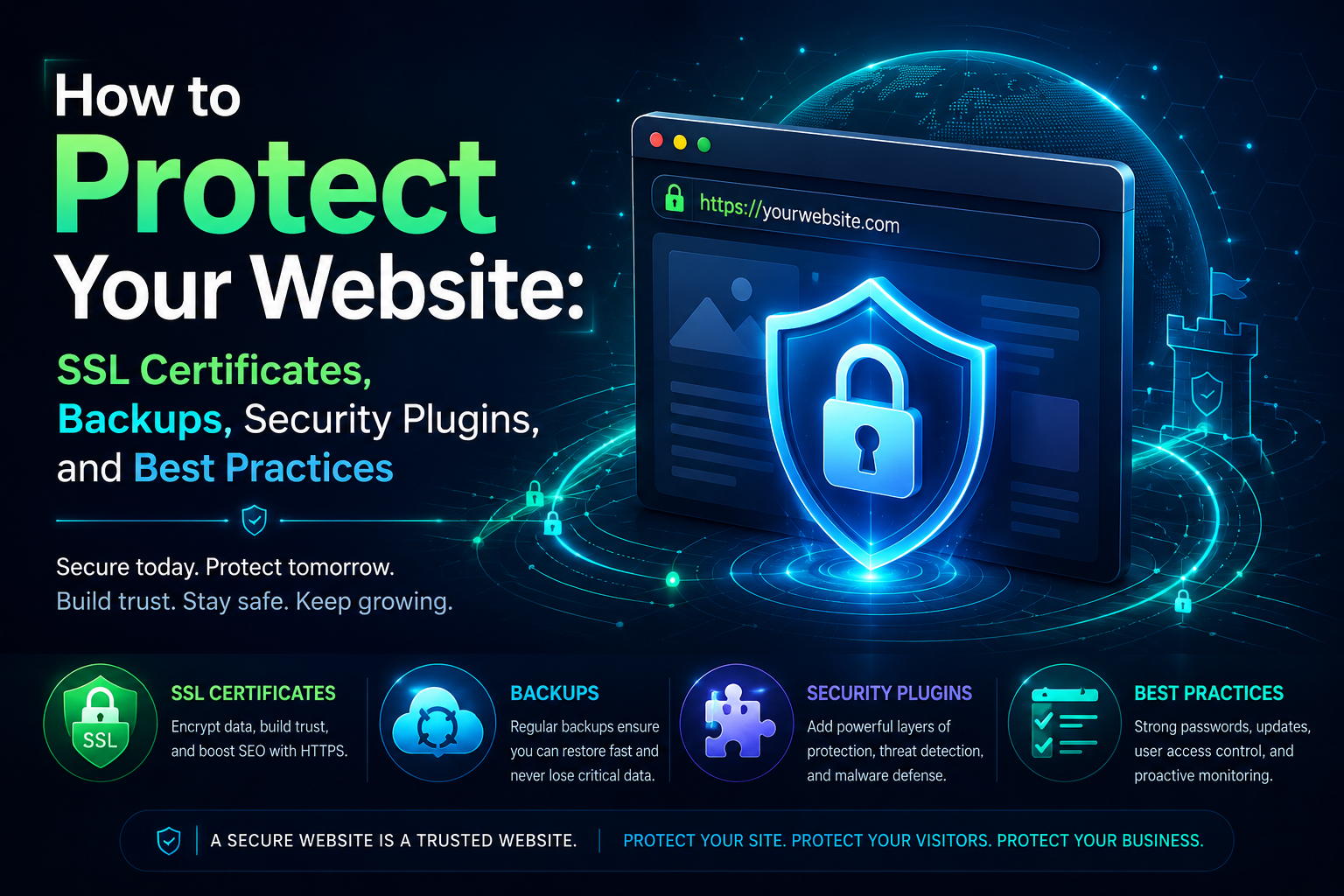
This guide is for website owners, marketers, freelancers, creators, and small business teams who need a practical security plan without becoming full-time security engineers. It focuses on four layers that matter for most public websites: SSL/TLS certificates, backups, security plugins or protective tools, and everyday operating practices.
The goal is not to promise that any website can be made risk-free. It cannot. The goal is to reduce common risks, make attacks harder, and improve your odds of recovering quickly when something breaks. You will learn what each layer does, where it can fail, how to choose the right tools, and how to build a simple website protection workflow you can actually maintain.
The Short Answer
To protect your website, use HTTPS with a valid SSL/TLS certificate, keep complete and tested backups, add security controls appropriate for your platform, and maintain disciplined access, update, and monitoring habits.
SSL/TLS encrypts traffic between visitors and your site, helping protect data from interception or tampering. Modern browsers and search engines expect HTTPS, and Chrome has continued moving toward stronger warnings for public sites that still rely on HTTP (Google Security Blog, 2025).
Backups are your recovery layer. A security plugin may block suspicious activity, but it cannot undo every bad update, mistaken deletion, server failure, or compromise. WordPress officially recommends backup planning and notes that plugins can help automate scheduled database backups (WordPress Developer Resources, 2023).
Security plugins, web application firewalls, malware scanners, login protection, and monitoring tools can reduce common risks, especially on CMS-driven sites. They work best when paired with strong passwords, multi-factor authentication, least-privilege access, patching, and regular restore tests.
The safest approach is layered: encrypt connections, reduce exposure, limit access, monitor changes, and prepare for recovery.
Reader Roadmap
• How SSL/TLS protects visitors, so you can avoid browser warnings and insecure data transmission.
• Why backups are not optional, so you can recover from hacks, failed updates, accidental deletions, and hosting problems.
• Where security plugins and firewalls fit, so you do not confuse prevention tools with recovery tools.
• How to build a practical protection workflow, so security maintenance becomes a routine instead of a crisis.
• What mistakes cause most preventable website security problems, so you can fix weak points before they become emergencies.
Website Security Is a System, Not a Single Setting
Many site owners treat website security as a checkbox: install an SSL certificate, add a plugin, and move on. That approach leaves gaps. SSL protects traffic in transit, but it does not stop a weak admin password. A backup saves recovery time, but only if it includes the right files and can actually be restored. A security plugin may block common attacks, but it cannot compensate for abandoned themes, excessive admin accounts, or unpatched custom code.
A more useful way to think about protection is to divide your website into four security jobs:
• Protect visitors while they connect to your site.
• Protect the site’s files, database, admin accounts, and integrations.
• Detect suspicious changes or outages early.
• Recover quickly if prevention fails.
This mirrors the broader cybersecurity logic used in frameworks such as the NIST Cybersecurity Framework 2.0, which organizes cybersecurity work around governing, identifying, protecting, detecting, responding, and recovering from risk (NIST, 2024). A small business website does not need enterprise complexity, but the sequence is still useful: know what you have, protect it, watch it, and plan recovery.
SSL Certificates: What They Do and What They Do Not Do
An SSL certificate is more accurately called a TLS certificate today, although many hosting dashboards and tutorials still use “SSL.” The certificate helps enable HTTPS, the secure version of HTTP. It allows a browser to establish an encrypted connection with a website and verify that it is connecting to the expected domain.
Cloudflare describes SSL/TLS certificates as encrypting traffic between visitors and a website, helping prevent eavesdropping and data tampering (Cloudflare, 2026). Let’s Encrypt, a nonprofit certificate authority, provides free, automated certificates that have made HTTPS easier for small sites to deploy (Let’s Encrypt, 2025).
For most website owners, the important point is simple: HTTPS should be active across the entire site, not only on checkout or login pages.
Why HTTPS Matters for Trust, Security, and SEO
HTTPS helps protect information such as contact form submissions, login credentials, session cookies, and page requests while they travel between a visitor and the website. It also helps prevent certain types of content tampering in transit.
There is also a visibility and user-trust angle. Google announced HTTPS as a ranking signal in 2014, describing it at the time as lightweight compared with signals such as high-quality content (Google Search Central Blog, 2014). That does not mean SSL is a magic SEO lever. It means HTTPS is a baseline technical expectation for serious websites.
Browsers have moved in the same direction. Google said in 2025 that Chrome would move toward enabling “Always Use Secure Connections” by default, warning users when HTTPS is unavailable on public sites (Google Security Blog, 2025). For a business website, a security warning before a visitor can view a page is a conversion problem as much as a technical problem.
What SSL Does Not Solve
SSL/TLS does not make a vulnerable website safe. It does not remove malware, patch plugins, secure admin accounts, stop spam form submissions, or guarantee that a site owner is legitimate. A phishing site can use HTTPS. A hacked WordPress site can still have a valid certificate.
Treat SSL as the front door lock for the connection, not the entire security system.
Backups: Your Recovery Layer When Something Goes Wrong
Backups are not exciting until the day you need one. Then they become the difference between a short recovery window and a painful rebuild.
A useful website backup should include both the database and the files that make the site work. For a WordPress site, that usually means the database, uploads, themes, plugins, configuration files, and any custom code. For a static site, the files and deployment configuration may matter more. For an e-commerce site, order data, customer records, and inventory changes can make backup timing more sensitive.
WordPress documentation notes that automatic scheduled database backups can be handled with plugins and that backup planning is part of responsible administration (WordPress Developer Resources, 2023). CISA’s ransomware guidance also emphasizes maintaining backups and testing restoration as part of reducing the impact of incidents (CISA, 2023).
The Backup Rule That Actually Matters
A backup you have never restored is only a theory.
Many site owners assume backups exist because their host advertises them. That may be true, but you need to know:
• What is included?
• How often are backups created?
• How long are they retained?
• Can you restore a single file, a database, or the whole site?
• Are backups stored separately from the live server?
• Who has permission to delete or overwrite them?
• Have you tested a restore recently?
For many small business websites, a practical setup is a layered backup plan: hosting-level backups for fast recovery, plus independent backups stored offsite in a cloud storage account or backup service. The independent copy matters because hosting accounts can fail, get suspended, be misconfigured, or become inaccessible during an incident.
How Often Should You Back Up?
Backup frequency depends on how often your site changes.
A brochure site that changes once a month may be fine with weekly backups plus manual backups before updates. A blog that publishes daily should consider daily backups. An online store, membership site, booking site, or lead-generation site with constant form submissions may need more frequent database backups.
The decision is less about what sounds secure and more about your recovery point objective: how much data could you afford to lose?
If losing one day of orders would be unacceptable, daily backups are not enough. If losing a week of blog edits would be annoying but manageable, weekly backups may be reasonable.
Security Plugins and Protective Tools: Useful, but Not Magic
Security plugins are popular because they give non-technical site owners a dashboard for hardening, scanning, and monitoring. On WordPress, common categories include firewall plugins, login protection tools, malware scanners, activity logs, file integrity monitoring, spam protection, and backup plugins.
The official WordPress hardening guide explains that WordPress security is taken seriously but that any system can have issues if basic precautions are not taken (WordPress Developer Resources, 2023). That is the right framing: plugins can help, but your operating habits still matter.
What a Good Security Plugin Can Help With
A well-chosen security plugin or protective service may help you:
• Limit repeated login attempts.
• Add two-factor authentication for admin users.
• Scan for known malware patterns.
• Detect unexpected file changes.
• Block suspicious requests with a firewall.
• Alert you when plugins, themes, or core files need updates.
• Log admin activity so you can investigate changes.
• Enforce basic hardening settings.
For sites using a content delivery network or reverse proxy, a web application firewall may sit in front of the site and filter malicious traffic before it reaches the server. OWASP identifies the Top 10 as a standard awareness document for major web application security risks, including access control failures and injection-style risks that defensive tools and secure development practices should account for (OWASP, 2025).
Where Security Plugins Fall Short
Security plugins have limits. They may not catch a new vulnerability immediately. They may miss custom-code issues. They may generate false positives. They can also slow down a site if configured poorly or if multiple plugins overlap.
The most common mistake is installing several security plugins that perform the same job. Two firewalls, two login limiters, and two scanners may conflict or create performance problems. Choose a focused stack and understand what each component is responsible for.
A Practical Website Protection Stack
The right stack depends on your platform, budget, and technical comfort level. A custom web app needs a different security process than a small WordPress site. Still, most websites can use a version of this decision matrix.
| Protection Layer | What It Handles | Practical Choice Criteria |
|---|---|---|
| SSL/TLS certificate | Encrypts visitor connections and enables HTTPS | Use host-managed SSL, Let’s Encrypt, or CDN-managed certificates; confirm auto-renewal |
| Backups | Restores files and data after failure or compromise | Include database and files; store offsite; test restores |
| Security plugin or firewall | Blocks or detects common threats | Avoid overlapping tools; prioritize login protection, scanning, firewall rules, and alerts |
| Access control | Reduces account-based compromise | Use MFA, unique passwords, least-privilege roles, and remove inactive users |
| Updates and maintenance | Fixes known vulnerabilities and compatibility issues | Patch core software, plugins, themes, dependencies, and server software |
| Monitoring | Detects downtime, malware, and unexpected changes | Use uptime alerts, security alerts, and activity logs |
This table is not a shopping list. It is a responsibility map. Before buying another plugin, identify which layer is weak.
Step-by-Step: How to Protect a Website Without Overcomplicating It
1. Inventory the Site Before Changing Anything
Start by listing what your website depends on: hosting provider, domain registrar, DNS provider, CMS, theme, plugins, payment tools, email forms, analytics scripts, CDN, and admin users.
Why it matters: you cannot protect accounts, tools, or data flows you have forgotten about.
Practical tip: create a simple document with login URLs, account owners, renewal dates, and recovery contacts. Do not store passwords in that document. Use a password manager instead.
2. Turn On HTTPS Across the Entire Site
Use your host, CDN, or certificate authority to install a valid SSL/TLS certificate. Many hosts provide free certificates through Let’s Encrypt or another certificate authority. After installation, force HTTPS sitewide and update internal links, canonical URLs, sitemaps, and CMS settings.
Why it matters: partial HTTPS creates mixed-content errors, browser warnings, broken assets, and user distrust.
Practical warning: do not simply install the certificate and stop. Visit multiple pages, submit a test form, check images and scripts, and confirm that HTTP URLs redirect to HTTPS.
3. Set Up Automatic Backups With Offsite Storage
Configure backups for both files and databases. Store at least one copy somewhere separate from the hosting account. Schedule backups based on how often your site changes.
Why it matters: if the live server and its backups are compromised together, your recovery options shrink.
Practical tip: run a manual backup before major plugin updates, theme changes, migrations, or design edits. Keep a short note describing what changed.
4. Test a Restore Before You Need One
Restore your site to a staging environment, temporary domain, or local development setup. Confirm that pages load, forms work, images appear, and admin access functions.
Why it matters: restore testing reveals missing files, corrupted backups, plugin conflicts, and unclear recovery steps.
Practical warning: do not overwrite the live website during a test unless you know exactly what you are doing. Use staging when possible.
5. Harden Admin Access
Use unique passwords, turn on multi-factor authentication, remove unused admin accounts, and give users only the permissions they need. CISA describes MFA as requiring a second method of verifying identity and says it helps prevent unauthorized access to data and applications (CISA, 2026).
Why it matters: many website compromises begin with account access, not advanced technical exploits.
Practical tip: separate daily content publishing accounts from full administrator accounts. If someone only writes blog posts, they should not need full site control.
6. Install Only the Security Tools You Understand
Choose a reputable security plugin, firewall, or monitoring tool that fits your platform. Configure alerts so they go to an inbox someone actually checks.
Why it matters: ignored alerts and default settings create a false sense of safety.
Practical warning: avoid installing multiple plugins that perform the same firewall, login, or scanning function. Overlap can create conflicts and slow the site.
7. Keep Software Updated on a Schedule
Update CMS core software, themes, plugins, server packages, frameworks, and dependencies. For business-critical sites, use staging before updating production.
Why it matters: attackers often target known vulnerabilities after fixes are publicly available.
Practical tip: set a recurring maintenance window. For a small business WordPress site, that might be weekly. For an active e-commerce site, it may require tighter monitoring and a more formal release process.
8. Monitor Uptime, Malware, and Unexpected Changes
Use uptime monitoring to catch outages and security monitoring to detect suspicious changes. Review activity logs after adding new users, installing plugins, or changing payment forms.
Why it matters: faster detection reduces the damage window.
Practical tip: make alerts specific. “Your site is down” is useful. A stream of vague warnings that no one investigates is not.
9. Write a Simple Incident Plan
Document what to do if the site is hacked, defaced, redirected, blacklisted, or taken offline. Include host support contacts, backup locations, DNS access, developer contacts, and communication steps.
Why it matters: during an incident, panic wastes time.
Practical warning: do not delete evidence immediately if customer data may be involved. Preserve logs and consult qualified technical or legal help when appropriate.
Privacy, Security, and Compliance Considerations
Website security is not only about protecting your own files. It also affects visitors, customers, subscribers, donors, and employees.
If your site collects form submissions, account registrations, payment-related data, appointment details, or newsletter signups, treat that data with caution. Use HTTPS, limit who can access submissions, delete data you no longer need, and review third-party integrations that receive user information.
For regulated industries, security and privacy obligations may go beyond general best practices. This article is not legal advice. If your website handles health, financial, education, children’s, or sensitive customer data, consult qualified counsel or a compliance professional.
For practical risk reduction:
• Avoid collecting sensitive information unless you truly need it.
• Use reputable form, payment, and email providers.
• Restrict admin access to trusted users.
• Review plugin permissions before installing.
• Remove abandoned integrations.
• Keep a record of where customer data flows.
• Use vendor documentation as the source of truth for data retention and security settings.
Practical Example: A Small Business WordPress Site
Imagine a local service business with a WordPress site that gets leads through contact forms and search traffic. The owner has a host, a domain registrar, 18 plugins, two old admin accounts from a former contractor, and no tested backups.
A practical protection plan would look like this:
• Enable HTTPS through the host or CDN and force all pages to redirect to HTTPS.
• Remove unused admin accounts and downgrade users who do not need administrator permissions.
• Turn on multi-factor authentication for all admin users.
• Delete inactive plugins and themes.
• Update WordPress core, active plugins, and the active theme after taking a backup.
• Configure daily database backups and weekly full-site backups to offsite storage.
• Install one security plugin or firewall tool with login protection, scanning, and alerts.
• Add uptime monitoring.
• Test restoring the site to staging once per quarter.
This is not enterprise security. It is basic operational discipline. For many small sites, that alone would eliminate several common failure points.
Common Mistakes and Troubleshooting
Mistake: Installing SSL but Still Seeing “Not Secure”
Why it happens: the certificate may be installed, but the site may still load scripts, images, fonts, or links over HTTP. This is called mixed content. The site may also lack proper redirects from HTTP to HTTPS.
How to fix it: update the site URL in your CMS, replace hard-coded HTTP links, regenerate the sitemap, clear caches, and confirm that every public page redirects to HTTPS. If the issue persists, ask your host or CDN provider to inspect the certificate chain and redirect rules.
Mistake: Assuming Host Backups Are Enough
Why it happens: hosting plans often advertise backups, but the details vary. Some backups are retained for a short time, exclude certain files, or require support intervention.
How to fix it: verify backup scope, frequency, retention, restore options, and storage location. Add an independent backup if losing access to your hosting account would block recovery.
Mistake: Keeping Old Plugins “Just in Case”
Why it happens: site owners fear deleting something that might affect design or functionality. Over time, inactive or abandoned plugins accumulate.
How to fix it: document active functionality, test changes in staging, remove inactive plugins and themes, and replace abandoned tools with maintained alternatives. Fewer dependencies usually mean fewer update and compatibility risks.
Mistake: Giving Everyone Administrator Access
Why it happens: admin access is convenient. Agencies, freelancers, writers, and employees often receive more permission than they need.
How to fix it: apply least privilege. Give writers author or editor roles, give developers temporary admin access when needed, and remove accounts when projects end. OWASP continues to identify access control as a major web application security risk, which makes permission discipline especially important (OWASP, 2025).
Mistake: Ignoring Restore Tests
Why it happens: backups appear successful in the dashboard, so nobody checks whether they work.
How to fix it: schedule restore tests. Confirm that the restored site includes recent content, images, forms, and database records. Keep notes on the restore process so another person can follow it.
Mistake: Letting Security Alerts Go Nowhere
Why it happens: alerts are sent to an old contractor, an unmonitored admin email, or a crowded inbox.
How to fix it: route critical alerts to a shared operational inbox or ticketing system. Review alert recipients quarterly, especially after staff or agency changes.
Mistake: Treating a Security Plugin as a Substitute for Maintenance
Why it happens: dashboards make protection feel automated.
How to fix it: keep a maintenance calendar. Review updates, backups, access, plugin inventory, and monitoring alerts on a schedule. Security tools support maintenance; they do not replace it.
When You May Need Professional Help
Some situations deserve expert support. Hire a qualified developer, security specialist, or managed host if:
• Your site handles payments, memberships, private records, or high-volume leads.
• You suspect malware, spam redirects, or unauthorized admin access.
• Your site is on a blocklist or showing browser security warnings.
• You rely on custom code, complex integrations, or multiple subdomains.
• You cannot afford extended downtime.
• You need compliance guidance for sensitive data.
A professional does not eliminate your responsibility, but the right expert can help you avoid dangerous guesswork during migrations, malware cleanup, or incident response.
FAQ
Conclusion: Build a Website Security Routine You Can Maintain
Protecting a website is not about buying the most complicated tool. It is about covering the basics consistently: secure the connection, reduce unnecessary access, keep software current, watch for problems, and maintain recoverable backups.
Start with the highest-impact items first. If your site still lacks HTTPS, fix that. If you do not have offsite backups, set them up. If old admin accounts are still active, remove them. If you have never restored a backup, test one before an emergency forces you to learn under pressure.
Use this checklist as your next action plan:
• Confirm HTTPS works across every important page.
• Verify SSL/TLS certificate renewal is automatic or tracked.
• Set up full-site and database backups.
• Store at least one backup copy offsite.
• Test a restore in staging or a safe environment.
• Turn on multi-factor authentication for admin accounts.
• Remove unused users, plugins, themes, and integrations.
• Keep software updated on a regular schedule.
• Configure security and uptime alerts.
• Document who to contact during an incident.
A secure website is not a finished project. It is a maintained system. The good news is that most of the work is ordinary, repeatable, and manageable once you turn it into a routine.
Sources
• Cloudflare SSL/TLS Docs — https://developers.cloudflare.com/ssl/
• Cloudflare: What Is an SSL Certificate? — https://www.cloudflare.com/learning/ssl/what-is-an-ssl-certificate/
• Let’s Encrypt Getting Started — https://letsencrypt.org/getting-started/
• Google Security Blog: HTTPS by Default — https://blog.google/security/https-by-defau/
• Google Search Central Blog: HTTPS as a Ranking Signal — https://developers.google.com/search/blog/2014/08/https-as-ranking-signal
• WordPress Developer Resources: Hardening WordPress — https://developer.wordpress.org/advanced-administration/security/hardening/
• WordPress Developer Resources: Backups — https://developer.wordpress.org/advanced-administration/security/backup/
• CISA: Multifactor Authentication — https://www.cisa.gov/topics/cybersecurity-best-practices/multifactor-authentication
• CISA: StopRansomware Guide — https://www.cisa.gov/stopransomware/ransomware-guide
• NIST Cybersecurity Framework 2.0 — https://www.nist.gov/cyberframework
• OWASP Top 10 Web Application Security Risks — https://owasp.org/www-project-top-ten/