




Table of Contents
◉ Introduction ◉ The Practical Answer ◉ Reader Roadmap ◉ What Adobe Podcast Enhance Speech Actually Does ◉ What “Professional Sound” Should Mean ◉ Can It Make Any Cheap Microphone Sound Expensive? ◉ Cheap Microphone Versus Bad Recording Technique ◉ Adobe Podcast Free Versus Premium ◉ Supported Files and Browser Requirements ◉ How to Get Better Results: A Practical Workflow ◉ A Realistic Before-and-After Scenario ◉ How to Make a Budget Microphone Easier for AI to Enhance ◉ When the Processed Voice Sounds Too Artificial ◉ Common Mistakes and Troubleshooting ◉ Privacy, Security, and Client Recordings ◉ Adobe Podcast Versus Other Audio-Cleanup Approaches ◉ Who Should Use Adobe Podcast Enhance Speech? ◉ Who May Not Need It? ◉ Is Premium Worth Paying For? ◉ Frequently Asked Questions ◉ Final Verdict: Improve the Source, Then Let AI Help ◉ Sources
A low-cost microphone is not automatically the reason a recording sounds amateurish. Room echo, computer fans, distant mic placement, inconsistent speaking volume, and poor gain settings often do more damage than the microphone’s price tag. That is why Adobe Podcast Enhance Speech has attracted creators who want cleaner dialogue without learning equalization, compression, noise reduction, and other traditional audio-production techniques.
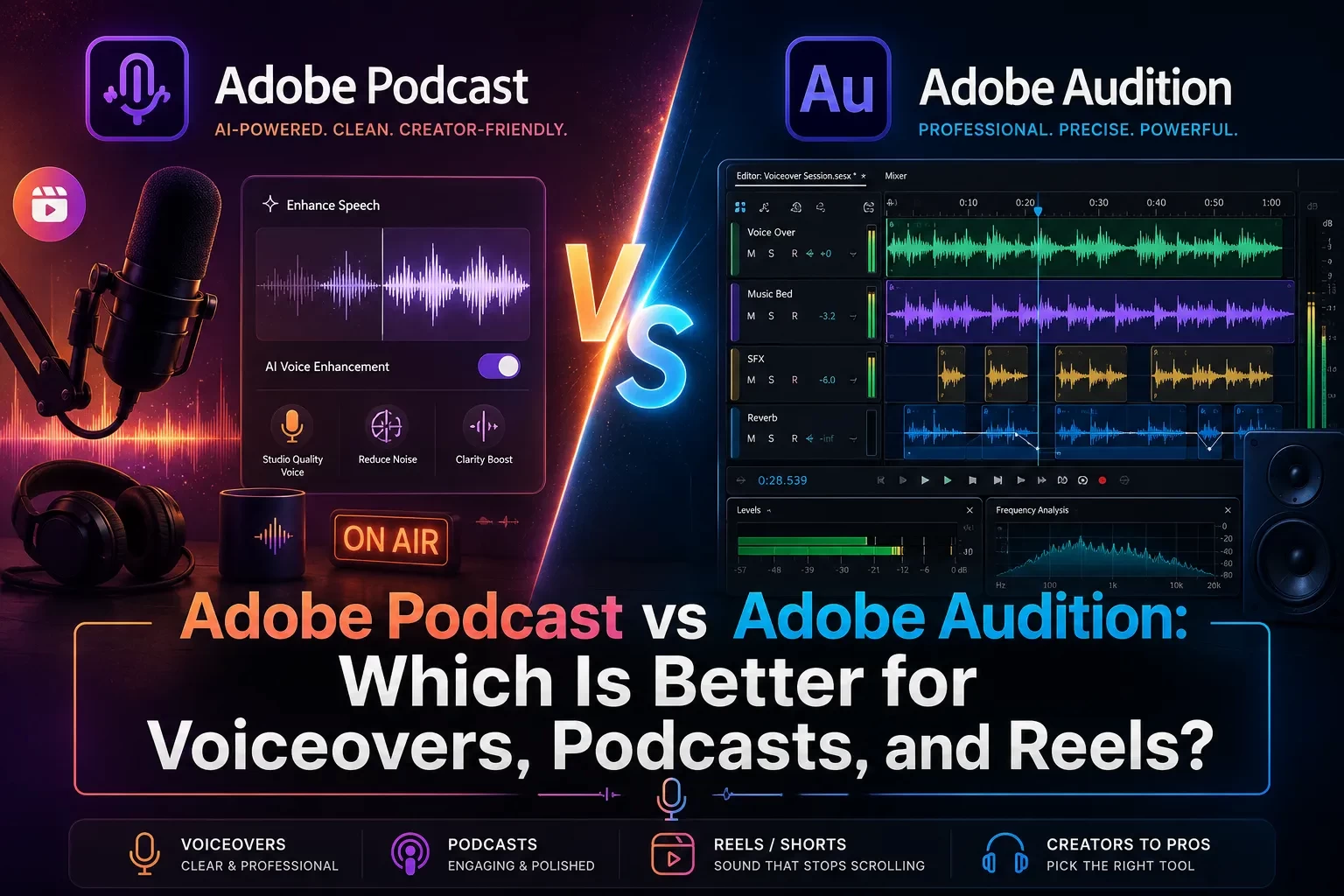
The browser-based tool uses AI processing to reduce unwanted noise and artifacts, balance vocal levels, and make speech more prominent. Adobe’s current Premium version also provides separate controls for speech, ambience, and music, giving users more influence over how aggressively a recording is cleaned (Adobe, 2026). (helpx.adobe.com)
But “professional” is a demanding word. Enhance Speech can make an inexpensive microphone sound significantly cleaner when the original voice is understandable and reasonably well recorded. It cannot reliably restore words that were clipped, obscured, distorted, or barely captured.
This article explains what the tool can realistically fix, how to get better results from it, where its limitations become obvious, and whether upgrading from the free plan makes sense.
The Practical Answer
Yes, Adobe Podcast Enhance Speech can make audio from a cheap microphone sound noticeably more polished. It is particularly useful for reducing steady background noise, suppressing room echo, balancing uneven voice levels, and increasing vocal presence.
The strongest results usually come from recordings that are imperfect but still intelligible. A budget USB microphone placed six inches from the speaker in a quiet bedroom may become surprisingly clean after processing.
It is less effective when the speaker is far from the microphone, the input is severely clipped, multiple people talk over one another, or loud music masks the words. Adobe itself notes that results depend on speaker audibility, background noise, pronunciation, and the quality of the source recording (Adobe, 2026). (helpx.adobe.com)
Think of Enhance Speech as an efficient restoration and polishing tool—not as a replacement for microphone placement, room treatment, or responsible recording practices.
Reader Roadmap
• How Enhance Speech changes a recording, so you can judge whether its “studio sound” is appropriate for your content.
• Which microphone problems AI can repair, so you do not waste time processing audio that needs to be rerecorded.
• How to prepare, enhance, and review a file without accidentally creating an artificial-sounding voice.
• What the free and Premium plans currently allow, so you can decide whether paying adds meaningful value.
• How Adobe’s tool compares with manual editing and alternative AI workflows.
• Which privacy and quality checks matter before uploading interviews, client recordings, or internal conversations.
What Adobe Podcast Enhance Speech Actually Does
Adobe Podcast is a web-based recording and editing platform. Enhance Speech is its focused cleanup tool: you upload an audio file, Adobe processes it, and you download an enhanced version.
According to Adobe’s current documentation, the system can filter noise and artifacts, adjust pitch and volume levels, and normalize the recording. It is language agnostic, meaning the cleanup process is not limited to one spoken language, although the tool does not translate or generate replacement dialogue (Adobe, 2026). (helpx.adobe.com)
That description covers several audible changes:
Noise suppression
The tool attempts to separate a person’s voice from unwanted sounds such as air-conditioning noise, computer fans, traffic rumble, microphone hiss, and general room ambience.
Echo and room reduction
Recordings made in kitchens, offices, bedrooms, and other untreated spaces often contain reflections that make speech sound distant. Enhance Speech can reduce some of that reverberant character and bring the voice forward.
Vocal reconstruction and tonal shaping
The processed voice may sound fuller, closer, and more consistent than the source. This goes beyond simply making the recording louder. The AI is estimating what clean speech should sound like and reshaping the signal accordingly.
Level balancing
Quiet phrases may become easier to hear, while obvious variations in vocal level are reduced. This can make a recording more comfortable to follow without requiring detailed compression settings.
Source separation controls
Adobe’s March 2026 update added Premium controls for speech, background noise, and music. Premium users can adjust or mute these elements independently and download isolated stems for further editing (Adobe, 2026). (podcast.adobe.com)
What “Professional Sound” Should Mean
A professional recording does not need to sound like it was captured in an expensive broadcast studio. It does need to satisfy several practical standards:
• The words are easy to understand.
• Background noise does not compete with the speaker.
• Volume remains reasonably consistent.
• The voice sounds natural rather than metallic or synthetic.
• There is no obvious clipping, crackling, or digital distortion.
• The recording matches the intended environment and format.
Enhance Speech can improve the first three standards quickly. The fourth is where judgment becomes important.
Aggressive AI processing may remove so much room tone that the voice feels detached from the environment. It can also exaggerate breaths, soften consonants, change vocal texture, or create a slightly reconstructed quality. A processed file may sound cleaner while also sounding less authentic.
That tradeoff matters differently depending on the project. A highly polished voice may work well for a tutorial or social-media narration. The same treatment might feel inappropriate in a documentary interview where the sound of the location contributes to the story.
Can It Make Any Cheap Microphone Sound Expensive?
No. The microphone is only one part of the recording chain.
A $30 microphone used correctly can produce a better source recording than a $300 microphone placed across a reflective room. Enhance Speech benefits from the same fundamentals as conventional audio editing: the clearer the original voice, the less reconstruction the software must attempt.
Recordings it can often improve
• USB microphone audio with moderate room echo
• Laptop or webcam recordings with audible but understandable speech
• Smartphone voice recordings made at close range
• Remote interview tracks with steady background noise
• Voiceovers with inconsistent loudness
• Talking-head videos recorded in ordinary rooms
• Podcast dialogue with low-level hiss or fan noise
Recordings that remain difficult
• Audio with severe clipping caused by excessive input gain
• Speech recorded too quietly to distinguish from the noise floor
• Voices masked by loud music, wind, traffic, or crowds
• Multiple speakers captured on one distant microphone
• Overlapping dialogue
• Recordings with wireless dropouts or missing syllables
• Audio affected by heavy compression from messaging or conferencing platforms
AI can estimate and reshape information that exists in the recording. It cannot reliably recover information that was never captured.
Cheap Microphone Versus Bad Recording Technique
The following matrix shows why buying a new microphone is not always the first solution.
| Recording situation | Likely Enhance Speech result | Better long-term fix |
|---|---|---|
| Budget USB mic used close to the speaker | Often strong improvement | Keep the mic and improve positioning |
| Laptop mic used two feet away | Cleaner, but potentially artificial | Move closer or use an external mic |
| Good mic in a highly reflective room | Reduced echo, with possible artifacts | Add soft furnishings or acoustic treatment |
| Input recorded too loudly and clipped | Limited recovery | Lower gain and rerecord |
| Quiet voice with steady fan noise | Useful if speech remains intelligible | Move or disable the noise source |
| Interview with loud background music | Premium separation may help | Record isolated tracks whenever possible |
| Two people sharing one distant microphone | Inconsistent | Give each speaker a separate mic |
The central lesson is simple: improve the recording before replacing the hardware. Distance and room acoustics frequently matter more than the price printed on the microphone box.
Adobe Podcast Free Versus Premium
Adobe currently offers a free plan and a Premium subscription. On its U.S. plans page, Adobe lists Premium at $9.99 per month, although pricing, taxes, promotions, and availability may change by region. Check the official page before subscribing (Adobe, 2026). (podcast.adobe.com)
Free Enhance Speech limits
The free plan currently provides:
• Audio enhancement without video-file support
• One-file-at-a-time processing
• No enhancement-strength adjustment
• Files up to 30 minutes
• Files up to 500 MB
• Up to one hour of enhanced speech per day
Premium Enhance Speech limits and controls
The Premium plan currently adds:
• Supported video uploads
• Bulk processing
• Adjustable enhancement strength
• Separate speech, ambience, and music controls
• Files up to two hours
• Files up to 1 GB
• Up to four hours of enhancement per day
• A 30-day Premium trial, subject to Adobe’s current offer terms
These plan limits and features are listed in Adobe’s 2026 comparison page (Adobe, 2026). (podcast.adobe.com)
The free plan is sufficient for occasional voiceovers, short interviews, class projects, and testing. Premium becomes more defensible when you routinely process long episodes, work with video, need batch uploads, or want control over how much of the original environment remains.
Supported Files and Browser Requirements
Enhance Speech works in current versions of Chrome, Safari, Edge, and Firefox on desktop and mobile browsers. Upload and download performance depends partly on your internet connection and device memory (Adobe, 2025). (helpx.adobe.com)
Adobe currently lists the following Enhance Speech import formats:
• WAV
• MP3
• M4A
• AAC
• FLAC
• MP4
• MOV
• M4V
Video support is associated with Premium access. Adobe states that Enhance Speech returns the same file format that was uploaded—for example, an uploaded MP3 is downloaded as an MP3 rather than automatically converted to WAV (Adobe, 2025). (helpx.adobe.com)
That convenience should not be confused with lossless restoration. Uploading an already compressed, low-bitrate MP3 does not recreate the detail that was discarded during its original encoding.
How to Get Better Results: A Practical Workflow
The interface is simple, but the order in which you work affects the outcome.
1. Preserve the original recording
Make a copy before processing anything.
The enhanced version may be cleaner but less natural, and you may later need to blend it with the original. Keep source files in a clearly labeled folder rather than replacing them.
Practical tip: Use filenames such as interview-original.wav, interview-enhanced.wav, and interview-final.wav.
2. Listen for problems that AI cannot solve
Check the recording with headphones before uploading it.
Identify clipping, missing words, overlapping speakers, extremely low volume, or sections covered by loud noise. Rerecording one sentence is often faster and more credible than trying to reconstruct it.
Warning: If distorted peaks are already baked into the file, reducing the volume afterward will make the distortion quieter but will not remove it.
3. Trim unnecessary material when appropriate
Remove long stretches of silence, setup conversation, or unusable material before enhancement.
This reduces processing time and helps you stay within plan duration limits. Preserve a full original copy if the recording has editorial, legal, or archival importance.
4. Upload a supported file
Open Enhance Speech in a supported browser, sign in when required, and upload the file.
The upload may take longer for high-resolution video or large lossless audio. Adobe recommends using an updated browser and clearing the browser cache when upload or download problems occur (Adobe, 2025). (helpx.adobe.com)
5. Begin with moderate processing
Premium users should avoid assuming that maximum enhancement produces the most professional result.
Start with a restrained setting and compare it with the original. Increase speech enhancement only until the distracting problem becomes acceptable.
Practical tip: Listen closely to names, numbers, soft consonants, laughter, and words spoken away from the microphone. These areas often reveal processing artifacts first.
6. Review the entire recording
Do not approve a one-hour episode after checking only the first 20 seconds.
Noise conditions can change. A guest may move away from the microphone, music may begin later, or the AI may process one phrase differently from the rest.
Review at least:
• The opening
• Each speaker’s first appearance
• Quiet sections
• Loud sections
• Sections with music
• Emotional or rapidly delivered speech
• The final minute
7. Compare on more than one playback device
Listen on headphones, laptop speakers, and a phone.
Headphones expose artifacts and edits. Small speakers reveal whether the voice remains understandable in the environment where many viewers actually consume content.
8. Finish the mix instead of stopping at enhancement
AI cleanup is not the same as a completed audio mix.
You may still need to:
• Cut mistakes and long pauses
• Balance different speakers
• Reduce intrusive breaths manually
• Add fades
• Place music at an appropriate level
• Check overall loudness
• Export in the format required by the publishing platform
Adobe Podcast Studio can handle recording, transcription, and text-based editing, while editors already working in Premiere can use Premiere’s integrated Enhance Speech and Essential Sound tools (Adobe, 2026). (helpx.adobe.com)
A Realistic Before-and-After Scenario
Consider a freelance educator recording a paid tutorial with a $40 USB microphone.
The microphone sits about eight inches from the speaker. The room contains a laptop fan, a hard desk, and bare walls. The unprocessed recording is understandable, but it has mild echo, low-level fan noise, and noticeable changes in volume when the speaker turns toward a second monitor.
Enhance Speech is well suited to this situation. The voice is already captured clearly enough for the model to identify it, while the unwanted sounds are moderate and relatively consistent.
A realistic outcome would be:
• Less audible fan noise
• Reduced room reflections
• More consistent vocal level
• Greater vocal presence on phone speakers
• A possible loss of some natural room character
The AI does not turn the microphone into a premium broadcast model. It reduces the audible consequences of an ordinary recording space.
Now change one condition: the microphone is six feet away. The voice and room reflections are nearly equal in level. Processing may still improve intelligibility, but the result is more likely to sound reconstructed. The better solution is to move the same inexpensive microphone closer.
How to Make a Budget Microphone Easier for AI to Enhance
The most effective “AI audio setting” happens before you click Upload.
Keep the microphone close
For many spoken-word microphones, roughly four to eight inches is a useful starting range. Exact placement depends on microphone type, sensitivity, speaking volume, and whether a pop filter is used.
A close microphone captures more direct voice relative to the room. That gives the enhancement system cleaner information to work with.
Speak across the microphone when plosives are a problem
Hard “p” and “b” sounds can create bursts of low-frequency air.
Positioning the microphone slightly to one side of the mouth, rather than directly in front of it, can reduce these bursts. A pop filter provides additional protection.
Lower the input gain before loud passages clip
Record a test using the loudest voice you expect during the session.
If peaks distort, lower the gain or increase the distance slightly. A clean recording that is moderately quiet is generally easier to improve than one with permanent clipping.
Reduce reflections with ordinary materials
Curtains, rugs, upholstered furniture, bookshelves, and blankets can reduce hard reflections.
You do not need to cover every surface. Concentrate on nearby bare walls, windows, and the desk area around the microphone.
Eliminate noise at the source
Turn off unnecessary fans, move the microphone away from the computer, silence notifications, close windows, and avoid touching the desk.
Removing a noise before recording is more reliable than asking software to distinguish it later.
When the Processed Voice Sounds Too Artificial
The most common criticism of AI speech restoration is not that it fails to remove noise. It is that it removes too much.
A voice may become unnaturally dry, excessively deep, overly smooth, or disconnected from the room. Certain syllables can sound softened or electronically reconstructed.
Premium users can reduce the enhancement strength or restore more ambience. Adobe’s advanced controls are designed to let users balance speech, background sound, and music instead of accepting a single fixed result (Adobe, 2026). (podcast.adobe.com)
Free users have less control. A practical workaround is to blend the enhanced file with the original in a multitrack editor:
1. Place the original and enhanced files on separate tracks.
2. Align them precisely.
3. Use the enhanced version as the primary track.
4. Raise the original track gradually until the voice regains natural character.
5. Check for phase or synchronization problems before exporting.
This approach is especially useful when the enhanced version is clear but feels too isolated.
Common Mistakes and Troubleshooting
Mistake: Treating enhancement as permission to record anywhere
Why it happens: Marketing demonstrations can make cleanup appear capable of rescuing every environment.
How to fix it: Record close to the microphone, reduce obvious noise, and monitor a short test. Use enhancement as backup and polish rather than the entire production plan.
Symptom: The voice sounds robotic or strangely reconstructed
Why it happens: The source contains too much echo, too little direct voice, or processing is too aggressive.
How to fix it: Lower the enhancement amount, restore some ambience, or blend in the original track. If the source is severely distant, rerecording may be the only natural solution.
Symptom: Parts of words sound missing
Why it happens: Noise overlapped important frequencies, the speaker mumbled, or the original recording was already compressed or damaged.
How to fix it: Compare the affected section with the original. Use the original phrase, patch it with a cleaner alternate take, or rerecord the sentence rather than accepting an incorrect word.
Symptom: The file will not upload
Why it happens: The format, duration, size, browser, connection, or daily plan allowance may not meet current requirements.
How to fix it: Confirm the supported file formats, check usage under your Adobe profile, update the browser, clear its cache, and try a smaller file. Adobe specifically recommends checking format compatibility and plan limits when enhancement fails (Adobe, 2026). (helpx.adobe.com)
Symptom: Processing takes longer than expected
Why it happens: Large files, video uploads, limited device memory, and slow upload speeds can delay the workflow.
How to fix it: Trim unnecessary footage, use a stable connection, close memory-heavy browser tabs, and avoid uploading a larger format than the final project requires.
Mistake: Processing the final mixed episode as one file
Why it happens: A single upload seems simpler than treating dialogue, music, and effects separately.
How to fix it: Whenever possible, enhance isolated dialogue before adding music. Premium source separation offers more flexibility, but preserving individual tracks still gives you better editorial control.
Mistake: Deleting the source after downloading the enhanced file
Why it happens: The processed output initially sounds cleaner.
How to fix it: Archive the original. You may discover a changed word, tonal artifact, or removed environmental detail during the final review.
Mistake: Assuming louder means better
Why it happens: Enhanced audio may sound more impressive because the voice is more prominent.
How to fix it: Match the playback levels before comparing versions. Judge clarity, naturalness, and artifacts—not just volume.
Privacy, Security, and Client Recordings
Enhance Speech is a web service, which means your file must be uploaded for cloud processing rather than enhanced entirely inside a local desktop editor. Adobe Podcast is governed by Adobe’s applicable privacy policy and terms, and Adobe provides broader security, privacy, and compliance information through its Trust Center (Adobe, 2025). (adobe.com)
That does not automatically make every recording appropriate to upload.
Use additional caution with:
• Medical or counseling conversations
• Legal interviews
• Unreleased financial information
• Internal company meetings
• Customer calls containing personal information
• Recordings involving children
• Material governed by a nondisclosure agreement
• Sources who expected local-only storage
Before using a cloud AI service for sensitive work:
• Obtain the necessary permission to record and process the conversation.
• Review Adobe’s current privacy policy, terms, and organization-level agreements.
• Confirm your employer’s or client’s approved-tool policy.
• Remove unnecessary personal information when possible.
• Keep access to the Adobe account protected with a strong password and available security controls.
• Do not assume a consumer subscription satisfies industry-specific compliance requirements.
This is operational risk guidance, not legal advice. Organizations with regulated or highly confidential recordings should obtain an appropriate internal review before uploading files.
Adobe Podcast Versus Other Audio-Cleanup Approaches
Enhance Speech is most attractive when speed and accessibility matter more than precise engineering control.
Adobe Podcast Enhance Speech
Choose it when you want a fast browser workflow, have understandable spoken audio, and do not want to configure multiple effects.
Its main advantages are simplicity, strong speech-focused cleanup, a usable free tier, and integration with Adobe Podcast’s broader recording and editing environment.
Its main limitations are cloud processing, plan limits, possible vocal artifacts, and reduced control compared with a full audio editor.
Premiere Enhance Speech
Premiere includes an AI-powered Enhance Speech function within the Essential Sound workflow. Users can analyze dialogue in the timeline and adjust the Mix Amount between the enhanced and original sound (Adobe, 2026). (helpx.adobe.com)
This route is more convenient for video editors who already have their dialogue cut into a Premiere project. It avoids exporting, processing, downloading, and manually replacing each file.
Premiere’s technical documentation notes that its Enhance Speech supports mono and stereo audio, does not support multichannel audio or nested sequences, and converts enhanced stereo clips to a mono downmix (Adobe, 2026). (helpx.adobe.com)
Adobe Audition or another full audio editor
A traditional editor is more appropriate when you need detailed noise sampling, equalization, spectral repair, multitrack mixing, automation, or selective processing.
This approach requires more skill but provides greater control. Instead of applying one model to the entire voice, you can treat a hum, click, breath, echo, or frequency problem individually.
Other AI speech enhancers
Tools such as Descript Studio Sound also use AI to reduce background noise, echo, and distractions within an editing workflow (Descript, 2026). (help.descript.com)
Auphonic is oriented toward automated post-production tasks such as adaptive leveling, noise reduction, filtering, and loudness management (Auphonic, 2026). (auphonic.com)
The right choice depends less on which tool produces the most dramatic demo and more on where cleanup fits in your workflow:
• Use Adobe Podcast for quick browser-based restoration.
• Use Premiere when the dialogue is already part of a video timeline.
• Use a text-based editor when transcription and content editing are central.
• Use an automated post-production service when consistent leveling and delivery specifications matter.
• Use a full audio editor when individual defects require detailed repair.
Who Should Use Adobe Podcast Enhance Speech?
The tool is a strong fit for:
• New podcasters using entry-level microphones
• YouTube creators recording in bedrooms or offices
• Freelancers producing narration and instructional content
• Teachers creating lectures or course modules
• Journalists cleaning non-sensitive interview audio
• Small businesses making internal or promotional videos
• Social-media creators working with smartphone footage
• Video editors who need a fast first cleanup pass
It is especially valuable when audio editing would otherwise prevent the project from being published.
Who May Not Need It?
You may not need Enhance Speech when:
• Your recording already comes from a controlled studio and requires only light leveling.
• Natural environmental sound is essential to the story.
• You need precise spectral or multitrack repair.
• Your organization does not permit cloud processing.
• Your source is severely clipped or unintelligible.
• You already use an editing platform with an equivalent enhancement tool.
• You must meet a broadcaster’s or client’s technical delivery specification through a controlled mastering process.
In those cases, manual post-production or a locally managed workflow may be more appropriate.
Is Premium Worth Paying For?
Start with the free plan unless one of its restrictions interrupts real work.
Premium is easier to justify when:
• You routinely process files longer than 30 minutes.
• You enhance more than one hour of audio per day.
• You need to upload video directly.
• You process multiple files in batches.
• The free result sounds overprocessed and you need strength controls.
• You need separate speech, ambience, or music stems.
• You also use the Premium features included elsewhere in Adobe Podcast or Adobe Express.
Do not upgrade because the processed voice merely sounds impressive during a short test. Upgrade when the controls or higher limits solve a recurring production problem.
At the currently listed U.S. price of $9.99 per month, saving one or two hours of repetitive cleanup could make the plan economically reasonable for a working creator. That is a workflow calculation rather than a universal recommendation, and Adobe’s official pricing page should remain the source of truth (Adobe, 2026). (podcast.adobe.com)
Frequently Asked Questions
Final Verdict: Improve the Source, Then Let AI Help
Adobe Podcast Enhance Speech can make an inexpensive microphone sound far more polished than its untreated recording. Its strongest use case is not repairing a catastrophic file. It is removing the distractions that make otherwise understandable speech feel unfinished.
A budget microphone, placed close to the speaker in a reasonably quiet space, gives the AI a strong foundation. A premium microphone placed across a noisy, reflective room does not.
Use this checklist before relying on the final result:
• Record a short test with the microphone close to your mouth.
• Lower the input gain if loud phrases distort.
• Reduce fans, traffic, reflections, and desk noise at the source.
• Keep an untouched copy of every recording.
• Start with moderate enhancement rather than the strongest setting.
• Review names, numbers, quiet words, and emotional speech carefully.
• Compare the processed file with the original at matched volume.
• Listen on headphones, laptop speakers, and a phone.
• Rerecord missing or damaged words instead of trusting AI reconstruction.
• Verify privacy requirements before uploading sensitive material.
For occasional short recordings, begin with the free plan. Consider Premium only when video support, longer files, bulk processing, stem downloads, or adjustable controls become part of your regular workflow.
Sources
• Adobe Podcast Enhance Speech — https://podcast.adobe.com/en/enhance
• Adobe Podcast Plans — https://podcast.adobe.com/en/plans
• Adobe Podcast FAQ — https://helpx.adobe.com/podcast/adobe-podcast-faq.html
• Adobe Podcast Technical Requirements — https://helpx.adobe.com/podcast/technical-requirements.html
• What’s New in Adobe Podcast, March 2026 — https://podcast.adobe.com/en/guides/whats-new-in-adobe-podcast-march-2026
• Adobe Premiere Enhance Speech — https://helpx.adobe.com/premiere/desktop/add-audio-effects/adjust-volume-and-levels/enhance-speech.html
• Adobe Premiere Enhance Speech Technical Requirements — https://helpx.adobe.com/premiere/desktop/add-audio-effects/adjust-volume-and-levels/enhance-speech-technical-requirements.html
• Adobe Privacy Policy — https://www.adobe.com/privacy/policy.html
• Adobe Trust Center — https://www.adobe.com/trust.html
• Descript Studio Sound Help — https://help.descript.com/hc/en-us/articles/10327603613837-Studio-Sound
• Auphonic Audio Post-Production Algorithms — https://auphonic.com/help/algorithms/singletrack.html