

Table of Contents
◉ Introduction ◉ The Practical Answer ◉ Reader Roadmap ◉ What Is Adobe Premiere on iPhone? ◉ The Features That Make It More Than a Basic Mobile Editor ◉ What Counts as a Professional Result? ◉ Who Premiere on iPhone Is Best For ◉ A Professional Mobile Workflow, Step by Step ◉ Mobile-to-Desktop Editing: Useful, but Not Seamless ◉ Pricing and Cost Considerations ◉ Privacy, Cloud Storage, and Client Footage ◉ Common Mistakes and How to Fix Them ◉ Alternatives Worth Considering ◉ FAQ ◉ The Final Verdict ◉ Sources
Editing a video on an iPhone is no longer limited to trimming clips, adding music, and exporting a quick social post. Adobe Premiere on iPhone now offers a multi-track timeline, frame-accurate cuts, keyframes, color controls, automatic captions, audio enhancement, background removal, Firefly-powered asset generation, and exports up to 4K. The app launched worldwide on September 30, 2025, as Adobe’s successor to Premiere Rush for mobile creators (Adobe, 2025). (news.adobe.com)
That feature list sounds professional, but “professional video editing” can mean very different things. A creator producing vertical ads for a local business has different requirements from an editor finishing a documentary, mixing a commercial, or preparing footage for broadcast delivery.
For social videos, interviews, event recaps, product demonstrations, news clips, and many client-approved short-form projects, Premiere on iPhone can produce legitimate professional results. It is less convincing as a complete replacement for desktop Premiere when a project requires detailed audio mixing, complex motion graphics, multicamera organization, advanced media management, or a tightly controlled collaborative workflow.
This article explains where the app is genuinely capable, where the phone becomes the bottleneck, and how to build a mobile workflow without confusing a polished result with a full desktop post-production environment.
The Practical Answer
Yes, you can edit professional videos with Adobe Premiere on an iPhone—provided the project matches the strengths of mobile production.
Premiere on iPhone is capable of producing polished social ads, branded short-form videos, interviews, explainers, event highlights, product videos, YouTube Shorts, Instagram Reels, TikTok content, and other relatively focused projects. It supports unlimited timeline tracks, precise trimming, keyframes, automatic captions, color adjustments, audio tools, and watermark-free 4K exports in the free version (Adobe, 2026). (helpx.adobe.com)
It is not the full desktop edition of Premiere Pro compressed onto a small screen. Some advanced finishing tools are absent, and transferring a project to desktop is a one-way copy rather than continuous synchronization. Several mobile effects and adjustments also do not transfer cleanly to the desktop project (Adobe, 2026). (helpx.adobe.com)
The realistic conclusion is straightforward: Premiere on iPhone can be a professional production tool, but it is not a universal professional post-production system.
Reader Roadmap
• What Adobe Premiere on iPhone can actually do, so you can separate useful capabilities from marketing language.
• Which professional projects fit a phone-based workflow, so you do not start an edit that will become unmanageable.
• How to shoot, organize, edit, review, and export a polished video entirely from an iPhone.
• Where the mobile-to-desktop workflow breaks down, so you can preserve flexibility before committing to effects.
• Which technical, privacy, storage, and performance issues deserve attention before you use the app for client work.
What Is Adobe Premiere on iPhone?
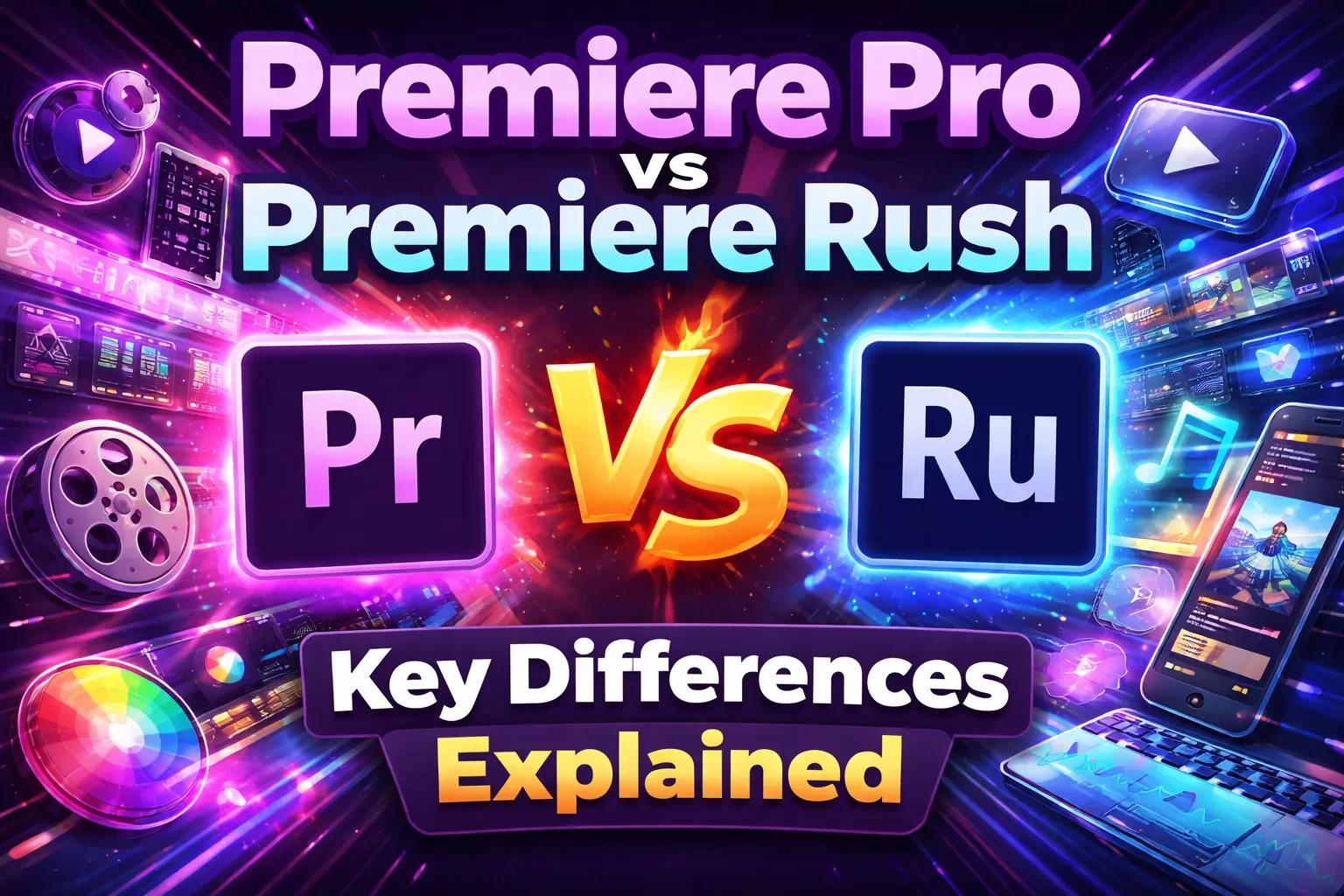
Adobe Premiere on iPhone is a standalone mobile video editor built specifically for touch-based editing. It is not simply Premiere Rush under a different name, and it does not reproduce every panel or tool available in Premiere Pro on a desktop computer.
Adobe positions the app around a precise multi-track timeline, mobile-friendly clip controls, audio enhancement, integrated creative assets, social publishing, and generative AI tools. Core editing and unlimited 4K exports are available without watermarks in the free version. Generative AI operations may consume Firefly credits, while additional cloud storage and the desktop Premiere application may require paid Adobe plans (Adobe, 2026). (apps.apple.com)
The app works with media from the iPhone’s Photos and Files apps. That means footage can come from the built-in camera, external storage exposed through Files, or supported cloud-storage services accessible through iOS (Adobe, 2026). (helpx.adobe.com)
Adobe’s published technical requirements document lists compatibility with recent versions of iOS and iPadOS, but operating-system requirements can change as the app is updated. Check the current U.S. App Store listing before planning a production around an older device (Adobe, 2025; Apple, 2026). (helpx.adobe.com)
The Features That Make It More Than a Basic Mobile Editor
A multi-track timeline with precise cuts
Premiere on iPhone supports frame-accurate trimming and an unlimited number of tracks. You can layer video, images, audio, text, graphics, and overlays instead of being restricted to a single primary video track and one soundtrack (Adobe, 2026). (helpx.adobe.com)
“Unlimited” should not be interpreted as “unlimited in practice.” A phone still has finite memory, storage, processing capacity, and screen space. The feature removes an artificial track limit, but a 40-layer composition may be difficult to navigate and render efficiently on a handheld device.
For most short-form work, however, the available timeline is substantial enough for:
• A main interview or presentation track
• Cutaway footage and product close-ups
• Logos, screenshots, or picture-in-picture elements
• Background music and sound effects
• Voice-over recordings
• Captions, titles, and calls to action
Keyframes, speed controls, and clip adjustments
Keyframes let you animate properties such as position, scale, and opacity over time. Premiere also provides controls for reversing clips, freezing frames, changing speed, extracting or unlinking audio, cropping, fitting, filling, and flipping media (Adobe, 2026). (helpx.adobe.com)
These tools are important because professional-looking editing often depends less on dramatic effects and more on controlled movement. A slow push into a product shot, a precisely timed overlay, or a subtle title animation can make a short video feel deliberately constructed rather than assembled from a template.
Captions and text tools
Automatic captions can accelerate accessibility and social-media workflows, especially when viewers may watch without sound. Adobe has also added caption presets, text animation, and editing controls for titles and templates (Adobe, 2026). (helpx.adobe.com)
Automatic transcription should still be reviewed manually. Product names, accents, technical language, unfamiliar speakers, and noisy environments can produce errors. For client work, caption proofreading is an editorial requirement rather than an optional finishing step.
Color controls and custom LUTs
Premiere on iPhone includes color presets, Lightroom looks, adjustments for shadows, midtones, and highlights, plus support for importing custom .cube LUT files. Adobe’s May 2026 update also emphasized more accurate handling of standard dynamic range and high dynamic range color across import and export (Adobe, 2026). (helpx.adobe.com)
A LUT, or lookup table, applies a predefined color transformation. It can help footage from the same camera maintain a consistent style, but it is not a substitute for correcting exposure, white balance, or mismatched shots.
Audio enhancement and generated sound effects
The app supports voice-over recording, speech enhancement, music, sound effects, audio extraction, and timeline-based volume control. Adobe also offers Firefly-powered sound-effect generation, including a workflow in which the creator records vocal timing or rhythm and uses it to guide the generated effect (Adobe, 2026). (helpx.adobe.com)
Speech enhancement can rescue a slightly noisy recording, but it cannot reliably repair severe clipping, strong wind noise, distant dialogue, or two people speaking over one another. Professional mobile production still begins with a well-positioned microphone and controlled recording levels.
Automatic reframing and platform-specific formats
Adobe added Auto Reframe in May 2026. The feature can convert horizontal footage into vertical or square versions while attempting to keep the important subject in view. Premiere also includes dedicated YouTube Shorts templates, effects, and direct publishing options (Adobe, 2026). (helpx.adobe.com)
Auto Reframe is useful for repurposing, but every converted sequence should be reviewed. A person standing near the edge, fast camera movement, multiple speakers, or important text inside the original frame can confuse automated composition.
What Counts as a Professional Result?
The device used for editing does not determine whether a video is professional. The result is professional when it meets the requirements of the audience, client, platform, and delivery agreement.
A 30-second restaurant advertisement can be professional if the shots are stable, the food looks accurate, the dialogue is clear, the typography follows the brand, the music is licensed appropriately, and the final file meets the platform’s specifications. That project may be entirely practical on an iPhone.
A seven-minute corporate interview may also work well if it uses one or two cameras, straightforward cutaways, clean audio, modest color correction, and branded titles.
A feature-length documentary with hundreds of clips, multiple frame rates, external audio, archival material, numerous revisions, detailed metadata, and several deliverable versions is a different production problem. The question is no longer whether the phone can make cuts. The issue is whether the editing environment can manage the project safely and efficiently.
A project-fit decision matrix
| Project type | Phone-only suitability | Main concern |
|---|---|---|
| Vertical social ad under 60 seconds | Strong | Caption review, branding, and audio quality |
| Product demonstration or tutorial | Strong | Clear screen recordings, narration, and pacing |
| Event highlight or travel recap | Strong | Storage capacity and footage organization |
| Short interview or customer testimonial | Good | External audio, color matching, and revisions |
| YouTube video with moderate layering | Conditional | Timeline navigation and asset management |
| Multicamera podcast or long interview | Limited | Syncing, audio mixing, and long timeline management |
| Commercial requiring advanced motion graphics | Limited | Graphics, compositing, and review workflow |
| Documentary, film, or broadcast package | Poor as a phone-only workflow | Media organization, finishing, collaboration, and delivery control |
This table is an editorial decision framework rather than an Adobe specification. A skilled editor may stretch the app beyond these categories, but the cost in time and complexity can outweigh the convenience of staying mobile.
Who Premiere on iPhone Is Best For
Premiere is particularly well suited to creators who capture and publish from the same device. The workflow becomes faster because the original footage is already available in Photos or Files, and the editor does not need to transfer every clip to a computer before making a first cut.
Strong use cases include:
• Social-media managers producing timely vertical content
• Freelancers delivering short advertisements and product videos
• Journalists assembling field reports or interview excerpts
• Small businesses creating demonstrations, announcements, or testimonials
• YouTube creators editing Shorts and simple long-form videos
• Desktop Premiere users who want to begin selecting and arranging footage while traveling
• Event teams producing same-day recaps
• Students learning timeline-based editing without purchasing desktop software
Premiere on iPhone is less suitable for editors who routinely need advanced multicamera tools, detailed audio mixing, sophisticated compositing, large shared storage systems, third-party desktop plug-ins, extensive keyboard shortcuts, or strict post-production handoffs.
A Professional Mobile Workflow, Step by Step
1. Define the deliverable before recording
Decide the final aspect ratio, maximum duration, platform, caption requirements, resolution, approval process, and deadline.
This matters because mobile workflows become inefficient when one project is expected to serve every platform without prior framing. A vertical interview composed for 9:16 may not crop cleanly into a horizontal website video.
Practical tip: Record slightly wider than the final composition when you know multiple aspect ratios will be required. This gives Auto Reframe and manual cropping more usable space.
2. Prepare the iPhone for production
Free enough storage for the footage, project files, cached assets, and final exports. Charge the phone, close unnecessary apps, and enable a focus mode so calls and notifications do not interrupt recording.
For important dialogue, use an external microphone compatible with the iPhone rather than relying entirely on the built-in mic. Monitor a test recording with headphones before beginning.
Warning: A 4K workflow can consume storage quickly. Do not begin a client shoot with only enough room for the estimated footage; leave space for duplicate takes and exports.
3. Record with consistent technical settings
Use a consistent frame rate unless the project deliberately includes slow motion. Lock exposure and white balance when the camera app permits it, and avoid mixing high dynamic range and standard footage without understanding how each will be displayed.
Consistency reduces correction work later. A mobile editor can adjust color, but it should not be expected to solve every capture problem.
4. Import and organize footage deliberately
Premiere lets you start with media from Photos or Files and add more assets to an existing project (Adobe, 2025). (helpx.adobe.com)
Before building the final timeline, remove obvious failed takes and identify the strongest clips. For a larger project, organize media into clearly named folders in Files before importing it.
Practical tip: Keep original footage outside the editing project until delivery is complete. Do not treat the timeline as your only copy.
5. Build a story cut before adding effects
Arrange the main dialogue, demonstration, or narrative first. Remove pauses, repeated lines, weak shots, and information that does not move the video forward.
Only after the story works should you add cutaways, music, animated text, transitions, AI assets, or visual effects. Starting with decoration often hides a weak structure instead of solving it.
6. Clean and balance the audio
Set dialogue at a consistent perceived level, reduce music beneath speech, and use enhancement carefully. Listen on headphones and through the iPhone speaker because the audience may use either.
Generated sound effects can help fill a missing transition or accent, but they should support the scene rather than become the scene. Also confirm that client policies permit generative assets before using them in commercial content.
7. Correct color before applying a style
First make clips look natural and consistent. Then apply a preset or LUT if the project needs a recognizable visual style.
Check skin tones, product colors, white objects, and branded colors carefully. A dramatic preset that changes the actual color of a product may make the video unsuitable for advertising or e-commerce.
8. Add and proofread captions
Generate captions after the main dialogue edit is stable. Correct spelling, punctuation, timing, line breaks, names, and technical terms.
Keep captions away from interface elements used by TikTok, Instagram, and YouTube. Test the video inside the destination platform before publishing whenever possible.
9. Review the video outside the timeline
Watch the entire video at normal speed without stopping. Then check it again with the sound off.
The silent review reveals whether captions, composition, and visual storytelling remain understandable. A separate audio-only review can expose abrupt edits, inconsistent volume, or distracting background noise.
10. Export for the actual destination
Premiere provides 720p, 1080p, and 4K export options; frame-rate choices include 24, 25, 30, and 60 frames per second. Users can also select quality settings, estimate file size, and enable HDR when appropriate (Adobe, 2025). (helpx.adobe.com)
Do not select 4K and 60 fps simply because they are available. Match the export to the original footage and delivery requirements. Higher settings increase file size and processing demands without improving low-resolution source material.
Mobile-to-Desktop Editing: Useful, but Not Seamless
One of Premiere’s most valuable features is the option to send a mobile project to Premiere on desktop. The app uploads a copy of the media and project file to Adobe cloud storage, after which the project can be imported into the desktop application (Adobe, 2026). (helpx.adobe.com)
This workflow is useful when you want to:
• Assemble a rough cut while traveling
• Select the strongest takes immediately after recording
• Deliver a fast social version before producing a longer edit
• Begin captioning or arranging clips away from a desk
• Hand off the project for advanced desktop finishing
The word “copy” is important. Changes made after transfer do not continuously synchronize between the phone and desktop versions. The workflow is mobile-to-desktop, not a live two-way collaborative project (Adobe, 2026). (helpx.adobe.com)
Adobe also identifies mobile features that may not be supported during transfer, including certain text animations, captions, speech enhancement, Lightroom looks, color adjustments, background removal, clip animations, and other effects. Editors planning a desktop finish should therefore transfer a test project early rather than building the entire mobile edit around unsupported treatments (Adobe, 2026). (helpx.adobe.com)
Pricing and Cost Considerations
The core Premiere on iPhone app is free and includes the main editing tools, watermark-free output, and unlimited 4K exports. Adobe states that users pay when they need generative AI credits, additional cloud capabilities, or related paid services (Adobe, 2026). (adobe.com)
That makes the app unusually practical for editors who do not need AI generation. A creator can import original footage, cut a multi-track video, add captions, adjust color, mix audio, and export without purchasing a mobile editing subscription.
Costs can appear when the workflow expands:
• Firefly video, image, or audio generation may consume generative credits.
• Sending large projects through Adobe cloud storage can require sufficient storage capacity.
• Opening and finishing the project in Premiere on desktop requires access to the desktop application.
• Production accessories such as microphones, storage devices, lights, tripods, and power banks may matter more than the editing app itself.
The relevant return-on-investment question is not whether the app costs less than a desktop editor. It is whether editing on the phone reduces transfer time, helps you publish while an event is still relevant, or allows one person to complete a small project without additional equipment.
Privacy, Cloud Storage, and Client Footage
Premiere may access media stored in Photos and Files. Cloud transfer uploads a copy of the project and its media to Adobe cloud storage, and generative AI or connected-asset features may require an internet connection and Adobe account services (Adobe, 2026). (helpx.adobe.com)
Adobe states that it does not claim ownership of user content and that its Firefly models are trained only on content for which Adobe has permission. Adobe’s broader privacy policy describes the information it may collect when customers use its software and services, along with applicable privacy choices and rights (Adobe, 2025–2026). (adobe.com)
For routine creator content, those terms may be acceptable. Sensitive professional work deserves additional review.
Before uploading client footage or using cloud-based AI features:
• Confirm whether the client permits cloud processing.
• Avoid importing confidential documents, unreleased products, personal records, or protected customer information without authorization.
• Review the current Adobe privacy policy, product terms, and organizational agreement.
• Use a separate business account rather than sharing personal login credentials with a team.
• Keep an independent backup of original footage.
• Remove old transferred projects from cloud storage when they are no longer needed, subject to your retention requirements.
• Confirm who owns and approves AI-generated assets before commercial publication.
These practices reduce risk but do not replace legal, contractual, or compliance advice.
Common Mistakes and How to Fix Them
Mistake: Treating “unlimited tracks” as unlimited device capacity
Why it happens: The app does not impose a simple track ceiling, so editors may continue stacking high-resolution media and effects.
How to fix it: Keep the timeline purposeful. Remove disabled experiments, flatten finished graphic sections when appropriate, and transfer demanding projects to desktop before the phone becomes unstable or difficult to navigate.
Mistake: Recording everything in 4K at the highest frame rate
Why it happens: Higher numbers are assumed to mean higher quality.
How to fix it: Select resolution and frame rate according to the final use. A talking-head video delivered at 1080p and 30 fps may not benefit from a 4K/60 workflow, especially when storage and battery life are limited.
Mistake: Applying a LUT before correcting the footage
Why it happens: Presets provide an immediate stylized result.
How to fix it: Correct exposure, white balance, and shot-to-shot differences first. Apply the look only after the footage is technically consistent.
Mistake: Trusting automatic captions without review
Why it happens: Speech-to-text appears finished when the words first populate.
How to fix it: Proofread every line and verify names, numbers, punctuation, timing, and line breaks. Watch the final export rather than checking only the timeline.
Mistake: Expecting full synchronization with desktop Premiere
Why it happens: Adobe describes a cross-device workflow, which can sound like continuous editing across devices.
How to fix it: Treat the desktop transfer as a one-way handoff. Decide when the mobile stage ends, send the project once, and continue the master edit on desktop.
Mistake: Building the edit around effects that will not transfer
Why it happens: Some mobile tools do not have direct desktop-project equivalents.
How to fix it: Transfer a small test project before committing to captions, color treatments, background removal, or animations that must remain editable on desktop.
Mistake: Trying to repair poor production audio with AI
Why it happens: Speech enhancement is presented as a fast cleanup tool.
How to fix it: Use a suitable microphone, reduce distance from the speaker, monitor the recording, and protect the microphone from wind. Enhancement should refine usable audio, not replace competent recording.
Mistake: Keeping the only copy of footage on the phone
Why it happens: Mobile creation feels self-contained.
How to fix it: Back up original media before making major changes, transferring projects, or clearing storage. Professional work requires recoverable source files.
Alternatives Worth Considering
Premiere is not the only credible mobile editor. The appropriate alternative depends on the device, editing style, and delivery requirements.
• iMovie: A practical choice for basic Apple-device editing when simplicity matters more than layered control.
• CapCut: Often considered by social creators who prioritize templates, trends, automated effects, and rapid platform publishing.
• LumaFusion: A mature mobile editing option commonly evaluated by users who want a traditional timeline and deeper mobile production controls.
• Final Cut Pro for iPad: Relevant to Apple users who prefer a larger touch interface and an iPad-centered professional workflow.
• DaVinci Resolve for iPad: Worth considering when color and post-production tools are more important than direct integration with Adobe.
• Premiere on desktop: The natural next step for editors who need advanced finishing, extensive plug-in support, complex project management, or established Adobe team workflows.
Independent mobile-editor roundups continue to position LumaFusion, CapCut, DaVinci Resolve for iPad, Final Cut Pro for iPad, and Adobe’s mobile tools for different levels of complexity and user experience (TechRadar, 2025). (techradar.com)
Do not choose solely from a feature checklist. Create the same 30-second sample project in two candidates, then compare cutting speed, caption editing, audio control, export quality, file management, and how easily you can revise the project a week later.
FAQ
The Final Verdict
Adobe Premiere on iPhone can produce professional video. It has moved well beyond the category of casual clip trimmers by offering a layered timeline, precise editing, keyframes, captions, meaningful color controls, audio enhancement, flexible exports, and an optional desktop handoff.
The strongest argument for using it is not that a phone can now imitate every part of a desktop editing suite. It is that many real commercial and editorial videos never required the full suite in the first place.
Use Premiere on iPhone when the project is short, focused, mobile-first, and time-sensitive. Move to desktop when organization, collaboration, advanced finishing, or revision control becomes more important than portability.
Before committing to a phone-only production, check:
• Is the final video short enough to manage comfortably on a small timeline?
• Do you have sufficient storage for footage, project media, and exports?
• Is the dialogue being recorded with a suitable microphone?
• Can the project be delivered with the app’s current color, audio, graphics, and export tools?
• Have you tested any mobile-to-desktop features you expect to preserve?
• Does the client permit cloud transfer and AI-assisted processing?
• Is there a separate backup of every original file?
When those answers are clear, an iPhone is no longer just the camera in your pocket. For the right assignment, it can also be the editing room.
Sources
• Adobe Premiere on iPhone Product Page — https://www.adobe.com/products/premiere/app.html
• Adobe Premiere Mobile Launch Announcement — https://news.adobe.com/news/2025/09/adobe-premiere-now-delivers-fast-pro-quality-video-editing-mobile
• Adobe Premiere on iPhone: What’s New — https://helpx.adobe.com/premiere/mobile/whats-new/whats-new.html
• Adobe Premiere on iPhone Release Notes — https://helpx.adobe.com/premiere/mobile/whats-new/release-notes.html
• Adobe Premiere on iPhone Technical Requirements — https://helpx.adobe.com/premiere/mobile/get-started/technical-requirements.html
• Adobe Premiere on iPhone Export Documentation — https://helpx.adobe.com/premiere/mobile/export-files/export-video.html
• Adobe Mobile-to-Desktop Project Transfer Documentation — https://helpx.adobe.com/premiere/mobile/export-files/send-projects-to-premiere-on-desktop.html
• Adobe Privacy Policy — https://www.adobe.com/privacy/policy.html
• Adobe Premiere AI Video Editor on the U.S. App Store — https://apps.apple.com/us/app/adobe-premiere-ai-video-editor/id6742757464
• TechRadar Adobe Premiere for iPhone Review — https://www.techradar.com/pro/software-services/adobe-premiere-iphone-video-editing-app-review