



Table of Contents
◉ Introduction ◉ The Short Answer ◉ Reader Roadmap ◉ What Adobe Firefly Can Do With a Product Photo ◉ Who This Workflow Is Best For ◉ Prepare the Product Photo Before Generating Video ◉ Define the Ad Before You Open Firefly ◉ A Practical Prompt Formula for Product Videos ◉ How to Create the Video Ad Step by Step ◉ Turn a Five-Second Clip Into a Complete Ad ◉ Three Prompt Directions for the Same Product ◉ Creative Choices That Matter More Than Fancy Motion ◉ Common Mistakes and How to Fix Them ◉ Pricing and Credit Considerations ◉ Privacy, Rights, and Commercial Use ◉ When Firefly Is Not the Right Production Method ◉ Frequently Asked Questions ◉ Create the Motion First, Then Build the Advertisement ◉ Sources
A polished product video used to require a camera setup, lighting, a turntable, editing software, and enough footage to cover several creative variations. Adobe Firefly offers a faster starting point: upload a single product photo, describe the motion you want, and generate a short video clip that can be developed into a social ad.
The important distinction is that Firefly creates the motion asset, not necessarily the finished advertisement. A usable ad still needs a clear hook, accurate product details, readable copy, appropriate sound, a call to action, and a final review for visual errors or misleading claims.
This workflow is most useful for small businesses, ecommerce teams, freelancers, and marketers who already have a clean product image but lack video footage. It can also help creative teams produce multiple concepts before committing to a traditional shoot.
Below, you will learn how to prepare the photo, write a controlled image-to-video prompt, select motion that supports the product, finish the clip in Firefly’s browser-based editor, and avoid the mistakes that make AI-generated ads look artificial.
The Short Answer
Adobe Firefly can animate a still product image by using it as the opening keyframe of a generated video. You upload the photo, choose an aspect ratio and resolution, describe the desired product, lighting, background, and camera movement, and then generate a short clip.
Adobe’s current image-to-video workflow supports first-frame images, optional last-frame images, aspect-ratio controls, resolution choices, and a default output rate of 24 frames per second. Generated clips can be opened in the Firefly video editor or sent to Premiere for additional work (Adobe, 2026). (helpx.adobe.com)
For the strongest result, do not ask Firefly to create the entire advertisement in one generation. Generate controlled product motion first. Add the headline, price, logo, disclaimer, and call to action afterward so those elements remain readable and factually accurate.
A “scroll-stopping” result is not guaranteed by the tool. The effectiveness of the ad depends on the image quality, creative concept, opening movement, message hierarchy, product relevance, and how well the final version fits its intended placement.
Reader Roadmap
• How Firefly turns one product image into motion, so you understand what the tool is generating and what still requires manual editing.
• How to prepare the source photo, so packaging, labels, edges, and proportions have a better chance of remaining consistent.
• How to write a practical image-to-video prompt, so the motion supports the product instead of overwhelming it.
• How to assemble the generated clip into a complete ad, so your headline, offer, and call to action remain legible.
• How to troubleshoot distorted labels, unwanted camera movement, awkward crops, and wasted generative credits.
What Adobe Firefly Can Do With a Product Photo
Firefly’s Generate Video feature can use a still image as the first frame of a new video. The image anchors the opening appearance of the product, while the prompt tells the model what should happen during the following frames.
For example, a photograph of a travel mug could become:
• A slow push-in toward the logo.
• A side-to-side camera move that reveals the handle.
• A subtle lighting sweep across the surface.
• A product reveal surrounded by steam or condensation.
• A static shot with movement limited to the background.
• A short transition from a wide product view to a tighter detail.
Adobe also provides camera controls for zooming, panning, tilting, static framing, and handheld-style movement. However, some controls become unavailable when you add first or last frames. Adobe notes that adding a first frame can disable shot-size, camera-angle, style, composition-reference, and transparent-background options; adding an end frame can also disable motion controls (Adobe, 2026). (helpx.adobe.com)
That behavior matters. When an option disappears, the interface may not be malfunctioning. The selected keyframe configuration may simply be incompatible with that control.
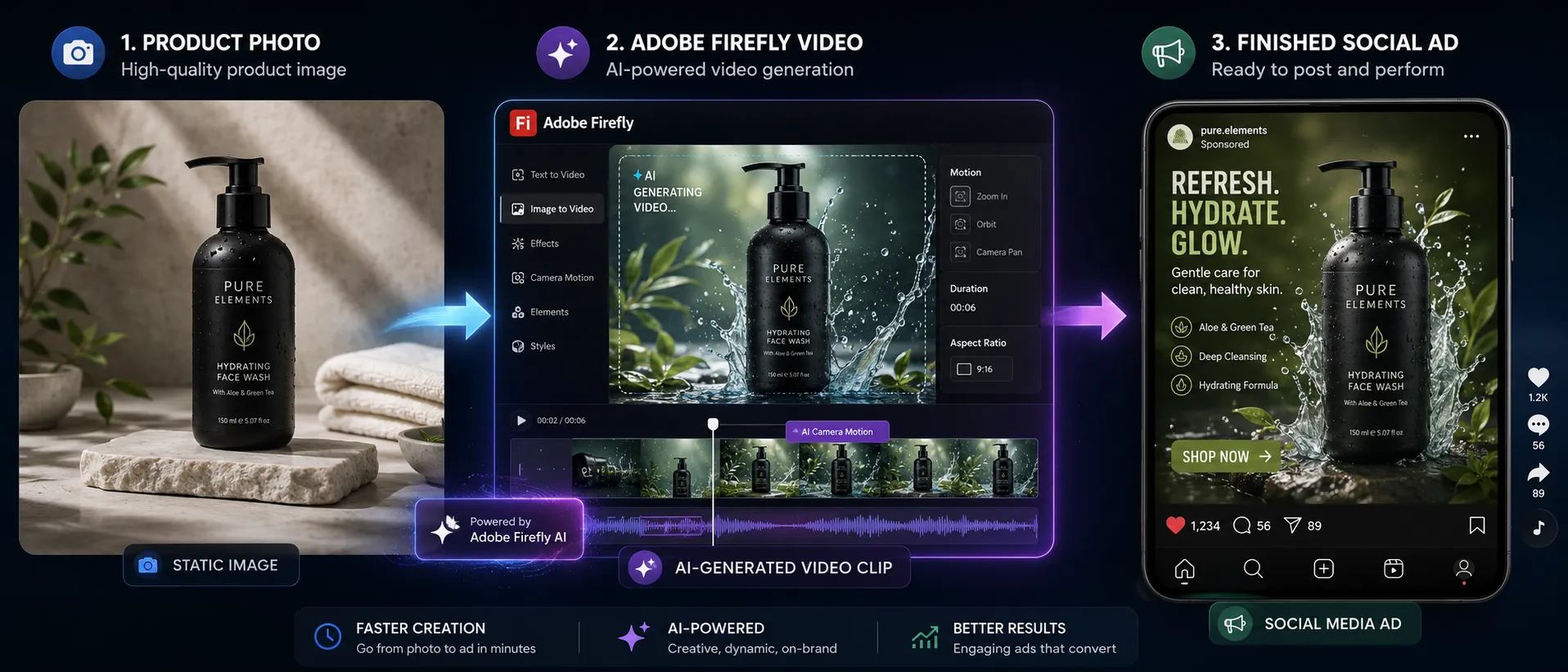
The diagram below should illustrate the practical production sequence: source photo, Firefly generation, quality review, text and audio editing, and final platform export.
What Firefly does not replace
A generated product clip does not automatically contain:
• A verified marketing claim.
• A stable product label in every frame.
• A correctly formatted price.
• Platform-safe text placement.
• A legally sufficient disclaimer.
• A tested advertising hook.
• A complete conversion strategy.
Think of Firefly as a motion-production tool within a larger advertising workflow. It can reduce the need to shoot basic product footage, but the marketer remains responsible for accuracy, branding, editing, and campaign decisions.
Who This Workflow Is Best For
This approach is a strong fit when you have a recognizable product image and need short creative assets for social media, ecommerce pages, concept pitches, or advertising tests.
It is especially practical for:
• Small ecommerce brands without an in-house video team.
• Freelancers producing social assets for several clients.
• Marketing teams that need multiple visual directions quickly.
• Founders creating an initial product-launch campaign.
• Designers developing storyboards before a professional shoot.
• Agencies testing motion concepts before presenting them to a client.
It is less suitable when the product must remain mechanically exact throughout every frame. Complex machinery, transparent packaging, reflective jewelry, detailed control panels, regulated product demonstrations, and packaging covered with small text may require manual animation, 3D rendering, or conventional footage.
Prepare the Product Photo Before Generating Video
The quality of the first frame strongly influences the result. A model can invent motion around an image, but it cannot reliably repair every weakness in the source photograph.
Start with the cleanest available image
Use a photo with:
• A sharply focused product.
• Clearly defined edges.
• Even, intentional lighting.
• A readable label or logo.
• Minimal compression artifacts.
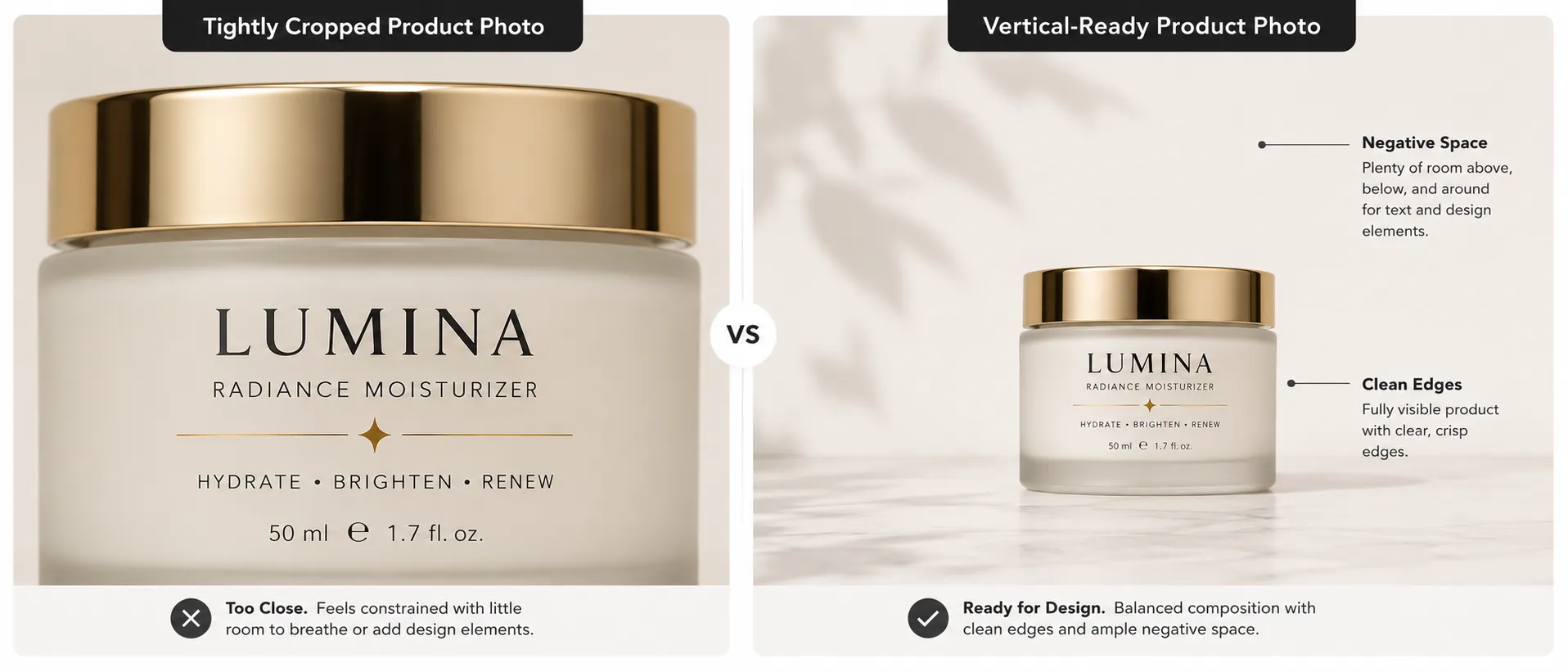
• Enough empty space around the product for cropping.
• A background that does not compete with the subject.
A source image that is already crowded, blurry, or tightly cropped gives the model less visual information to preserve.
Choose the placement before you crop
Decide where the ad will run before uploading the photo. A vertical composition is generally appropriate for Reels, Stories, TikTok, and YouTube Shorts, while horizontal and square versions may be useful for other placements.
TikTok currently recommends a vertical 9:16 format for non-Spark in-feed advertising, while also supporting horizontal 16:9 and square 1:1 creative. Google Ads similarly supports 16:9, 9:16, and 1:1 video assets and recommends high-definition versions for optimal quality (TikTok for Business, 2026; Google Ads, 2026). (ads.tiktok.com)
Do not simply crop a horizontal product image into a vertical frame after generating the video. That can cut off handles, packaging, shadows, or product features. Prepare the canvas for the intended ratio first, using Photoshop, Adobe Express, or another image editor when necessary.
The next visual should compare a weak source image with a stronger version that includes sharper edges, additional negative space, and a placement-friendly crop.
Remove elements you do not want animated
AI video generation may interpret reflections, props, shadows, liquids, fabric, or background objects as elements that should move.
Before uploading, consider removing:
• Distracting props.
• Unnecessary text.
• Temporary promotional badges.
• Background people.
• Complicated reflections.
• Loose particles or decorative objects.
Keep essential branding on the product, but plan to add promotional copy separately in the editor.
Protect important typography
Small packaging text is one of the most vulnerable parts of an AI-generated product clip. Even when the first frame is correct, later frames may introduce warped letters, changing symbols, or inconsistent label geometry.
Three practical safeguards help:
• Keep the motion restrained.
• Avoid requesting a complete 360-degree rotation from one photograph.
• Finish the clip with the original still image or a manually prepared end card.
You can also place an unmodified product image over the generated background during the final edit when label accuracy is more important than fully generated motion.
Define the Ad Before You Open Firefly
A product photo is not a campaign strategy. Write a compact creative brief before generating anything.
Answer five questions:
• Who is the ad for?
• What problem or desire should the opening address?
• Which single product benefit matters most?
• What should the viewer notice first?
• What action should the viewer take?
For example, a weak brief might say:
Make a cool video for this insulated bottle.
A more useful brief would say:
Create a vertical product ad for commuters who want drinks to stay cold during a long workday. Open with a close product reveal, emphasize the condensation-free exterior, and finish with a Shop Now call to action.
The second version gives you a decision framework. Every motion, text layer, and sound choice can be evaluated against it.
A Practical Prompt Formula for Product Videos
A useful Firefly prompt should describe the visual change without repeatedly describing details already visible in the uploaded image.
Use this structure:
Product behavior + camera movement + lighting change + environment behavior + mood + constraints
For example:
The product remains centered and upright on the stone pedestal. The camera makes a slow, controlled push-in. A soft highlight moves across the matte surface while the background stays still and minimal. Premium studio lighting, realistic motion, no additional objects, no hands, no added text, preserve the product’s proportions.
Adobe recommends descriptive prompts that define actions, visual style, camera movement, context, and temporal changes. The company also recommends iterative prompting when the first generation does not match the intended result (Adobe, 2026). (helpx.adobe.com)
Be specific about movement
Words such as “dynamic,” “cinematic,” or “exciting” are open to interpretation. Describe what should physically happen.
Instead of:
Make the product look cinematic.
Try:
Slow camera push-in while a narrow band of light moves from left to right across the product. The product remains motionless.
Instead of:
Make the product float dramatically.
Try:
The product rises two inches above the pedestal and settles gently. The camera remains fixed. No rotation.
Limit the number of simultaneous actions
A five-second product clip rarely needs a spinning product, moving camera, changing background, flying particles, shifting lighting, and liquid effects at the same time.
Begin with one primary movement and one secondary visual change:
• Primary movement: slow camera push-in.
• Secondary change: light sweep across the packaging.
This produces a cleaner asset and makes errors easier to diagnose.
Use negative constraints carefully
Constraints can clarify what must not appear:
• No hands.
• No added objects.
• No new text.
• No change to product color.
• No rapid camera movement.
• No product rotation.
A constraint is guidance, not a technical lock. Inspect the output rather than assuming the prompt has guaranteed compliance.
How to Create the Video Ad Step by Step
1. Choose the final aspect ratio
Select the placement before generating the clip.
Use 9:16 when the primary destination is a full-screen vertical environment such as TikTok, Reels, Stories, or Shorts. Use 1:1 for a square feed asset and 16:9 for horizontal video placements, presentations, or landing-page sections.
Create separate generations for important formats rather than relying entirely on automated cropping. The product may need a different position or amount of negative space in each version.
2. Open Generate Video and select the model
From the Firefly home screen, open the video-generation workflow and select Firefly Video under the model settings. Adobe currently also makes partner video models available inside Firefly, although capabilities, credit use, availability, and commercial considerations may differ by model (Adobe, 2026). (adobe.com)
Use Adobe’s Firefly Video model when commercial-use positioning, Adobe-specific controls, and integration with the Firefly editor are priorities. Evaluate partner models separately rather than assuming every model follows identical terms or produces the same type of output.
3. Set the resolution and aspect ratio
Choose the ratio decided during the creative brief. Higher resolution settings may use more generative credits, so use lower-cost drafts when exploring broad concepts and reserve higher-quality generations for the directions you plan to finish (Adobe, 2026). (helpx.adobe.com)
Confirm the crop before continuing. If Firefly crops the keyframe automatically, reposition the image so the product remains fully visible.
4. Upload the product photo as the first frame
Under the Frames section, upload the product photograph as the first frame.
This tells Firefly what the generated clip should look like at the beginning. The first frame is usually the right choice for a product reveal because the viewer sees an accurate version of the item immediately.
Adobe also supports a last-frame image. That can be useful when you want the video to finish on a prepared hero image, but adding a last frame may limit the motion options available (Adobe, 2026). (helpx.adobe.com)
5. Write a controlled motion prompt
Describe:
• What stays fixed.
• What moves.
• How quickly it moves.
• What the camera does.
• How the lighting changes.
• What must not appear.
For a skincare bottle, a suitable first prompt might be:
The bottle remains upright and centered. Slow camera push-in with a subtle left-to-right light sweep across the packaging. Soft shadows move naturally. Clean warm-beige studio background, restrained luxury advertising style, no hands, no flowers, no extra products, no added text, preserve the bottle shape and label placement.
6. Select one camera behavior
When the relevant controls are available, choose a restrained camera movement such as:
• Static.
• Slow zoom in.
• Slow zoom out.
• Move left.
• Move right.
• Tilt up.
• Tilt down.
Fast movement can hide some artifacts, but it can also make the product feel unstable and reduce the time available to understand the offer. For most product ads, a slow push-in or gentle lateral move is a safer starting point.
7. Generate several distinct directions
Do not spend every generation making tiny changes to one idea. Test meaningful creative differences.
A useful first round might include:
• Version A: static product with moving light.
• Version B: slow push-in with a fixed background.
• Version C: subtle product lift with a fixed camera.
• Version D: background movement while the product remains still.
This gives you options for different hooks and helps identify which type of movement preserves the product most effectively.
8. Review every frame, not just the thumbnail
Check the generated clip at full size and watch for:
• Changing letters.
• Warped logos.
• Altered product proportions.
• Flickering edges.
• Unnatural shadows.
• New objects appearing.
• Color shifts.
• Packaging that bends or melts.
• Reflections that move in the wrong direction.
A clip can look convincing at first glance and still contain a visible error during one or two frames.
9. Open the selected clip in the Firefly video editor
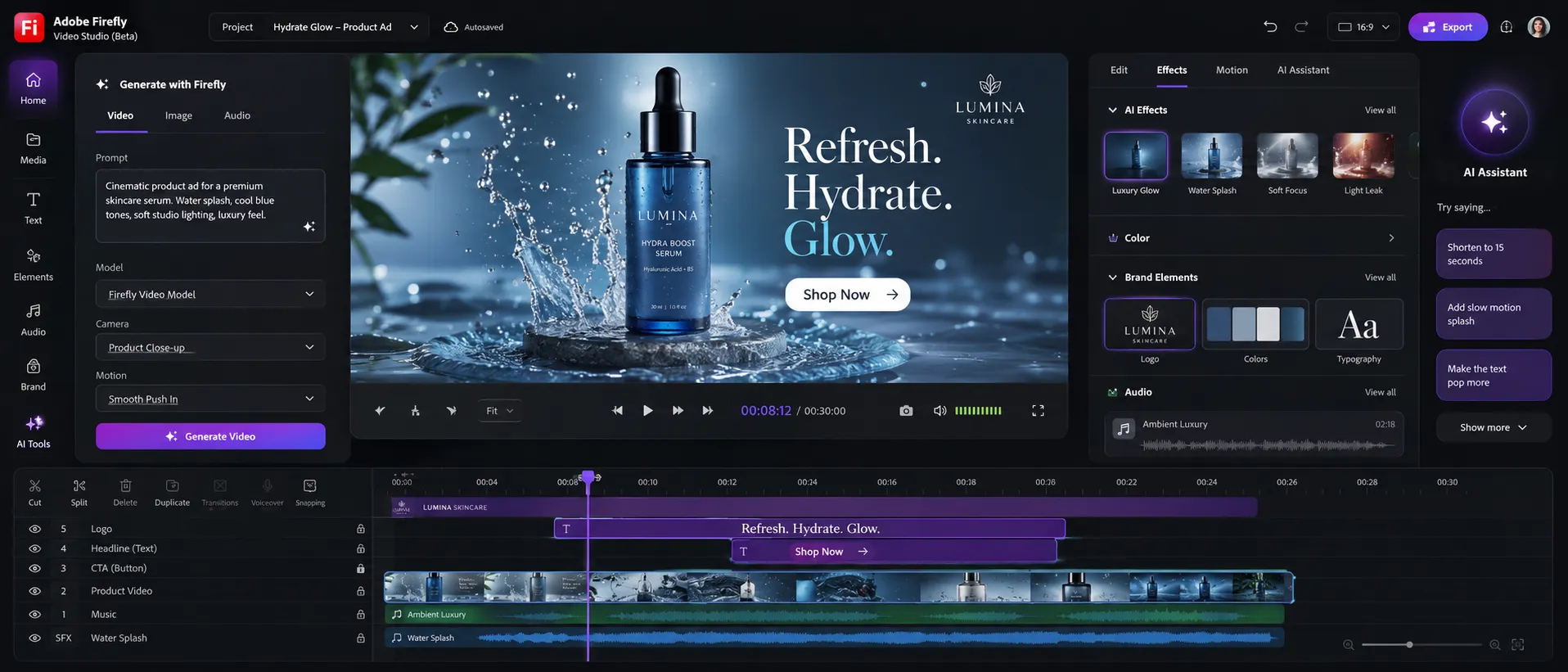
Adobe’s web-based editor allows generated media to be placed on a timeline without leaving Firefly. Text layers can be moved, trimmed, resized, and styled using controls for font, size, alignment, color, position, and other properties (Adobe, 2026). (helpx.adobe.com)
The visual below should show a simple vertical timeline containing the generated product clip, headline layer, supporting copy, call-to-action layer, logo, and audio track.
10. Add advertising copy as editable text
Do not rely on the video model to generate your headline, price, coupon code, or call to action inside the scene.
Add those elements as text layers:
• Opening hook: “Cold for the commute.”
• Supporting benefit: “Designed for long workdays.”
• Call to action: “Shop the collection.”
Keep each screen focused on one message. A viewer should be able to understand the basic proposition even when the sound is off.
11. Add sound with a purpose
Firefly can generate sound effects from text prompts, and generated clips can be opened in the video editor or Premiere for further audio work (Adobe, 2026). (helpx.adobe.com)
Useful product sounds might include:
• A soft click when a lid closes.
• A restrained whoosh during the reveal.
• A light ceramic or glass contact sound.
• Ambient room tone.
• A short branded audio cue.
Avoid stacking sound effects simply to make the ad feel busy. The sound should clarify an action, reinforce material quality, or improve pacing.
12. Export and preview in the actual placement
Before publishing, review the ad inside the intended advertising platform or placement preview.
Check:
• Whether interface buttons cover the call to action.
• Whether captions overlap the product.
• Whether the first frame works without autoplay audio.
• Whether text remains readable on a small phone.
• Whether the landing page matches the promise in the ad.
• Whether the product shown is the exact product being sold.
Turn a Five-Second Clip Into a Complete Ad
Adobe’s current Firefly Video workflow commonly uses five-second video generations, although available durations and settings can differ by model and feature (Adobe, 2026). (helpx.adobe.com)
Five seconds can be enough for a simple ad, but you can also combine several short clips.
A practical nine-second structure could look like this:
Seconds 0–2: The visual hook
Show the product immediately. Use the strongest motion or lighting change near the beginning.
Example:
A highlight travels across the bottle while the headline “Built for the 7:10 train” appears.
Seconds 2–6: The main benefit
Move closer or reveal one visual feature.
Example:
The camera pushes toward the lid as the copy changes to “Leak-resistant design.”
Only use a product claim that you can verify from the manufacturer or your own documentation.
Seconds 6–9: The decision frame
Reduce motion and make the offer easy to process.
Example:
Return to an accurate product still, display the brand name, and add “Shop Now.”
This structure keeps the generated motion focused on attention while reserving the most important commercial information for a controlled end card.
Three Prompt Directions for the Same Product
One photograph can support several advertising styles. The difference comes from the concept and motion—not from adding more visual effects.
Minimal premium reveal
The product remains perfectly upright on a clean pedestal. Slow camera push-in. A soft studio highlight moves gradually across the surface. Neutral background, controlled shadows, refined commercial product photography, no extra objects, no added text, no rotation.
Feature-focused demonstration
The camera remains static while the product lid opens slightly and closes with controlled realistic motion. The product body remains unchanged. Clean bright background, clear functional demonstration, no hands, no extra products, no text.
Use this direction only when the generated action accurately reflects how the real product operates.
Fast social hook
Quick but smooth camera move from a close detail to the full product. A short burst of colored light appears behind the product and fades. The product stays centered and retains its original shape and color. Vertical social advertisement, no added text, no additional objects.
The faster version may attract attention, but it also creates more opportunities for visual distortion. Evaluate it at normal playback speed and frame by frame.
Creative Choices That Matter More Than Fancy Motion
Show the product immediately
Do not spend the opening seconds on an empty background unless the absence of the product is part of a deliberate reveal.
The user should quickly understand:
• What is being advertised.
• Why it might matter.
• What type of brand is speaking.
Build for silent viewing
Sound can improve an ad, but the basic message should not depend on it. Use readable text, visible product behavior, and a clear end frame.
Keep text inside the platform-safe area
Social interfaces may place captions, account information, engagement buttons, and calls to action over the video. TikTok publishes placement-specific safe-zone resources, and Meta recommends keeping important creative elements within safe areas for Reels and Stories (TikTok for Business, 2026; Meta, 2026). (ads.tiktok.com)
Keep the product and critical copy away from the extreme top, bottom, and right edges of vertical creative.
Separate the visual hook from the sales claim
The generated motion earns attention. The copy explains the offer.
Trying to make one visual communicate the product category, benefit, discount, social proof, guarantee, urgency, and call to action usually produces a cluttered ad.
Create variations with real differences
A productive test changes one major variable:
• Hook.
• Benefit.
• Camera movement.
• Background.
• Headline.
• Call to action.
Changing a shadow by a few pixels is not a meaningful ad test.
Common Mistakes and How to Fix Them
The label changes during the clip
Why it happens: The model is generating new frames and may reinterpret small typography or packaging details as the product moves.
How to fix it: Reduce camera and product motion, shorten the usable portion of the clip, or overlay the original product image during the final frames. Add promotional typography as editable text rather than generating it inside the scene.
The product looks as though it is melting
Why it happens: The prompt contains too many simultaneous transformations, or the model lacks enough visual information to infer unseen sides of the product.
How to fix it: Keep the product fixed and move only the camera or lighting. Avoid requesting a full rotation from one front-facing photograph.
The product is cropped in the vertical version
Why it happens: The original image does not contain enough space above, below, or beside the product.
How to fix it: Prepare a larger vertical canvas before uploading. Use generative expansion or manual background extension while keeping the product itself unchanged.
Camera controls have disappeared
Why it happens: A first-frame, last-frame, style, composition, or transparency setting may conflict with the control you are trying to use.
How to fix it: Remove the last frame or other optional control and check the interface again. Adobe documents that certain frame selections disable camera and style options (Adobe, 2026). (helpx.adobe.com)
The clip looks busy but does not communicate a benefit
Why it happens: The generation was built around effects rather than the advertising objective.
How to fix it: Return to the creative brief. Choose one benefit, one movement, and one action. Remove effects that do not support those elements.
The generated text is unreadable
Why it happens: Generative video models are being asked to render precise promotional typography inside moving imagery.
How to fix it: Generate the visual without marketing text. Add the headline, price, offer, and call to action as editable layers in the Firefly editor, Adobe Express, or Premiere.
Generative credits are being consumed too quickly
Why it happens: Video, audio, high-resolution output, and partner models may use premium generative credits. Credit consumption can vary by feature, resolution, and model.
How to fix it: Test concepts at lower-cost settings, compare complete creative directions rather than tiny variations, and check the credit estimate before generating. Adobe advises that premium features and partner-model outputs use generative credits and that allocations reset according to the plan’s billing cycle (Adobe, 2026). (adobe.com)
The ad feels artificial
Why it happens: The product, camera, lighting, particles, and background are all moving at once.
How to fix it: Introduce stillness. A static product with one controlled light sweep can appear more credible than an elaborate generated scene.
Pricing and Credit Considerations
Adobe Firefly offers limited free daily generations and several paid plans. At the time of writing, Adobe’s U.S. page lists Firefly Standard at $9.99 per month with 2,000 credits, Firefly Pro at $19.99 with 4,000 credits, Firefly Pro Plus at $49.99 with 10,000 credits, and Firefly Premium at $199.99 with 50,000 credits and unlimited access to the Adobe Firefly Video Model. Prices, promotions, credit consumption, and included features can change, so confirm the current terms before subscribing (Adobe, 2026). (adobe.com)
The right plan depends less on how many ads you publish and more on how many generations you need to reach an approved result.
Consider:
• How many products require video.
• How many aspect ratios you need.
• How many creative concepts you normally test.
• Whether you use Adobe or partner models.
• Whether sound, translation, or additional generative features are part of the workflow.
• Whether the account is for one creator or a managed team.
A small business producing occasional clips may be able to explore the workflow with free generations. A team creating weekly variations should estimate the number of draft and final generations rather than choosing a plan based only on the headline credit total.
Privacy, Rights, and Commercial Use
Adobe states that outputs from its Firefly models can be used for commercial projects and that Firefly models are trained on licensed content, such as Adobe Stock, and public-domain material. Adobe also states that customer content is not used to train its foundational Firefly models (Adobe, 2026). (adobe.com)
Adobe applies Content Credentials to Firefly-generated content to provide information about how an asset was created or modified. These credentials can help communicate that generative AI was involved, but they do not replace legal, advertising, or brand review (Adobe, 2025). (news.adobe.com)
Before uploading a product photo:
• Confirm that you own it or have permission to use it.
• Remove confidential information that does not need to appear.
• Follow your company’s rules for unreleased products.
• Do not upload customer data or personal information as part of the scene.
• Review the terms for the specific model you select.
• Do not imply that the generated scene documents a real product test.
• Verify every product claim, price, certification, and disclaimer.
Adobe’s generative AI guidelines also prohibit deceptive or harmful use and explain that prompts, inputs, and generated results may be reviewed through automated and manual methods for abuse prevention and content filtering (Adobe, 2026). (adobe.com)
Partner models are third-party systems integrated into Adobe products. Do not assume that Adobe’s statements about its own model training, commercial positioning, or protections apply identically to every partner model. Review the relevant terms and model information before using an output in a commercial campaign.
When Firefly Is Not the Right Production Method
Use traditional video, manual animation, or 3D rendering when you need:
• Exact packaging in every frame.
• A precise 360-degree product rotation.
• A technically accurate demonstration.
• Repeatable camera paths across several products.
• Legally sensitive before-and-after evidence.
• Realistic interaction with a person’s hand.
• Complex liquids, transparency, or reflections.
• Frame-perfect synchronization with an existing campaign.
Firefly can still help during concept development. You might use it to visualize the lighting, framing, or pace before producing the final asset through a controlled shoot.
Photoshop is useful for preparing the keyframe and extending the background. The Firefly editor or Adobe Express can handle lightweight text and layout work. Premiere offers more precise timing, audio, masking, compositing, and export control when the ad requires a professional finishing pass.
Frequently Asked Questions
Create the Motion First, Then Build the Advertisement
The most reliable way to turn one product photo into a video ad is to separate generation from advertising.
Use Firefly to create a short, controlled motion asset. Then add the elements that require precision—headline, benefit, price, logo, disclaimer, and call to action—inside an editor.
Before publishing, confirm:
• The source photo is sharp and legally usable.
• The aspect ratio matches the intended placement.
• The prompt describes one primary movement.
• The product remains recognizable throughout the clip.
• The label and logo have been reviewed frame by frame.
• Marketing text has been added as editable typography.
• The benefit and product claims are verifiable.
• Important elements remain inside the placement’s safe zone.
• The ad still makes sense without sound.
• The final frame gives the viewer a clear next action.
A single image can be enough to begin. The quality of the finished ad depends on what you do after the generation.
Sources
• Adobe Firefly: Generate Videos Using Images — https://helpx.adobe.com/firefly/web/work-with-audio-and-video/work-with-video/generate-videos-using-images.html
• Adobe Firefly: Writing Effective Text Prompts for Video Generation — https://helpx.adobe.com/firefly/web/work-with-audio-and-video/work-with-video/writing-effective-text-prompts-for-video-generation.html
• Adobe Firefly Overview — https://helpx.adobe.com/firefly/web/get-started/learn-the-basics/adobe-firefly-overview.html
• Adobe Firefly: Add Text to the Timeline — https://helpx.adobe.com/firefly/web/firefly-video-editor/add-and-organize-media/add-text-to-the-timeline.html
• Adobe Firefly Plans and Generative AI Pricing — https://www.adobe.com/products/firefly/plans.html
• Adobe Generative Credits FAQ — https://helpx.adobe.com/creative-cloud/apps/generative-ai/generative-credits-faq.html
• Adobe Firefly FAQ — https://helpx.adobe.com/firefly/web/get-started/learn-the-basics/adobe-firefly-faq.html
• Adobe’s Approach to Generative AI With Firefly — https://www.adobe.com/ai/overview/firefly/gen-ai-approach.html
• Adobe Generative AI User Guidelines — https://www.adobe.com/legal/licenses-terms/adobe-gen-ai-user-guidelines.html
• TikTok Auction In-Feed Ad Specifications — https://ads.tiktok.com/help/article/tiktok-auction-in-feed-ads
• Google Ads Video Specifications — https://support.google.com/google-ads/answer/13547298
• Meta Safe-Zone Guidance for Stories and Reels Ads — https://www.facebook.com/business/help/980593475366490
Meta-description: Turn one product photo into a video ad with Adobe Firefly using controlled prompts, motion, text, sound, and practical quality checks.
Keywords: Adobe Firefly, image to video AI, product video ad, Firefly video tutorial, AI product animation, social media video ads, ecommerce video creation, Adobe AI video, product photo animation, generative video workflow