







Table of Contents
◉ Introduction ◉ The Short Answer ◉ Reader Roadmap ◉ A Website Launch Is an Operations Checklist, Not a Design Finish Line ◉ Domain Checklist: Choose, Register, and Protect the Name ◉ Hosting Checklist: Match the Platform to the Website ◉ Speed Checklist: Build for Real Users, Not Just Desktop Previews ◉ Security Checklist: Make Trust Visible and Operational ◉ Basic SEO Checklist: Make the Site Crawlable, Useful, and Understandable ◉ Step-by-Step Website Launch Checklist ◉ Practical Example: A Small Business Website Relaunch ◉ Privacy, Security, and Compliance Considerations ◉ Common Mistakes and Troubleshooting ◉ When Not to Launch Yet ◉ FAQ ◉ Conclusion: Launch the Site Like a System, Not a Poster ◉ Sources
Launching a website is not just a design milestone. It is a technical handoff where your domain, hosting, performance, security, analytics, and search visibility all need to work together before real visitors arrive. A site can look finished and still fail in ways that cost leads, trust, rankings, or revenue: a misconfigured domain, a slow mobile page, an expired SSL certificate, a blocked sitemap, or a contact form that silently drops submissions.
This website launch checklist is for founders, creators, small business owners, marketers, and non-specialist teams preparing to publish a new site or relaunch an existing one. You do not need to be a systems administrator, but you should understand the core decisions well enough to ask the right questions and catch common problems before launch day.
The goal is practical: choose a domain responsibly, select hosting that fits your workload, verify speed and Core Web Vitals, secure the site, prepare basic SEO, and run a final pre-launch review that reduces preventable surprises.
The Short Answer
A successful website launch depends on five essentials: a properly registered domain, reliable hosting, fast page performance, baseline security, and search-ready technical SEO. Design matters, but these infrastructure decisions determine whether people and search engines can actually access, trust, and use your site.
Your domain should be registered through a reputable registrar, protected with strong account security, set to auto-renew, and configured with accurate DNS records. Domain names are business assets, not just marketing labels; losing control of one can disrupt your website, email, brand reputation, and customer access.
Hosting should match the site’s purpose. A simple portfolio or blog may run well on managed WordPress hosting or a website builder, while an ecommerce store, membership site, or high-traffic publication needs stronger performance, backups, staging, support, and security controls.
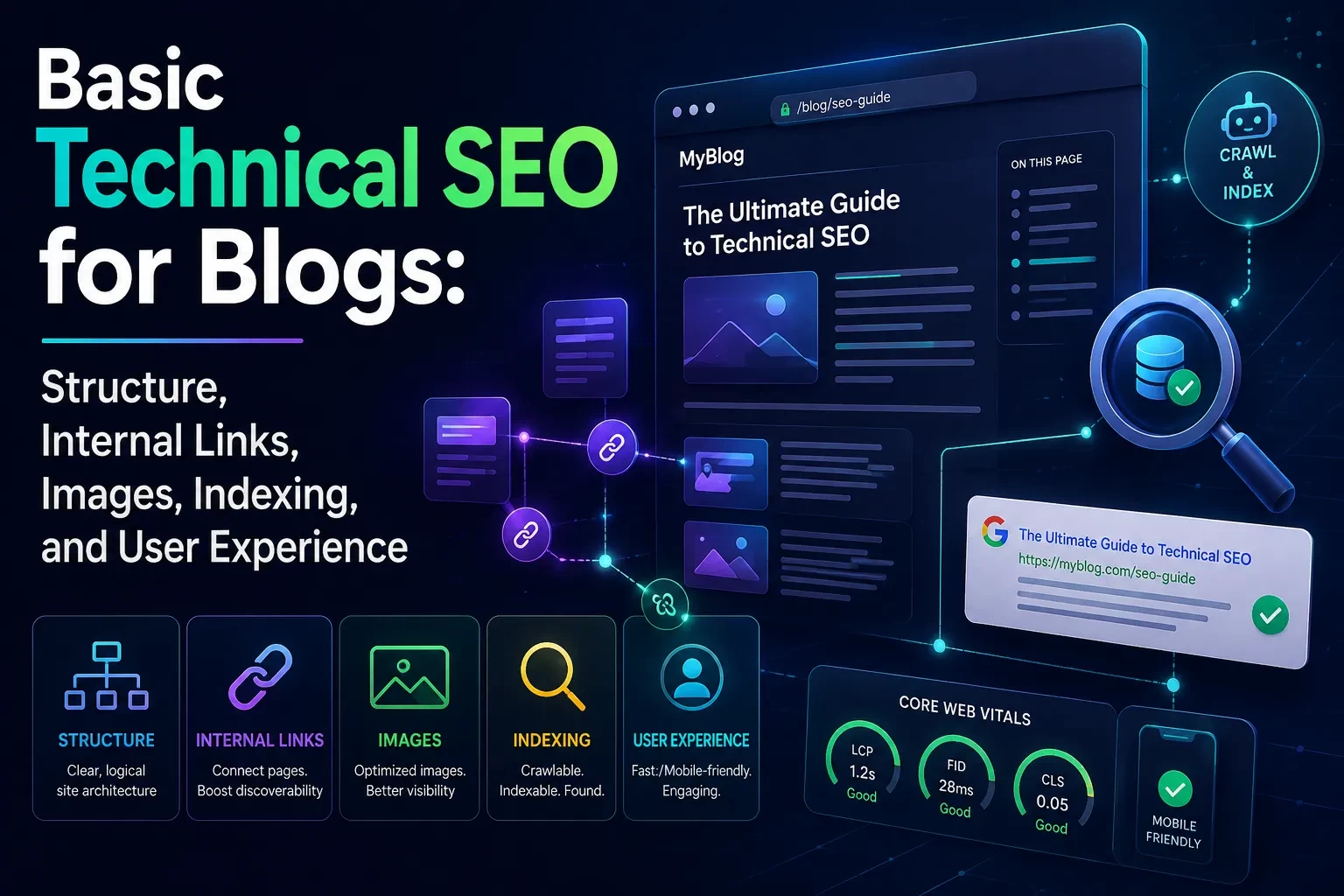
Speed should be checked before launch, especially on mobile. Google’s Core Web Vitals focus on loading performance, interactivity, and visual stability using metrics such as Largest Contentful Paint, Interaction to Next Paint, and Cumulative Layout Shift (Google Search Central, 2026).
Basic SEO is not about gaming search engines. It means making the site crawlable, indexable, understandable, and useful: clear titles, descriptive meta descriptions, clean URL structure, internal links, XML sitemap, robots.txt review, schema where appropriate, and Google Search Console setup.
Reader Roadmap
• How to choose and protect a domain, so you do not risk losing control of a core business asset.
• How to evaluate hosting, so your launch platform matches your traffic, content, and maintenance needs.
• How to check website speed before launch, so users are not forced to wait on oversized images, slow scripts, or poor mobile performance.
• How to apply practical security basics, so you reduce avoidable risks without pretending security is a one-time task.
• How to prepare basic SEO, so Google and other search engines can crawl, understand, and display your pages correctly.
• How to troubleshoot launch problems, so you can diagnose DNS, SSL, indexing, and performance issues quickly.
A Website Launch Is an Operations Checklist, Not a Design Finish Line
The easiest mistake is treating “launch” as the moment the homepage looks polished. In practice, launch means the site is stable enough for public use. That includes technical readiness, content readiness, measurement readiness, and recovery planning.
A useful launch checklist answers four questions:
• Can users reach the site reliably?
• Can users trust the site enough to browse, subscribe, contact, or buy?
• Can search engines crawl and understand the most important pages?
• Can your team detect and fix problems after launch?
This is why a proper launch review includes domain records, hosting configuration, SSL/TLS, speed tests, analytics, forms, backups, redirects, 404 pages, metadata, and sitemap submission. None of these tasks is glamorous. All of them are easier to fix before announcing the site.
For visual planning, a launch map helps teams see how the domain, hosting, CDN, CMS, analytics, and search tools connect before anything goes public.
Domain Checklist: Choose, Register, and Protect the Name
Your domain is the public address of your website. It also often controls email routing, brand recognition, redirects, analytics continuity, and customer trust. Treat it like a business asset from day one.
Choose a domain that can survive real use
A good domain is easy to pronounce, easy to spell, and not confusingly similar to another brand. Avoid names that require repeated explanation, unusual punctuation, or trendy spellings that people will mistype.
Before buying, check:
• Whether the name is available across major social platforms.
• Whether another business uses a similar name in your category.
• Whether the domain could create trademark confusion.
• Whether the extension fits audience expectations.
• Whether the domain is short enough for email, ads, podcasts, and offline mentions.
The .com extension is still familiar to U.S. users, but it is not the only valid option. For technology, software, education, and creator businesses, other extensions can work if the brand is clear and the site feels credible. The key is avoiding confusion.
Register through a reputable registrar
Use an ICANN-accredited registrar when registering generic top-level domains. ICANN explains that registrants have rights and responsibilities, including access to information about registration, management, renewal, and restoration processes (ICANN, 2026).
Important registrar settings to verify:
• Auto-renewal is enabled.
• The payment method is current.
• The registrar account uses multi-factor authentication.
• Domain lock or transfer lock is enabled.
• Administrative contact details are accurate.
• Recovery email and phone number are controlled by the business, not a temporary contractor.
If a freelancer, agency, or employee registers the domain on your behalf, make sure the business owns the registrar account. Domain ownership disputes are painful because the domain controls access to the site.
Use DNS carefully
DNS is the system that tells browsers and mail servers where to find your website and email. Common DNS records include:
• A record: points a domain to an IPv4 address.
• AAAA record: points a domain to an IPv6 address.
• CNAME record: points one hostname to another hostname.
• MX record: routes email.
• TXT record: often used for verification, email authentication, and platform setup.
• CAA record: can specify which certificate authorities may issue certificates for your domain.
Before launch, document every DNS record and what it does. Do not delete unfamiliar records without checking whether they support email, analytics verification, security, or a previous subdomain.
Hosting Checklist: Match the Platform to the Website
Hosting is where your website files, database, and application run. The right host depends on what your website needs to do, how much technical control you require, and how much maintenance your team can handle.
Common hosting options
| Hosting option | Best fit | Tradeoff to consider |
|---|---|---|
| Website builder | Simple brochure sites, landing pages, creator sites | Less backend control and portability |
| Managed WordPress hosting | Blogs, marketing sites, service businesses | Higher cost than basic shared hosting, but less maintenance |
| Shared hosting | Small static or low-traffic sites | Performance and isolation may be limited |
| VPS or cloud server | Custom apps, technical teams, flexible workloads | Requires server administration knowledge |
| Static hosting | Fast content sites, documentation, frontend projects | Dynamic features need external services |
| Ecommerce platform hosting | Online stores | Platform fees, app costs, and customization limits |
A serious business site should not choose hosting by monthly price alone. Downtime, slow support, poor backups, weak security, or limited staging tools can cost more than the hosting plan itself.
What to verify before choosing a host
Look for hosting that supports:
• SSL/TLS certificates and HTTPS.
• Automatic backups with clear restore options.
• Staging environments for testing changes.
• CDN integration or edge caching.
• Server-level caching where appropriate.
• PHP, Node.js, database, or runtime versions required by your site.
• Email deliverability guidance if forms send notifications.
• Security controls such as malware scanning, firewall options, and access logs.
• Support response quality, not just “24/7 support” language.
For WordPress sites, managed hosting is often worth considering because updates, backups, caching, and security hardening are partly handled by the provider. For a custom application, developer access, deployment workflow, logs, and scaling controls may matter more.
Speed Checklist: Build for Real Users, Not Just Desktop Previews
A website that looks fast on your laptop may feel slow on a mid-range phone over a weaker mobile connection. Speed affects user experience, conversion, and search performance. Google describes Core Web Vitals as metrics that measure real-world user experience for loading performance, interactivity, and visual stability (Google Search Central, 2026).
The three Core Web Vitals to know are:
• Largest Contentful Paint, which measures when the main content becomes visible.
• Interaction to Next Paint, which measures responsiveness after user interactions.
• Cumulative Layout Shift, which measures unexpected layout movement.
Google Search Console’s Core Web Vitals report groups URL performance by status, metric type, and similar URL groups using real user data when enough data is available (Google Search Console Help, 2026).
Practical speed checks before launch
Use both lab tools and real-device judgment. Lab tools help diagnose technical issues, but human review catches things tools may miss.
Check:
• Homepage loading on mobile.
• Key landing pages.
• Blog article templates.
• Product or service pages.
• Checkout, booking, or contact forms.
• Image-heavy pages.
• Pages using video, maps, chat widgets, or embedded social content.
The biggest launch speed problems are often simple: uncompressed images, too many third-party scripts, heavy fonts, render-blocking code, poor caching, and oversized page builders.
For the clearest visual review, create a before-and-after screenshot showing the same mobile page with image compression, lazy loading, and unused scripts removed.
Performance choices that usually matter
Start with optimizations that affect many pages:
• Compress images and use modern formats where supported.
• Resize images to the dimensions actually needed.
• Lazy-load below-the-fold images.
• Use a CDN for global delivery when your audience is geographically distributed.
• Limit third-party scripts to tools you genuinely need.
• Avoid loading multiple tracking, chat, heatmap, and advertising tools on launch day unless each has a clear purpose.
• Use system fonts or a small, controlled font set.
• Cache static assets.
• Test the mobile menu, forms, and interactive elements for responsiveness.
The goal is not to chase a perfect score. The goal is to make the site usable, stable, and fast enough for real visitors.
Security Checklist: Make Trust Visible and Operational
Website security is not a plugin you install once. It is a set of habits, configurations, permissions, and recovery plans. At launch, focus on reducing the most common avoidable risks.
HTTPS is required baseline security
HTTPS encrypts traffic between the browser and the website. Let’s Encrypt provides free SSL/TLS certificates and describes itself as a free, automated, open certificate authority for enabling HTTPS (Let’s Encrypt, 2026).
Before launch:
• Confirm the site loads at https://.
• Redirect all http:// versions to HTTPS.
• Check both www and non-www versions.
• Verify that SSL renewal is automatic.
• Fix mixed-content warnings caused by loading images, scripts, or styles over HTTP.
• Confirm canonical URLs use HTTPS.
HTTPS does not make a site immune to attacks. It protects transport encryption and improves trust, but it does not replace secure passwords, updates, backups, or access control.
Protect accounts and permissions
CISA advises that multi-factor authentication adds protection beyond passwords (CISA, 2026). Use MFA for your registrar, hosting account, CMS administrator account, email provider, analytics tools, and payment systems.
Before launch, audit access:
• Remove old contractors or unused users.
• Avoid shared administrator accounts.
• Give each person the lowest permission level they need.
• Use a password manager.
• Require MFA for admin users.
• Store recovery codes securely.
• Keep ownership accounts tied to company-controlled email addresses.
Add basic technical hardening
For many sites, especially WordPress or ecommerce sites, launch security should include:
• Updated CMS, theme, plugins, and dependencies.
• Automatic backups with tested restores.
• Web application firewall or managed security layer where appropriate.
• Login rate limiting or brute-force protection.
• Secure file permissions.
• Spam protection on forms.
• Security headers where appropriate.
OWASP’s Secure Headers Project describes HTTP response headers as controls that can help modern browsers reduce preventable vulnerabilities (OWASP, 2026). Content Security Policy can also restrict what resources a page is allowed to load, helping reduce certain client-side risks when configured carefully (MDN Web Docs, 2026).
Security headers should be tested before launch. A strict Content Security Policy can break scripts, forms, embedded tools, payment widgets, or analytics if deployed without review.
Basic SEO Checklist: Make the Site Crawlable, Useful, and Understandable
Basic SEO starts with clarity. Search engines need to discover your pages, understand their purpose, and decide whether they are useful for relevant queries. Google’s SEO Starter Guide emphasizes improvements that help search engines crawl, index, and understand content while keeping the focus on useful pages for people (Google Search Central, 2026).
Indexing and crawlability
Before launch, check:
• Important pages are not blocked by robots.txt.
• Important pages do not have accidental noindex tags.
• XML sitemap exists and includes canonical URLs.
• Sitemap is submitted in Google Search Console.
• Staging URLs are not indexable.
• Duplicate versions of the site redirect to the preferred version.
• Broken internal links are fixed.
• 404 page is helpful and branded.
Google explains that a sitemap provides information about pages, videos, and files on a site and helps search engines crawl more efficiently (Google Search Central, 2026). Submitting a sitemap is a hint, not a guarantee that Google will crawl or index every URL (Google Search Central, 2026).
Titles, descriptions, and page purpose
Every indexable page should have a clear reason to exist. That reason should be reflected in the title tag, H1, URL, and visible content.
Review:
• Homepage title: brand plus clear value proposition.
• Service pages: specific service and audience.
• Product pages: product name, category, and differentiator.
• Blog posts: specific question, problem, or outcome.
• About page: trust, credentials, and context.
• Contact page: location, contact method, and next step.
Meta descriptions are not a direct ranking guarantee, but they can influence how users understand a result. Write them like editorial summaries, not keyword containers.
Internal linking and site structure
A new website often fails SEO because pages are technically live but buried. Important pages should be reachable through navigation, contextual links, sitemap, and relevant content hubs.
A practical structure might look like this:
• Homepage links to core services, product categories, about page, and lead capture.
• Service pages link to related case studies, FAQs, and contact pages.
• Blog posts link to relevant guides, tools, product pages, or definitions.
• Footer includes important trust pages such as privacy policy, terms, contact, and support.
Avoid orphan pages, which are live URLs with no internal links pointing to them. Search engines may still discover them, but users and crawlers get weaker signals about their importance.
Step-by-Step Website Launch Checklist
Use this sequence during the final week before launch. It works for most business websites, blogs, portfolios, and small ecommerce sites.
1. Confirm domain ownership and registrar security
Make sure the domain is registered under the correct owner, not a temporary vendor account. Enable auto-renewal, turn on MFA, verify recovery details, and document registrar access. This matters because a domain failure can take down both the website and business email.
2. Review DNS records before changing anything
Export or screenshot current DNS records before edits. Confirm A, CNAME, MX, TXT, and verification records are correct. A common launch mistake is pointing the website correctly while breaking email authentication or platform verification.
3. Set the preferred domain version
Decide whether the site will use www.example.com or example.com. Redirect the non-preferred version to the preferred version. Keep this consistent across CMS settings, canonical tags, sitemap URLs, analytics, and Search Console properties.
4. Enable HTTPS and test redirects
Install or activate SSL/TLS, then test HTTP-to-HTTPS redirects. Confirm there are no mixed-content warnings. A practical warning: check embedded images, old CSS files, third-party scripts, and hardcoded links from the staging site.
5. Configure hosting backups and restore access
Do not settle for “backups included” without knowing how restores work. Check backup frequency, retention period, storage location, and who can restore the site. For ecommerce or membership sites, confirm how database restores affect new orders or user activity.
6. Test speed on important templates
Run performance checks on the homepage, a landing page, an article page, and any conversion page. Compress oversized images, remove unused scripts, and test the site on a real mobile device. Core Web Vitals should guide priorities, but usability should guide judgment.
7. Check forms, email, and conversion paths
Submit every form. Test newsletter signup, checkout, booking, lead capture, account creation, password reset, and contact notifications. Confirm emails arrive in the right inbox and do not land in spam.
8. Prepare basic SEO elements
Check title tags, meta descriptions, H1s, canonical tags, internal links, robots.txt, sitemap, alt text, and schema where appropriate. Make sure placeholder text, demo pages, and lorem ipsum content are removed.
9. Connect analytics and search tools
Install analytics only after deciding what you actually need to measure. Connect Google Search Console, submit the sitemap, and confirm analytics events for forms, purchases, downloads, or signups. Avoid adding unnecessary tracking scripts that slow the site.
10. Run a final human review
Ask someone outside the build team to use the site on mobile. Give them simple tasks: find pricing, contact the company, read a blog post, complete a form, or understand the offer. Watch where they hesitate. Fix confusion before launch announcements.
The launch checklist is easier to manage when it is assigned by owner and status. A simple spreadsheet or project board can track domain, hosting, speed, security, SEO, content, analytics, and final approval.
Practical Example: A Small Business Website Relaunch
Imagine a local consulting firm replacing a five-year-old WordPress site. The redesign looks better, but the launch risk is technical.
The old site has blog posts that rank, a contact form that feeds leads into email, and a few backlinks to outdated URLs. The new site uses a different page builder, new hosting, and a cleaned-up service structure.
The launch plan should include:
• A redirect map from old URLs to new URLs.
• Search Console review before and after launch.
• Backup of the old site.
• DNS change scheduled during a low-traffic window.
• Form testing with real inbox confirmations.
• Image compression across service pages.
• Removal of unused plugins.
• A crawl check for broken links.
• A 30-day post-launch monitoring window.
The point is not perfection. The point is preserving business continuity. A relaunch that improves design but loses organic traffic, breaks forms, or slows mobile pages is not a successful relaunch.
Privacy, Security, and Compliance Considerations
Even a basic website can collect sensitive information. Contact forms, analytics platforms, chat widgets, payment processors, newsletter tools, booking systems, and customer portals all involve data handling.
Before launch, ask:
• What personal data does the site collect?
• Where is that data stored?
• Who can access it?
• Which third-party tools receive visitor or customer data?
• Does the privacy policy accurately describe the site?
• Are cookie banners or consent tools needed for your audience and region?
• Are form submissions encrypted in transit?
• Are old form entries stored indefinitely in the CMS?
This is not legal advice. For regulated industries, healthcare, finance, education, children’s data, or international visitors, consult qualified counsel. From an operational standpoint, collect less data when possible, restrict access, and document the tools that process visitor information.
Common Mistakes and Troubleshooting
Mistake: The domain points to the wrong place
Why it happens: DNS records were copied incorrectly, the wrong A record was edited, or www and non-www versions were treated separately.
How to fix it: Verify DNS records at the registrar or DNS provider. Confirm the preferred domain and make sure both versions redirect correctly. Allow for DNS propagation, but do not use propagation as an excuse before checking for obvious record errors.
Mistake: The site shows “Not Secure” after launch
Why it happens: SSL/TLS was not installed, the certificate does not cover the correct hostname, or the page loads assets over HTTP.
How to fix it: Check the certificate, force HTTPS, update hardcoded asset URLs, and test both www and non-www versions. Confirm automatic certificate renewal.
Mistake: Google indexes the staging site
Why it happens: The staging environment was left crawlable, linked publicly, or launched without proper access controls.
How to fix it: Add authentication to staging environments, remove staging URLs from public links, use noindex carefully where appropriate, and request removal only when needed. Do not block a page in robots.txt if Google needs to crawl it to see a noindex directive.
Mistake: The new site loses rankings after a redesign
Why it happens: URLs changed without redirects, content was removed, internal links changed, metadata was rewritten poorly, or important pages became slower.
How to fix it: Build a redirect map, preserve high-performing content where possible, compare old and new title tags, crawl for broken links, and monitor Search Console after launch.
Mistake: The homepage is fast, but conversion pages are slow
Why it happens: Teams test only the homepage. Product pages, booking pages, checkout pages, and long landing pages often carry heavier scripts and images.
How to fix it: Test every important template. Pay special attention to pages with embedded video, reviews, maps, payment tools, chat widgets, or third-party tracking.
Mistake: Contact forms work visually but do not deliver messages
Why it happens: Form plugins submit successfully on-screen, but email routing, spam filtering, or SMTP configuration fails.
How to fix it: Submit test leads using different email addresses. Confirm delivery, sender address, reply-to behavior, spam placement, CRM capture, and notification routing.
Mistake: The sitemap includes the wrong URLs
Why it happens: The sitemap was generated on staging, includes HTTP URLs, includes noindex pages, or excludes important content types.
How to fix it: Regenerate the sitemap after final domain and HTTPS settings are live. Confirm it includes canonical URLs and submit it in Google Search Console.
When Not to Launch Yet
Delay launch if any of the following are true:
• You do not control the domain account.
• HTTPS is not working.
• The contact form or checkout flow fails.
• Backups are not configured.
• The site contains placeholder content.
• Important pages are blocked from indexing by accident.
• Mobile navigation is broken.
• Old URLs have no redirect plan.
• Analytics or conversion tracking is required but not installed.
• Legal pages are missing for a site that collects personal data.
A short delay is usually better than launching a site that burns trust on its first day.
FAQ
Conclusion: Launch the Site Like a System, Not a Poster
A website launch should end with confidence, not crossed fingers. The best launch teams treat the site as a working system: domain, DNS, hosting, SSL, performance, security, content, analytics, and SEO all support the user experience.
Before you publish or announce the site, run this final checklist:
• Domain ownership confirmed and protected with MFA.
• DNS records documented and tested.
• HTTPS active across all domain versions.
• Hosting backups configured and restore process understood.
• Key pages tested on mobile.
• Images compressed and unnecessary scripts removed.
• Forms, checkout, email, and conversion paths verified.
• Sitemap, robots.txt, canonical tags, and metadata reviewed.
• Google Search Console and analytics connected.
• Old URLs redirected where needed.
• Privacy, terms, and data collection practices reviewed.
Launch when the website is not only attractive, but reachable, secure, measurable, fast enough, and understandable to both users and search engines.
Sources
• Google Search Central SEO Starter Guide — https://developers.google.com/search/docs/fundamentals/seo-starter-guide
• Google Search Central Core Web Vitals Documentation — https://developers.google.com/search/docs/appearance/core-web-vitals
• Google Search Console Help: Core Web Vitals Report — https://support.google.com/webmasters/answer/9205520
• Google Search Central: Build and Submit a Sitemap — https://developers.google.com/search/docs/crawling-indexing/sitemaps/build-sitemap
• Google Search Central: Learn About Sitemaps — https://developers.google.com/search/docs/crawling-indexing/sitemaps/overview
• ICANN Information for Domain Name Registrants — https://www.icann.org/registrants
• ICANN Registrants’ Benefits and Responsibilities — https://www.icann.org/resources/pages/benefits-2013-09-16-en
• Let’s Encrypt Documentation — https://letsencrypt.org/docs/
• Let’s Encrypt FAQ — https://letsencrypt.org/docs/faq/
• CISA Multi-Factor Authentication Guidance — https://www.cisa.gov/MFA
• OWASP Secure Headers Project — https://owasp.org/www-project-secure-headers/
• OWASP Content Security Policy Cheat Sheet — https://cheatsheetseries.owasp.org/cheatsheets/Content_Security_Policy_Cheat_Sheet.html
• MDN Web Docs: Content Security Policy — https://developer.mozilla.org/en-US/docs/Web/HTTP/Guides/CSP