





Disclosure: Buyers Guide may earn a commission if you purchase through links in this article, at no additional cost to you. Our analysis and recommendations remain editorially independent.
Table of Contents
◉ Introduction ◉ The Short Answer ◉ Reader Roadmap ◉ What Firefly Boards Actually Does ◉ Who Firefly Boards Is Best For ◉ Before You Start: Four Things to Prepare ◉ A Better Way to Organize the Infinite Canvas ◉ The 10-Minute Firefly Boards Workflow ◉ Remix vs. Vary: The Most Important Distinction in the Workflow ◉ Refining AI Images Without Losing the Product ◉ Turn the Winning Image Into a Video Concept ◉ Finish Where Precision Matters ◉ A Practical Example: Building an Energy-Drink Campaign ◉ Collaboration: Use the Board as a Decision Record ◉ Pricing and Generative Credit Considerations ◉ Privacy, Partner Models, and Client Assets ◉ Content Credentials: Useful Transparency, Not Automatic Clearance ◉ Common Mistakes and How to Fix Them ◉ When Firefly Boards Is the Wrong Tool ◉ A More Efficient Prompting Framework for Boards ◉ FAQ ◉ Final Takeaway: Generate Less, Decide Better ◉ Sources
Creative AI becomes much less useful when the work around it is fragmented. You collect references in one app, generate images in another, copy prompts into a document, send screenshots to a client, open a separate editor for revisions, and eventually lose track of which version everyone approved.
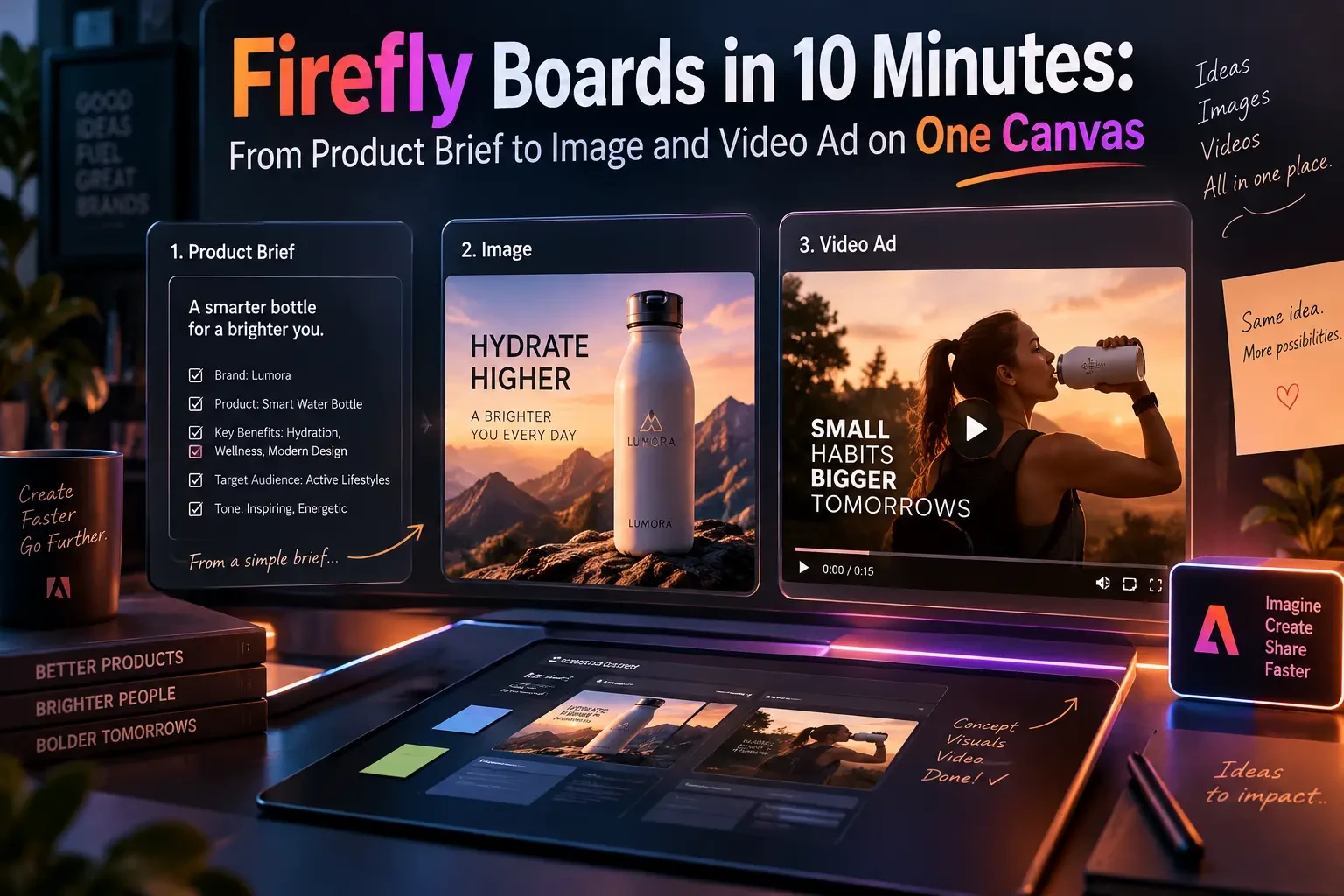
Adobe Firefly Boards is designed to reduce that fragmentation. It gives you a visual canvas where reference images, generated concepts, text, videos, comments, and iterations can remain connected as a project develops. Adobe positions Boards for moodboards, early concepts, storyboards, pitch materials, and collaborative creative exploration rather than simply as another image generator (Adobe, 2026). (helpx.adobe.com)
This guide shows how to use that environment for a realistic product-ad workflow: organize the brief, gather references, remix visual directions, create controlled variations, refine a selected concept, turn it into video, and move the result into Adobe Express or Photoshop when more precise finishing is required.
The “10 minutes” is best understood as a fast operating model, not a promise that every production-ready campaign can be completed in ten minutes. Generation time, brand review, client feedback, and final retouching can extend the process significantly.
The Short Answer
• Firefly Boards is an AI-assisted infinite canvas for visual ideation and production planning. You can combine uploaded assets, Adobe Stock references, generated imagery, text, shapes, video, and collaborative feedback in one workspace (Adobe, 2026). (helpx.adobe.com)
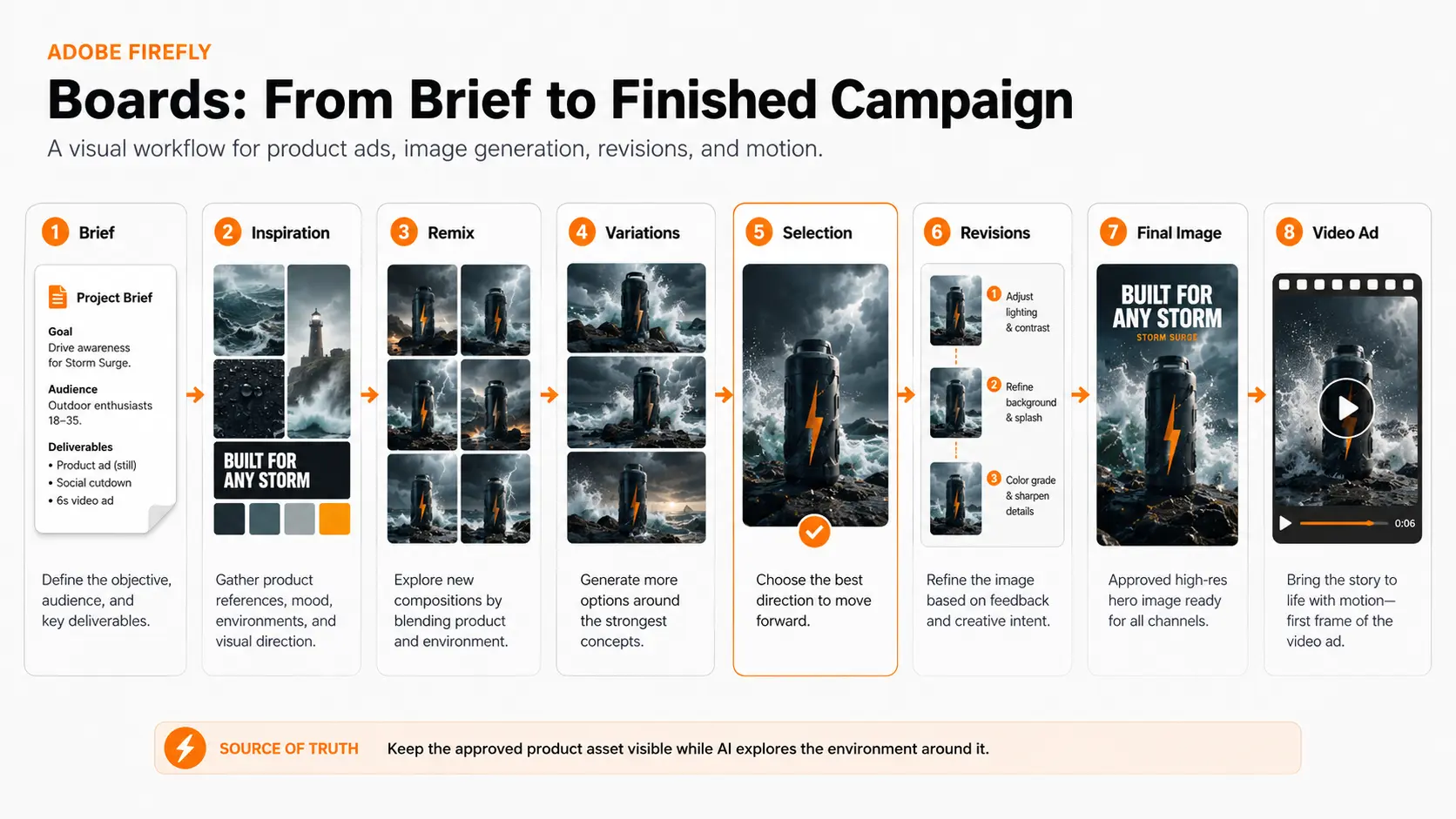
• A practical workflow is: brief → references → remix → variations → selection → revisions → video → final production. Keeping those stages visible on one board makes it easier to understand how an idea evolved instead of treating every AI generation as an isolated file.
• Remix is useful for discovering directions; Vary is better once you already like a direction. Adobe describes Remix as combining elements from multiple images, while Vary creates alternatives that stay closer to an existing image's composition, mood, or concept (Adobe, 2026). (helpx.adobe.com)
• Boards should usually be treated as the creative exploration layer, not necessarily the final production layer. Adobe lets you move assets into Adobe Express or Photoshop for additional design and editing work (Adobe, 2026). (helpx.adobe.com)
• Generative AI should not be trusted to preserve product packaging, logos, text, proportions, or other brand-critical details automatically. Keep original brand assets available and inspect generated outputs before anything reaches a client or customer.
Reader Roadmap
• How Firefly Boards differs from simply generating images, so you can decide whether the canvas actually improves your workflow.
• How to structure a board before generating anything, so useful concepts do not disappear inside dozens of AI variations.
• How Remix, Vary, image editing, and image-to-video serve different stages of creative development.
• Where human judgment and conventional editing still matter, especially when working with real products, logos, packaging, or client assets.
• How access, generative credits, collaboration, privacy, partner models, and Content Credentials affect professional use.
What Firefly Boards Actually Does
The most useful way to understand Firefly Boards is not as an AI image generator with extra white space. It is a visual decision workspace.
The canvas lets you place the problem, evidence, alternatives, rejected ideas, revisions, and final direction next to one another. That changes how generative AI fits into a project.
In a normal prompt-based workflow, the history often looks like this:
Prompt → four results → another prompt → four more results → download something → lose the context
A board can instead look like this:
Original product → visual references → exploratory directions → shortlist → selected direction → revisions → approved image → motion concept
That distinction matters. AI generation is cheap compared with deciding which generation solves the actual communication problem.
Adobe currently supports images, videos, sketches, text, shapes, Adobe Stock references, generated media, and collaborative creative work inside Boards. It also provides arrangement tools for rows, columns, mosaics, alignment, and structured collections (Adobe, 2026). (helpx.adobe.com)
The visual below should show the board as a process map rather than a random collection of generated images.
Where Boards fits in the Adobe workflow
Think of the tools as different layers rather than competitors:
• Firefly Boards: explore, compare, organize, generate, review, and establish direction.
• Adobe Express: assemble a polished social graphic, add typography and supporting design elements, and prepare straightforward campaign assets.
• Photoshop: perform more precise compositing, masking, retouching, corrections, and production-level image work.
• Firefly video tools: create or develop motion from still concepts and generated footage.
Adobe provides direct handoffs from Boards into Express and Photoshop, and current Boards documentation also supports moving selected media into the Firefly video editor beta (Adobe, 2026). (helpx.adobe.com)
The advantage is not that one application replaces every specialist tool. It is that fewer decisions have to be reconstructed when you move between them.
Who Firefly Boards Is Best For
Boards makes the most sense when visual exploration is part of the work rather than an occasional side task.
Strong fits
Marketing teams developing campaign directions
A marketer can place the actual product, campaign objective, visual references, alternate concepts, and social-video ideas in the same environment.
Designers presenting early concepts
Instead of emailing eight unrelated JPGs, you can show how references influenced each direction and why particular concepts survived the first review.
Freelancers working with clients
A structured board can make approval easier because the client can react to a visual direction before you spend time polishing the final asset.
Content teams creating image and motion variants
Once a still direction works, the same concept can become the starting point for alternate aspect ratios, campaign imagery, or short motion experiments.
Creative directors
Boards is particularly useful when the valuable output is not merely “an image,” but a defensible creative direction.
Who may not need it
Boards may add unnecessary overhead if you only need one straightforward image from a well-defined prompt.
It is also not a replacement for a full layout, retouching, motion-design, digital-asset-management, or brand-governance system. A production team handling hundreds of finalized campaign assets will still need processes outside the ideation canvas.
If your main requirement is collaborative sticky notes, project planning, or diagrams rather than AI-assisted visual development, a dedicated whiteboarding application may be simpler.
Before You Start: Four Things to Prepare
A ten-minute workflow becomes possible only when you are not spending the first eight minutes looking for files.
1. The real product or subject asset
Use the highest-quality approved product image you have.
For physical goods, clean front-facing photography or a high-quality isolated render gives you a stronger source of truth than asking AI to reconstruct packaging from memory.
2. A one-sentence creative brief
For example:
Create a dramatic social ad for Storm Surge, an energy drink positioned around raw natural power and intensity.
That sentence gives you a filter. A beautiful image that does not communicate power is still a bad answer to the brief.
3. Three to six inspiration images
Choose references because each contributes something specific:
• Lighting
• Palette
• Material
• Environment
• Camera angle
• Energy
• Composition
Avoid collecting 30 vaguely attractive images before you know what they are supposed to teach you.
4. Your intended output
Know where the asset is going.
A portrait social ad has different compositional requirements from a website hero, display ad, pitch-deck cover, or horizontal video.
A Better Way to Organize the Infinite Canvas
An infinite canvas becomes a liability when everything is technically visible but nothing is understandable.
Create sections before generating.
A practical structure is:
| Stage | What belongs there | Decision you are making |
|---|---|---|
| Brief | Product, objective, audience, constraints | What are we solving? |
| Inspiration | References and visual cues | What could this feel like? |
| Exploration | Remixes and broad experiments | Which direction deserves attention? |
| Variations | Related versions of one direction | Which execution is strongest? |
| Selection | Current preferred concept | What are we committing to? |
| Revisions | Controlled edits | What still needs fixing? |
| Final | Approved visual | What leaves ideation? |
| Motion | Image-to-video experiments | How should the concept move? |
Text headings, artboards, arrows, spacing, and arrangement tools make those stages readable to someone who did not build the board.
That last point is important: organize for the next viewer, not for yourself.
The 10-Minute Firefly Boards Workflow
The following process provides a reusable product-ad workflow that you can apply to real creative projects.
1. Create the board and define the job
Open Firefly, select Boards, and create a new board.
Adobe says anyone with an Adobe account can currently access Firefly Boards, although board limits and premium capabilities depend on plan access (Adobe, 2026). (helpx.adobe.com)
Name the board for the project rather than something generic such as “New Board.”
Better:
Storm Surge — Launch Campaign Concepts
Add a text block containing:
Goal: social campaign concept
Audience: active adults
Message: explosive energy
Deliverables: portrait image + short video concept
Why spend precious time writing that down?
Because attractive generations create decision drift. The brief gives you something objective to judge them against.
2. Put the approved product asset on the canvas
Import the original product image and place it in a clearly labeled Source Asset or Product section.
Adobe Boards can import visual elements and also search Adobe Stock from the workspace (Adobe, 2026). (helpx.adobe.com)
Do not overwrite or mentally replace this source with an AI-generated approximation later.
The original remains your visual reference for:
• Logo placement
• Packaging shape
• Label text
• Colors
• Product proportions
• Legally approved visual details
For isolated compositing or remix experiments, Boards can remove an image background automatically (Adobe, 2026). (helpx.adobe.com)
Practical warning: Background removal is not the same as final masking. Inspect edges around transparent glass, hair, reflective metal, thin objects, or soft shadows.
3. Build a small inspiration set
Create an Inspiration area and add several visual ideas.
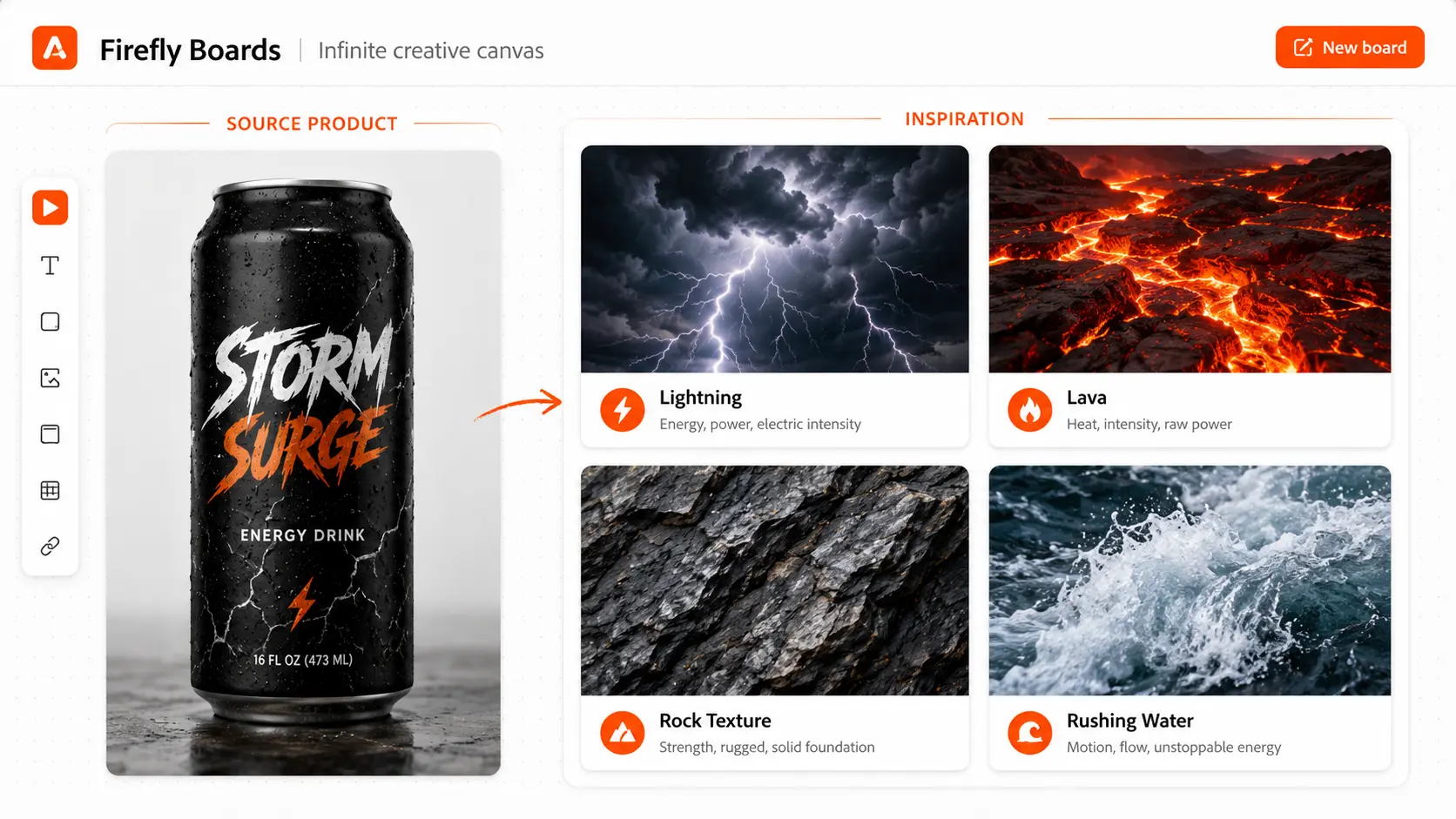
For an energy-drink concept, those might represent:
• Electrical storms
• Cracked earth
• Lava
• Whitewater
• Jagged stone
This is where Boards starts functioning like a visual reasoning system.
Do not ask, “Which picture looks coolest?”
Ask:
What quality from this reference could transfer to the campaign?
The storm might contribute lighting. Lava might contribute color. Rock might contribute texture.
If one reference points in a promising direction, Firefly Boards can search Adobe Stock for similar inspiration from the selected image (Adobe, 2026). (helpx.adobe.com)
Use that to go deeper into a visual territory, not merely to make the canvas larger.
The next visual should illustrate a tight reference set with each image chosen for a defined creative attribute.
4. Remix references to discover directions
This is the exploratory stage.
Select multiple images and use Remix.
Adobe describes Remix as a way to combine elements from selected images and generate new visual variations using the Firefly image model (Adobe, 2026). (helpx.adobe.com)
Conceptually, you might combine:
Product + cracked terrain
then:
Product + thunderstorm
then:
Product + river
The goal is not to generate the final ad. It is to answer a strategic question:
Which visual metaphor makes the product idea strongest?
That is why Remix works best early.
One reference may generate a dramatically better creative territory than another even if both seemed equally promising as standalone images.
5. Shortlist aggressively
Generative tools make it easy to create more options than anyone needs.
Resist that.
After each visual direction produces several candidates, keep only the strongest two or three.
Judge each against the same criteria:
• Does the product remain identifiable?
• Does the visual communicate the campaign idea quickly?
• Is there space for copy?
• Does the lighting support the product?
• Could this plausibly work in the required format?
• Is it distinct enough from ordinary category advertising to merit development?
Delete or move weaker generations away from the active work area.
Creative velocity comes partly from generating quickly. It comes just as much from rejecting quickly.
Remix vs. Vary: The Most Important Distinction in the Workflow
The two functions solve different problems.
Use Remix when you are asking:
“What direction could we take?”
Use Vary when you are asking:
“What is another version of this direction?”
Adobe's current Vary functionality is designed to create images that maintain much of the source image's overall composition, mood, or conceptual intent while introducing variations (Adobe, 2026). (helpx.adobe.com)
Once you select the strongest storm concept, for example, stop combining it with every other inspiration image. Generate alternatives around the chosen direction.
That is the moment your workflow moves from divergence to convergence.
Teams often waste generative AI by remaining in divergence indefinitely.
There is always another prompt.
There is always another variation.
The productive question is when to stop exploring.
6. Generate controlled variations
Move the preferred concept into a Variations section.
Select it and use Vary, including More like this where appropriate.
Compare the alternatives for smaller differences:
• Product position
• Camera distance
• Background intensity
• Negative space
• Water or particle behavior
• Lighting direction
• Visual hierarchy
Adobe also lets you load generation settings from generated images so you can modify prompts, aspect ratio, model choices, and related settings before generating another version (Adobe, 2026). (helpx.adobe.com)
That is more useful than starting over because it preserves the logic behind an image that already works.
7. Separate “selected” from “finished”
When one image wins, move it into a section labeled Selection.
Do not label it “Final” yet.
This creates a small but valuable psychological distinction.
Selected means the idea is approved.
Final means the asset has survived accuracy checks, brand review, typography, retouching, and output preparation.
For professional work, those are not the same thing.
Refining AI Images Without Losing the Product
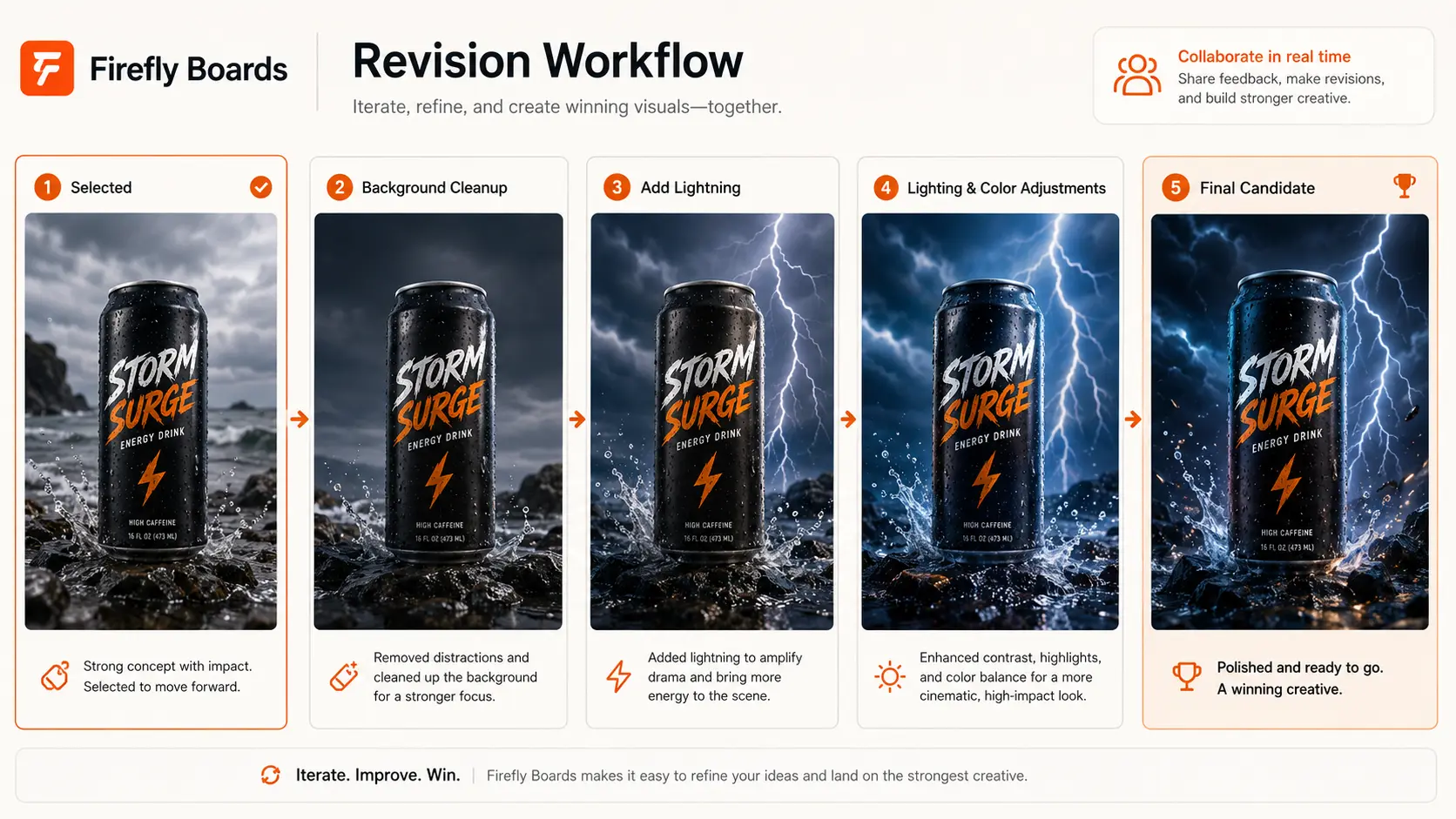
A reliable refinement pattern is to use reference imagery and prompt-based editing to replace an inaccurate generated can with the actual product direction, then remove unwanted environmental details and add lightning.
That is a useful pattern, but there is a larger lesson:
Ask AI to change one meaningful thing at a time.
Instead of:
Make this darker, replace the product, add lightning, remove the sun, make everything more dramatic, create splashes, improve the label and change the angle.
Use a revision chain:
Revision 1: correct the product
Revision 2: remove the sun
Revision 3: darken the environment
Revision 4: add distant lightning
This makes failures easier to diagnose.
Current Firefly image-editing tools support prompt-driven changes such as adding, removing, or transforming objects and backgrounds, while Boards also exposes generative fill, generative expand, background removal, and additional editing options (Adobe, 2026). (helpx.adobe.com)
The screenshot accompanying this stage should show the selected concept beside a revision chain rather than hiding previous versions.
Protect brand-critical details
Generative imagery can produce a convincing environment while still failing on details that matter commercially.
Inspect:
• Product name
• Logo geometry
• Trademarked marks
• Required packaging language
• Label alignment
• Ingredient or specification text
• Product color
• Physical proportions
• Number and placement of product elements
If the product is the thing being sold, “close enough” is rarely sufficient.
Boards now also supports editing text contained inside certain images, but Adobe documents limitations with non-Latin text, rotated or highly stylized text, and other difficult typography (Adobe, 2026). (helpx.adobe.com)
For an important brand lockup or packaging label, the safer production method is usually to preserve or composite the approved original artwork rather than depend on reconstructed AI typography.
Turn the Winning Image Into a Video Concept
Once the still concept works, motion becomes much easier because the first frame already establishes the art direction.
Adobe Firefly supports image-to-video workflows that use an image as a keyframe or first frame and combine it with text instructions (Adobe, 2026). (helpx.adobe.com)
A prompt such as:
Slow dolly-in toward the can as water surges around it; distant lightning flashes behind the product
is more useful than simply asking:
Make this into a cool video.
Think in camera direction, not adjectives
Useful motion instructions include:
• Slow dolly in
• Controlled orbit around the product
• Camera pulls back
• Locked camera with environmental motion
• Slow pan from left to right
• Product remains centered as particles move behind it
Then describe environmental behavior separately.
This reduces ambiguity.
The visual below should show the final still serving as the starting frame for a short product-ad motion concept.
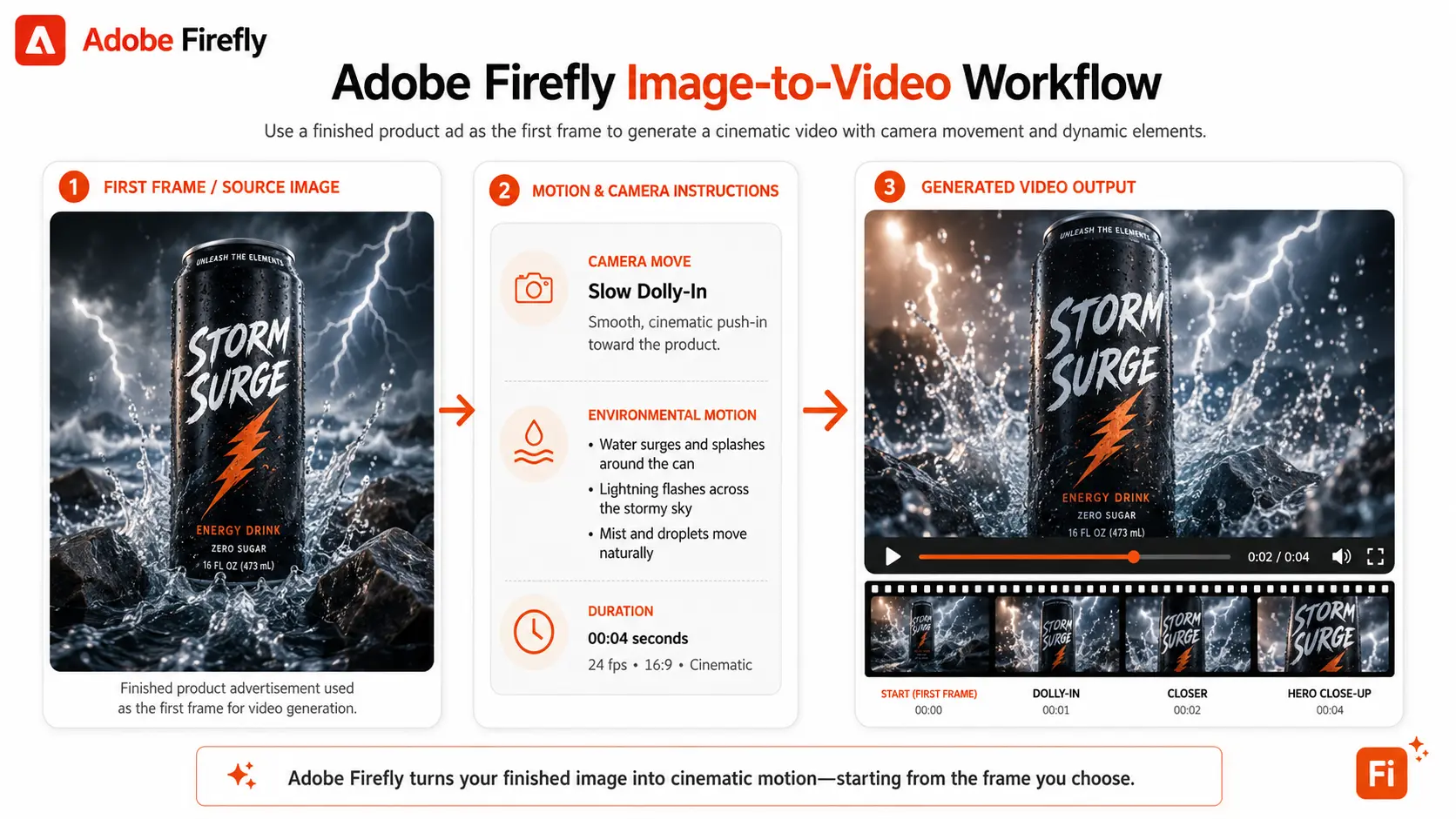
Do not assume motion preserves every detail
A still image can look correct at frame one and drift during generated motion.
Review the full clip for:
• Label deformation
• Product shape changes
• Unexpected objects
• Implausible fluid behavior
• Logo distortion
• Camera motion that conflicts with the ad layout
• Flicker or instability
• New visual details that were never approved
Treat AI video as footage requiring review, not as an automatic approval step.
Finish Where Precision Matters
A common mistake is trying to force every production step to happen inside the generative environment simply because it can do many of them.
Stop when another tool becomes more precise.
Adobe Boards provides options to open copies in Adobe Express or Photoshop (Adobe, 2026). (helpx.adobe.com)
For a social ad, that might mean moving to Express to add:
POWER UP
along with approved typography, supporting graphics, a CTA, and final placement.
For high-end retouching, Photoshop may be more appropriate for:
• Mask cleanup
• Label replacement
• Product compositing
• Shadow correction
• Color adjustment
• Precise selections
• Typography
• Pixel-level cleanup
The strongest workflow is not “stay in Firefly as long as possible.”
It is:
Stay in Boards while visual decisions are changing. Move to production tools when those decisions become precise.
A Practical Example: Building an Energy-Drink Campaign
Imagine a small creative team receives a brief for a fictional drink called Storm Surge.
The client wants one launch image and a short social video.
Phase 1: Direction
The team imports the official can image and collects references for storms, fractured earth, rushing water, and black rock.
After Remix experiments, the storm-and-water direction communicates “surge” more clearly than lava.
Phase 2: Convergence
The team removes the unrelated directions and uses Vary on the storm concept.
One variation has better negative space and keeps the can near the center, making it suitable for a 9:16 composition.
Phase 3: Accuracy
The generated product label is imperfect.
Instead of pretending the generation is finished, the team treats it as concept art, corrects the product representation, cleans environmental distractions, and reviews every branded element.
Phase 4: Motion
The approved still becomes a first frame.
The motion brief asks for a restrained camera push while water moves around the base and lightning appears in the distance.
Phase 5: Production
The still is opened in Express or Photoshop for approved typography, brand marks, and final output preparation.
The result is not valuable because AI made an image.
It is valuable because the board preserved the reasoning from brief to final direction.
Collaboration: Use the Board as a Decision Record
Firefly Boards supports sharing and collaboration. Adobe's documentation says owners can invite people or groups and assign editing or commenting permissions, while comments can remain connected to the visual work (Adobe, 2025). (helpx.adobe.com)
For client work, that is more useful when comments ask for decisions rather than vague reactions.
Poor review question:
Thoughts?
Better:
Which of these two environments communicates “raw power” more clearly?
Or:
Please review product accuracy only. We will address typography after visual direction is approved.
This narrows feedback to the stage you are actually working on.
A simple approval convention
Consider visually marking sections:
Exploration — not for approval
Direction shortlist — choose one
Revision — accuracy review
Final candidate — approval requested
That prevents someone from spending ten minutes correcting text on an image you intended to discard.
Pricing and Generative Credit Considerations
Firefly Boards itself is accessible with an Adobe account. Adobe currently states that users without premium access are limited to three boards, while users with premium feature access can have unlimited boards (Adobe, 2026). (helpx.adobe.com)
Generative capabilities are a separate consideration.
Adobe's current Firefly plans distinguish standard generations from premium features, with video generation and access to partner models using generative credits under applicable plans. Adobe also offers free generation allowances and paid plans with different credit allocations (Adobe, 2026). (adobe.com)
For buyers, the useful question is therefore not:
“How much does a Board cost?”
It is:
“How many premium generations will our actual workflow require?”
A designer who mainly builds moodboards and generates occasional images has a different cost profile from a social team creating repeated video variations.
Before selecting a plan, estimate:
• Number of creators
• Number of boards in active use
• Frequency of image generation
• Frequency of video generation
• Dependence on partner models
• Need for Express or Photoshop
• Amount of experimentation typically required before approval
Pricing and plan entitlements can change, so Adobe's current plan page should be treated as the source of truth before purchasing.
Privacy, Partner Models, and Client Assets
Firefly Boards can contain precisely the kind of material businesses should think about before uploading: unreleased product designs, campaign concepts, customer assets, photographs, brand files, and internal creative direction.
Adobe says it does not train its Firefly models on customer or user content and describes its Firefly training data as licensed content such as Adobe Stock plus public-domain material where copyright has expired (Adobe, 2026). (adobe.com)
That does not mean every workflow has identical data handling.
Firefly can also expose third-party partner models. Adobe states that partner models are not developed by Adobe, that availability can vary, and that users are responsible for deciding whether a partner model is appropriate for a project. Adobe also says prompts and required reference images or videos can be shared with the partner model to perform a generation, while content is not used to train Adobe or partner generative AI models under those arrangements (Adobe, 2026). (helpx.adobe.com)
For business work:
• Check which model is selected before generating.
• Do not upload confidential material merely because it is convenient.
• Confirm that you have permission to use client-supplied images and references.
• Restrict board access to people who need it.
• Review sharing permissions before distributing links.
• Follow your company's security, legal, and AI-use policies.
• For regulated or particularly sensitive work, consult the organization's responsible security or legal team rather than assuming a general product statement satisfies your requirements.
This is operational guidance, not legal advice.
Content Credentials: Useful Transparency, Not Automatic Clearance
Adobe uses Content Credentials to add provenance information to certain generative assets.
According to Adobe, Content Credentials are tamper-evident metadata that can provide information about how an asset was created or edited. Adobe automatically applies them to assets where 100% of the pixels were generated with Adobe Firefly, such as Firefly text-to-image outputs (Adobe, 2026). (helpx.adobe.com)
That improves transparency, but it should not be confused with a blanket statement that every output is legally cleared for every use.
You remain responsible for issues such as:
• Third-party trademarks
• Product identities
• People and likenesses
• Reference-image rights
• Client contractual restrictions
• Partner-model suitability
• False or misleading product representation
Provenance helps answer how an asset was created. It does not answer every question about how you may use it.
Common Mistakes and How to Fix Them
Mistake: Turning the board into an image dump
Symptom: Fifty images sit on one canvas and nobody remembers which ones matter.
Why it happens: Generating is easier than organizing.
Fix: Create workflow zones before exploring. Keep source assets, inspiration, exploration, variations, revisions, and finals visually separate.
Mistake: Using Vary before choosing a direction
Symptom: You have 30 similar executions of an idea nobody has actually approved.
Why it happens: Variation feels productive even when the strategic decision remains unresolved.
Fix: Use Remix or broad ideation first. Choose the visual territory. Only then generate controlled variations.
Mistake: Remixing the product until it stops being the product
Symptom: The ad looks impressive, but the package, logo, or product geometry has changed.
Why it happens: Generative systems interpret images as creative inputs rather than immutable engineering specifications.
Fix: Preserve the approved product image. Use AI for environment and ideation, then restore or composite exact brand assets during finishing.
Mistake: Editing five things with one prompt
Symptom: Firefly fixes one problem while creating three others.
Why it happens: The requested edit contains too many independent constraints.
Fix: Revise sequentially. Correct the product first, background second, lighting third, and secondary effects afterward.
Mistake: Spending credits on meaningless variations
Symptom: You keep generating because none of the outputs feels “perfect.”
Why it happens: No acceptance criteria were defined.
Fix: Decide what the image must accomplish before generating: message clarity, product prominence, copy space, format, visual tone, and brand accuracy.
Mistake: Assuming the image-to-video result is finished because frame one looks right
Symptom: Packaging or text mutates halfway through the clip.
Why it happens: Temporal generation introduces new opportunities for visual drift.
Fix: Watch every generated clip from beginning to end, including transitions and final frames. Check the product independently of the overall cinematic impression.
Mistake: Sending the whole board to a client without instructions
Symptom: Feedback arrives on rejected ideas, placeholder text, or unfinished AI artifacts.
Why it happens: The client's view of the canvas is different from the creator's mental map.
Fix: Label approval stages and tell reviewers exactly what decision you need from them.
Mistake: Relying on fixed button positions
Symptom: A button or menu appears somewhere else—or has a different label—after a product update.
Why it happens: Firefly is actively evolving. Adobe's 2026 documentation reflects ongoing changes to editing, partner-model, variation, conversion, and video workflows. (helpx.adobe.com)
Fix: Follow the underlying workflow rather than memorizing button positions, and verify unfamiliar controls against Adobe's current Help Center.
When Firefly Boards Is the Wrong Tool
Do not add Boards to a process merely because it includes AI.
Skip it when:
• The visual direction has already been approved and you only need production execution.
• You need pixel-accurate product retouching rather than concept exploration.
• Your primary task is long-form video editing.
• Your organization prohibits uploading the relevant material to cloud-based generative services.
• You need formal digital-asset management rather than temporary creative organization.
• Your team already has an ideation workflow that solves the same problem without meaningful friction.
The value proposition is strongest when visual decisions are still changing.
A More Efficient Prompting Framework for Boards
Prompts become easier when you separate five variables.
Subject
What must remain central?
A black Storm Surge energy drink can
Environment
Where is it?
Standing in shallow water on dark volcanic rock
Atmosphere
What should the scene feel like?
Violent approaching thunderstorm, heavy clouds, distant rain
Lighting
What makes the subject readable?
Cold rim light from lightning, dramatic product highlights
Composition
How should it work as an ad?
Portrait composition, centered product, negative space above for headline
Combined:
Black Storm Surge energy drink can standing in shallow water on dark volcanic rock, violent approaching thunderstorm, cold lightning rim light, dramatic product highlights, portrait advertising composition with negative space above the product.
Then edit with targeted instructions rather than rebuilding the entire prompt.
That distinction—generation prompt vs. revision instruction—usually produces a more manageable workflow.
FAQ
Final Takeaway: Generate Less, Decide Better
The most interesting part of Firefly Boards is not that it can generate another AI image.
Plenty of tools can do that.
Its more useful role is giving the creative process somewhere to live.
Start with the real product and the brief. Collect only references that contribute a specific visual idea. Use Remix to discover directions. Commit to one. Use Vary to explore that direction without reopening the entire creative problem. Make revisions deliberately, verify product accuracy, convert the strongest still into motion when needed, and move to Express or Photoshop when precision becomes more important than exploration.
Before calling the project finished, check:
• The board clearly separates sources, exploration, revisions, and finals.
• The selected concept solves the original brief rather than merely looking impressive.
• The real product, logo, text, and packaging have been checked against approved assets.
• Generated video has been reviewed across the entire clip.
• The selected AI model is appropriate for the project and its data requirements.
• Sharing permissions are appropriate for the people reviewing the board.
• Final typography and brand-critical elements have received human review.
• You have moved into a production tool when Boards is no longer the most precise environment for the job.
Your most useful next step is simple: create one board for a real campaign, limit yourself to three visual directions, and force yourself to choose one before generating any further variations. That exercise reveals very quickly whether Boards improves your creative decision-making rather than merely increasing the number of images you can produce.
Sources
• Adobe Help Center — About Firefly Boards — Adobe Firefly Boards documentation
• Adobe Help Center — Create Boards — Firefly Boards creation and organization documentation
• Adobe Help Center — Remix Images — Firefly Boards Remix documentation
• Adobe Help Center — Generate Image Variations — Firefly Boards Vary documentation
• Adobe Help Center — Share for Collaboration — Firefly Boards collaboration documentation
• Adobe Help Center — Generate Videos Using Images — Adobe Firefly image-to-video documentation
• Adobe — Approach to Generative AI with Firefly — Adobe Firefly training and generative AI approach
• Adobe Help Center — Partner Models in Adobe Products — Adobe partner model documentation
• Adobe Help Center — Content Credentials Overview — Adobe Firefly Content Credentials documentation
• Adobe — Firefly Plans — Adobe Firefly plans and generative credit information