







Table of Contents
◉ Introduction ◉ The Short Answer ◉ Reader Roadmap ◉ What Changed in Adobe Creative Cloud 6.10? ◉ What the Frame.io Integration Actually Does ◉ What Is Included With Creative Cloud—and What Is Not? ◉ Who Benefits Most From This Update? ◉ How to Set Up a Clean Review Workflow ◉ Mini Case Study: A Three-Person Product Launch ◉ Security, Privacy, and Access ◉ Common Mistakes and Troubleshooting ◉ Frequently Asked Questions ◉ Buyer’s Guide Verdict ◉ Sources
Disclosure: Buyers Guide may earn a commission if you purchase through links in this article, at no additional cost to you. Our analysis and recommendations remain editorially independent.
Creative work rarely stalls because someone cannot make one more edit. It stalls when the right file is buried in a folder, a client comments on yesterday’s export, or an approval disappears in a long email thread. Adobe’s June 2026 Creative Cloud desktop update addresses a small but expensive part of that problem: Frame.io workspaces are now available from the Files section of the Creative Cloud desktop app.
The integration is not a replacement for the full Frame.io web experience, and it does not turn Creative Cloud storage into unlimited production storage. What it does is give creators a faster front door to shared media. From one file hub, you can browse a Frame.io workspace and use the context menu to open an asset in Frame.io, copy its link, or download it. For freelancers and compact creative teams, that can remove several avoidable handoffs from every review cycle.
This guide explains exactly what changed in Creative Cloud 6.10, what Adobe includes with eligible Creative Cloud subscriptions, where separate Frame.io plans enter the picture, and how to build a review process that stays organized after the novelty of a new feature wears off. The analysis is based on Adobe and Frame.io documentation available on August 21, 2026; we have not represented it as an independent hands-on product test.
The Short Answer
Adobe Creative Cloud 6.10 makes Frame.io easier to reach, not broader in scope. The update adds Frame.io access to the Creative Cloud desktop app’s Files tab, where you can browse workspaces and open, link to, or download assets. The included Frame.io for Creative Cloud entitlement is useful for a solo creator working with one collaborator, but larger teams, heavier storage needs, and advanced security controls may still require a separate paid Frame.io plan.
Reader Roadmap
• What changed in Creative Cloud 6.10 and which Frame.io actions now appear in Files.
• What Adobe includes with eligible Creative Cloud subscriptions and where separate Frame.io plans begin.
• How to set up a traceable review-and-approval workflow without creating duplicate masters.
• Which permissions, security controls, and storage boundaries need attention before client work is uploaded.
• How to diagnose missing workspaces, trial confusion, outdated links, and other common setup problems.
What Changed in Adobe Creative Cloud 6.10?
Adobe lists the feature in the June 2026 release of the Creative Cloud desktop app, version 6.10.0.252.3. According to the company’s official release notes, the Files tab can now expose Frame.io assets and provide three direct actions: open an asset in Frame.io, copy its link, or download it. Adobe’s What’s New page describes the same workflow as browsing Frame.io workspaces from Creative Cloud.
That distinction matters. Creative Cloud desktop is acting as an access layer, not as a complete review room. You still move into Frame.io when you need deeper collaboration features such as version comparison, precise comments, project administration, or advanced sharing controls. The value is reduced navigation: a creator can locate a shared asset without first opening a browser, finding the correct Frame.io account, and drilling through the workspace hierarchy.
The same 6.10 release also added other file-hub conveniences, including the ability to open files in Firefly Boards and reach licensed Adobe Stock assets. Taken together, the update points to a broader strategy: Creative Cloud desktop is becoming a control center for assets and services, rather than only an installer for Photoshop, Illustrator, Premiere, and other apps.
What the Frame.io Integration Actually Does
The most useful way to evaluate this update is by separating the actions it shortens from the work that still happens elsewhere.
It gives you a single place to locate shared media
If your team already uses Frame.io, its workspaces appear alongside the other file sources in Creative Cloud. That is especially helpful when you move among several Adobe apps during the day. You do not have to remember whether a review export lives in local storage, a Creative Cloud project, or a Frame.io workspace before you start looking.
It makes link sharing faster
Copying a link from the Files tab can replace the familiar sequence of opening a second app, locating the asset again, and then generating or copying a share path. The benefit is operational rather than glamorous, but operational savings compound. A producer who shares ten review items in a day can remove dozens of small context switches.
It puts downloads closer to the apps that use them
You can download an asset from the Creative Cloud context menu before opening it in an Adobe app. This is useful when the item is a source file, a client-supplied reference, or an approved asset that needs to enter a local edit. It does not mean every asset streams directly into every Adobe application, and it does not eliminate the need for intentional local file management.
It sends advanced review work back to Frame.io
The Open in Frame.io action is the bridge to the full collaboration environment. Frame.io V4 can compare video, image, audio, PDF, and Microsoft Office assets, and its Comparison Viewer documentation describes side-by-side review, linked playback or zoom, comments, overlay views, and pixel-difference inspection for compatible static assets. Those are review features; the Creative Cloud Files tab is the faster route to them.

What Is Included With Creative Cloud—and What Is Not?
This is the point most likely to create billing confusion. Adobe’s current U.S. Creative Cloud plan page lists Frame.io for Creative Cloud among the benefits of Creative Cloud Pro. Adobe’s Frame.io for Creative Cloud FAQ provides the more important operational limits: eligible customers who sign up with Adobe credentials receive 100GB of dedicated Frame.io cloud storage, up to five projects, collaboration with one other user, and Camera to Cloud.
That 100GB is Frame.io storage. It is separate from the Creative Cloud storage attached to your Adobe plan. Treating the two pools as interchangeable is one of the easiest ways to build a workflow that later breaks.
| Need | Frame.io for Creative Cloud | When to evaluate a paid Frame.io plan |
|---|---|---|
| Solo work plus one regular collaborator | Designed to cover this basic pattern | When more members need account access |
| Active projects | Up to five projects | When client volume makes archiving and project limits disruptive |
| Cloud capacity | 100GB of dedicated Frame.io storage | When high-resolution video or long retention periods consume the allowance |
| Client review | Share-based review can cover straightforward approvals | When you need more granular administration, branding, or security controls |
| Enterprise governance | Not the focus of the included entitlement | When SSO, advanced watermarking, centralized provisioning, or stricter policy controls are required |
The first Frame.io sign-in with an Adobe ID may begin a 30-day Team trial. Adobe states that the account returns to the enhanced included plan after the trial unless you choose a paid plan. Frame.io premium billing is separate from Creative Cloud billing. Before inviting a full team or uploading a large archive, confirm which plan is active in Frame.io instead of assuming the trial limits will remain.
Adobe also notes an education exception: K–12 and higher-education institutions are excluded from the enhanced Creative Cloud offer described in the FAQ. Education administrators should verify entitlements with Adobe rather than basing a deployment on individual-plan documentation.
Who Benefits Most From This Update?
Freelancers who already pay for Adobe
A photographer, designer, or video editor can use the included entitlement as a structured client-review layer without immediately adding another paid subscription. The five-project limit can be workable if completed jobs are archived intentionally and only active client work remains in the account.
Small content teams with one production owner
The integration works well when one creator or producer controls the workspace and one teammate needs ongoing access. External stakeholders can review shared work without being treated like full production members in the same way. Frame.io’s current user-role guide distinguishes account owners, content admins, members, and reviewers, which helps teams avoid paying for the wrong kind of access.
Creators who move between several Adobe apps
The time savings are more meaningful when your day crosses Photoshop, Illustrator, Premiere, After Effects, or other Creative Cloud tools. Buyers Guide’s complete Adobe workflow guide explains why app choice should follow the job. The Frame.io Files connection adds a shared review layer to that multi-app approach.
Who should not buy Creative Cloud only for this feature?
If your team does not need Adobe’s creative applications, the Files-tab shortcut alone is not a reason to adopt Creative Cloud. Frame.io can be evaluated as its own platform, and competing review systems may fit teams built around other editing tools. The strongest case is for people who already create in Adobe and want to reduce the friction around those files.
How to Set Up a Clean Creative Cloud and Frame.io Review Workflow
The software setup takes minutes. The workflow design deserves more care. Use the following process to keep links, versions, and approvals reliable.
1. Confirm the Creative Cloud desktop version
Open Creative Cloud desktop and check that it has updated to version 6.10 or later. On Windows, Adobe places the version under the menu icon, Help > About Creative Cloud; on macOS, use Creative Cloud > About Creative Cloud. If the update is available but not installed, save your work and close active Adobe apps before updating.
Adobe’s manual update instructions direct users to Home > Updates, where you can update one app or all available apps. Managed business accounts may depend on an administrator’s rollout schedule.
2. Sign in to Frame.io with the correct Adobe ID
Use the Adobe ID that holds the eligible Creative Cloud subscription. If you already have a separate Frame.io account, stop and identify which account contains the workspace you need. The most common “missing project” problem is not a broken integration; it is a user signed into a different account or workspace.
3. Open Files and locate the Frame.io workspace
In Creative Cloud desktop, select Files and browse the Frame.io area. Start with one active project rather than migrating every historical file. Confirm that the expected assets and project structure appear before you invite collaborators.
4. Define a version rule before the first review
Use one canonical asset and stack or replace versions within the same review path when the format and workflow allow it. A simple naming rule such as campaign_asset_v01, v02, and v03 is less important than consistency. The goal is for every stakeholder to know which item is current without reading a separate message.
5. Share access according to the person’s job
Invite production collaborators as the appropriate account role; send review access to clients or approvers who only need to view and comment. Do not grant edit-level permissions simply because it is faster than deciding. Least-privilege access—giving each person only the capability required—reduces accidental changes and unnecessary seat usage.
6. Ask for actionable, anchored feedback
Replace comments such as “make it pop” with a decision and a location: “At 00:18, reduce the background music so the product name is clear,” or “In the upper-right product image, remove the window reflection but preserve the label.” Anchored feedback is especially valuable when you use features such as the AI masking workflow described in our Premiere Pro AI masking guide.
7. Record approval in the review system
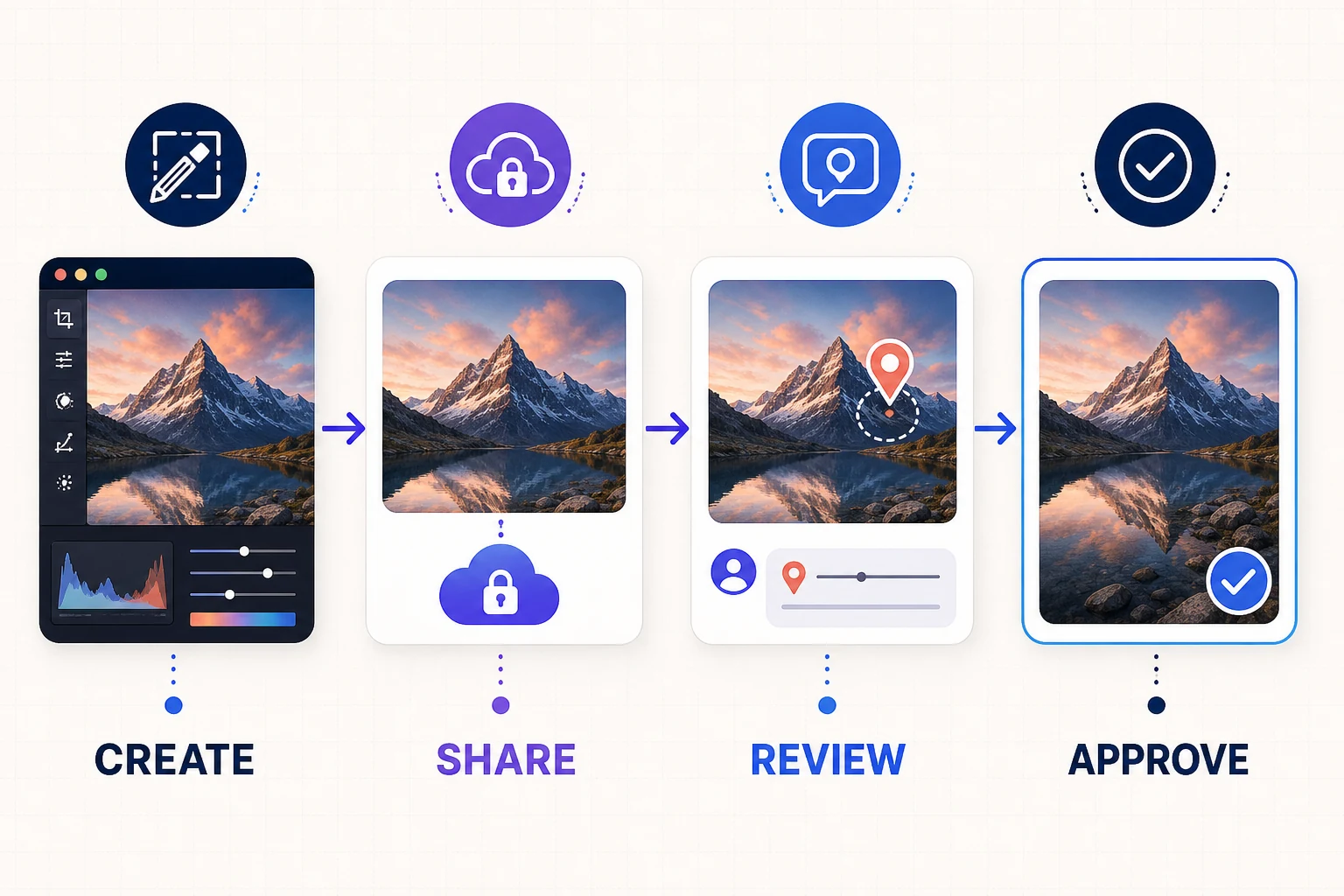
An email that says “looks good” is difficult to reconcile with later comments on another link. Ask the designated approver to approve the current version in the shared review context, then lock your handoff around that version. If a revision reopens the job, create the next version instead of silently replacing the approved deliverable.
8. Download only what needs to become local
The new Creative Cloud context menu makes downloading convenient, but convenience can create duplicate masters. Decide whether the local file is a source, a working copy, or an approved deliverable. Keep one authoritative master and use predictable folders for local caches and exports.
Mini Case Study: A Three-Person Product Launch
Consider a freelance designer producing a launch package for a small ecommerce brand. The deliverables include product stills, a 20-second social video, a landing-page hero, and a one-page PDF. The designer works in Photoshop and Premiere; a marketing manager organizes deliverables; the founder gives final approval.
The designer exports the first review set into one Frame.io project. From Creative Cloud desktop, the marketing manager locates the correct assets, copies links, and sends a single review path to the founder. The founder comments on the video at exact moments and marks two image changes. The designer opens the same assets in Frame.io, resolves the comments, uploads the next versions, and keeps the original links as the reference point.
The efficiency gain does not come from AI or an automatic edit. It comes from preserving context: one asset history, one comment trail, and one current version. Photoshop’s newer assistant features can accelerate certain edits—our Photoshop AI Assistant analysis covers those possibilities—but no assistant can rescue a workflow in which the team approves the wrong file.

Security, Privacy, and Access: The Questions to Ask First
Frame.io states that uploaded media is encrypted at rest with Amazon S3 server-side AES-256 encryption and that interactions use TLS. Its security overview also lists SOC 2 Type 2 and ISO 27001 coverage. Those platform controls are meaningful, but they do not make every share link equally safe.
Your team still controls the most common exposure points: who receives a link, whether downloads are allowed, how long access remains active, and whether a former collaborator retains workspace permissions. Advanced protections—including certain SSO, secure-sharing, session watermarking, and forensic watermarking capabilities—are associated with higher Frame.io tiers. Do not promise a client an enterprise control until you have confirmed that the active plan includes it.
Before uploading unreleased campaigns, customer data, confidential footage, or regulated material, answer four questions:
• Does the contract permit cloud review and storage?
• Which account owns the workspace and the media?
• Who can view, comment, download, or reshare each asset?
• What is the retention and deletion process after delivery?
For ordinary creator work, these decisions are often more important than selecting the most expensive plan. For regulated industries or high-value pre-release content, involve the organization’s legal, security, or IT owner before upload.
Common Mistakes and Troubleshooting
Frame.io does not appear in Files
First, confirm the Creative Cloud desktop version and check for updates. Next, verify that the Adobe ID has the expected Creative Cloud entitlement. On managed devices, the feature may arrive according to an administrator’s deployment policy. If new releases are missing, Adobe recommends signing out and back in to refresh activation and cached account data before reinstalling anything.
The workspace is empty or the wrong projects appear
Check the Frame.io account and workspace, not only the Adobe email address. A person can belong to more than one Frame.io context, and Creative Cloud team membership does not automatically place every colleague into the same Frame.io account. Ask the workspace owner to confirm the invitation and role.
The account shows a Team trial
Do not assume you have been charged. Adobe says the first sign-in can start a 30-day Team trial, after which an eligible account continues on the enhanced included plan unless a paid subscription is selected. Review the Frame.io plan page inside the account and avoid designing a permanent workflow around trial-only capacity.
Storage disappears faster than expected
Frame.io storage is separate from Creative Cloud storage, and high-bitrate video can exhaust 100GB quickly. Upload review codecs or appropriately compressed exports when original camera media is unnecessary. Set an archive schedule and document which masters must remain elsewhere.
Clients comment on an older version
Stop creating a new share thread for every export. Keep revisions in a stable project and version structure, clearly label the current review item, and close obsolete links when your plan provides the necessary control. State the version number in the review message as a second safeguard.
A copied link exposes more than intended
Copying a link is not the same as validating its permissions. Test the share in a private browser window or with a non-member test account, without entering confidential information. Confirm whether the recipient can download, navigate to related assets, or reshare before sending the link to a client.
Frequently Asked Questions
Buyer’s Guide Verdict: A Useful Shortcut With Real Limits
Adobe Creative Cloud’s Frame.io integration solves a narrow, credible problem. It brings shared review assets closer to the desktop hub creators already use and makes three frequent actions—open, copy link, and download—easier to reach. That can improve a real workflow without asking users to learn another editing feature.
The update is most valuable for an existing Adobe subscriber who works alone or with a compact team and needs a more disciplined alternative to email attachments. The included entitlement is generous enough to test that process on active client projects. It is less suitable as a permanent system for a growing studio with many production members, large video libraries, or enterprise security requirements.
Before adopting it, use this checklist:
• Update Creative Cloud desktop to version 6.10 or later.
• Confirm the correct Adobe ID, Frame.io account, workspace, and plan.
• Separate Frame.io capacity from Creative Cloud storage in your planning.
• Define one versioning and approval rule for every project.
• Give collaborators and reviewers only the access they need.
• Test share permissions before sending confidential work.
• Reassess the plan when users, projects, storage, or security requirements grow.
If you already rely on multiple Adobe apps, the integration is a practical reason to take another look at the Files tab and replace one fragmented review process with a traceable one. If you are considering a new subscription, compare current plan terms and regional pricing before you buy.
View current Adobe Creative Cloud plans and included benefits
Sources
• Adobe Creative Cloud desktop app release notes — https://helpx.adobe.com/creative-cloud/apps/whats-new/release-notes.html
• Adobe: What’s new in Creative Cloud desktop — https://helpx.adobe.com/creative-cloud/apps/whats-new/whats-new.html
• Adobe: Frame.io for Creative Cloud FAQ — https://helpx.adobe.com/x-productkb/multi/frameio-creative-cloud-faq.html
• Adobe Creative Cloud plans and included products — https://www.adobe.com/creativecloud/pricing.html
• Frame.io V4: User types and reviewer roles — https://help.frame.io/en/articles/9090642-getting-started-what-is-a-user
• Frame.io V4: Comparison Viewer — https://help.frame.io/en/articles/9952618-comparison-viewer
• Frame.io security overview — https://frame.io/security
• Adobe: Update Creative Cloud apps manually — https://helpx.adobe.com/creative-cloud/apps/manage-apps/creative-cloud-apps/update-creative-cloud-apps-manually.html